How to adjust the vertical position of text in a text box on a Document or Dashboard in Strategy Developer or Web by using the Padding settings available in the Property List pane.
Step 1: Place Text box on Document or Dashboard.
Step 2: Add text to text box.
Step 3: Select text box to reposition text.
Step 4: Locate the 'Text' section in the 'Property List' pane.
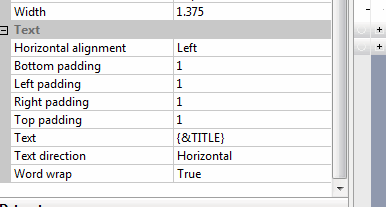
Step 5: Adjust the 'Top Padding' to move the text contained in the text box lower into the text box.

This can also be done to shift the text left and right as well as up from the bottom of the text box.
