EducationSoftwareStrategy.com
StrategyCommunity

Knowledge Base

Product

Community

Knowledge Base

TopicsBrowse ArticlesDeveloper Zone

Product

Download SoftwareProduct DocumentationSecurity Hub

Education

Tutorial VideosSolution GalleryEducation courses

Community

GuidelinesGrandmastersEvents
x_social-icon_white.svglinkedin_social-icon_white.svg
Strategy logoCommunity

© Strategy Inc. All Rights Reserved.

LegalTerms of UsePrivacy Policy
  1. Home
  2. Topics

KB427011: How to migrate User Groups and Users between Metadatas using Object Manager


Community Admin

• Strategy


This knowledge base article explains how to migrate user groups and users i MicroStrategy between metadatas using object manager

Administrators may want to migrate specific User Groups and Users to have their environments being synced up.  Using Strategy Object Manager packages will allow Administrators to achieve this. 
 
Below, find an example demonstrating this using two Strategy Tutorial projects located in two different Metadatas and hosted on two different Intelligence Servers.  For this example, two Servers titled WAS-JOJASSO and WAS-PREMIUM-1 will be used:
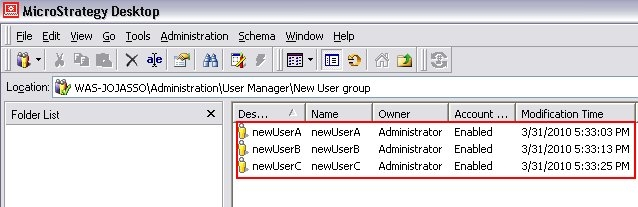
  • Create a user group called 'New User group' that contains three new users on WAS-JOJASSO:
ka04W000000ObSfQAK_0EM440000002V8B.jpeg
  • Open Object Manager connect to both Project Sources for the Intelligence Servers: source - WAS-JOJASSO and destination - WAS-PREMIUM-1:
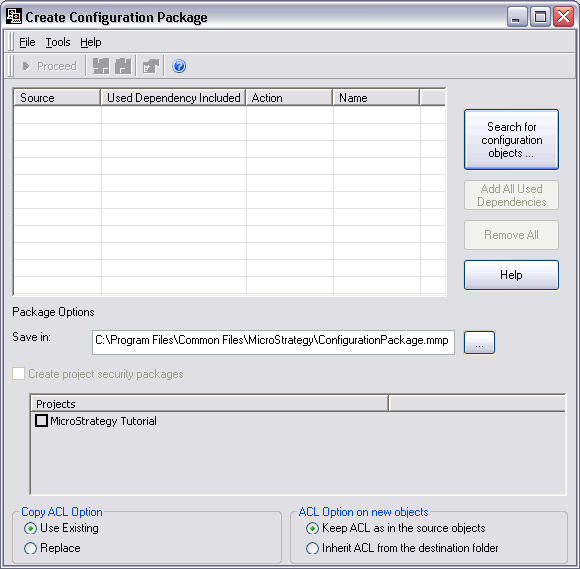
  • Select WAS-JOJASSO and from the toolbar go to Tools -> Create Configuration Package.
  • Click on "Search for configuration objects ...":                                                                                                                                                                      
ka04W000000ObSfQAK_0EM440000002V8D.jpeg
  • Find the "New User group" that was created previously:
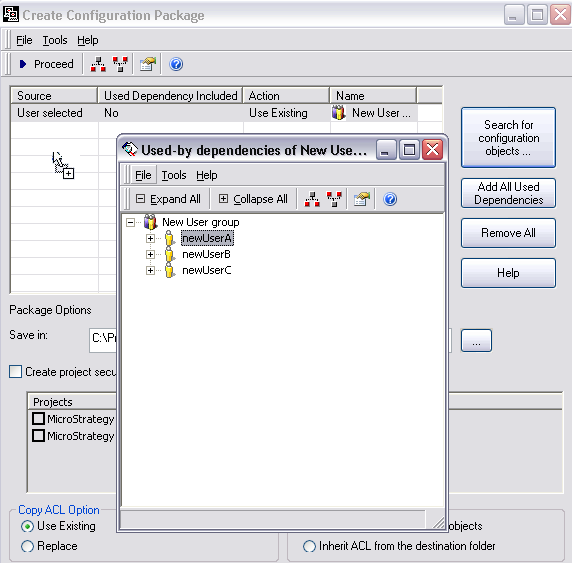
  • Drag from the Search window 'New User group' and drop it on the Create Configuration Package as show below:
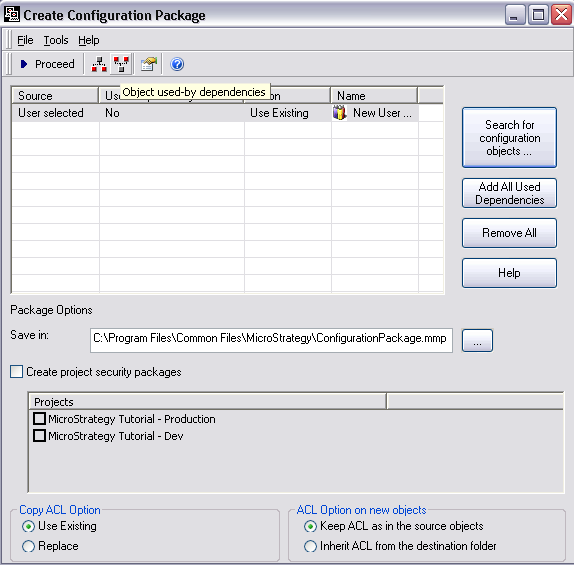
  • HIghlight the 'New User group' and click "Object used-by dependencies":
ka04W000000ObSfQAK_0EM440000002V8T.jpeg
  • From the Used-by dependencies windows, drag and drop each user into to Create Configuration Package window:​
ka04W000000ObSfQAK_0EM440000002V8F.jpeg
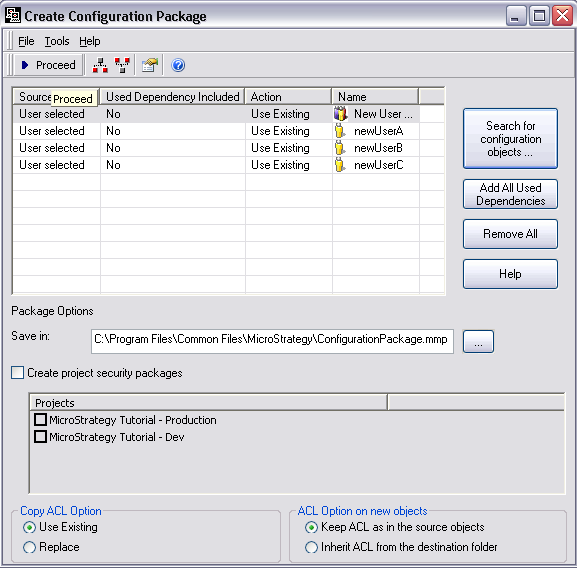
  • All users and the New User group will be listed as shown below:
ka04W000000ObSfQAK_0EM440000002V8H.jpeg
  • Click Proceed to generate the Package file.
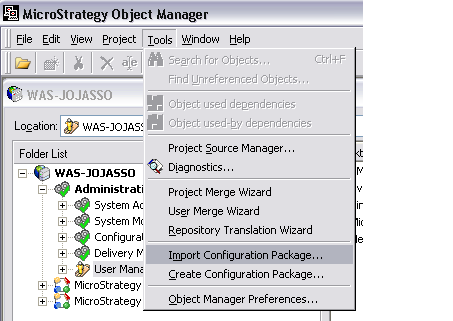
  • Select WAS-PREMIUM-1 and from the toolbar go to Tools -> Import Configuration Package:
ka04W000000ObSfQAK_0EM440000002V8V.jpeg
  • Select the .MMP file created above and click OK. Users should expect to receive the following message:
ka04W000000ObSfQAK_0EM440000002V8R.jpeg
  • Notice how the Source and Destination both show 'New User group' and the three users:

 
The internal reference number for this is SCOPUS ID 450823 and KB427011 KB427011


Comment

0 comments

Details

Knowledge Article

Published:

July 14, 2017

Last Updated:

November 13, 2018