This technical note explains why sometimes a ‘Job Expired’ message shows in Strategy Web whereas sometimes a ‘Error in report results’ message displays depending on how some governing settings have been established.
Users in Strategy Web might experience these error messages when remaining idle during (i.e. answering prompts) or after a report execution.
Error in report results
Your request could not be processed. Please try again. If the problem persists, contact the Administrator. (The job execution time limit set in Strategy Intelligence Server has been exceeded for job 3: at (23:22:17:261 GMT). The job was cancelled. Job 3 canceled.)User request is cancelled.
Job Expired
The results for this report are no longer available. Possible reasons are a) History List message results are unavailable, b) Insufficient privileges for executing multiple reports simultaneously, or c) the Working Set has reached the maximum number of reports.
In order to understand when these messages occur, it is necessary to learn about different Strategy governing settings and preferences and how they interact with each other. The following are the main Strategy settings involved in these scenarios:
1) I-Server level: Governing>General>Web user session idle time (sec)
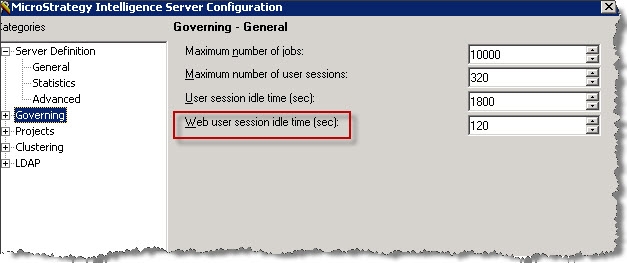
This setting will monitor, (and eventually time out), not only executions but any Strategy Web lack of activity.
2) Project level: Governing>Result Sets>Report execution Time (in 8.X)
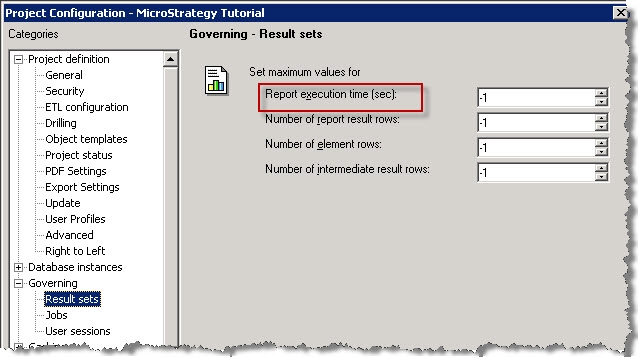
Screenshot form Strategy Web 8.X
Note: In Strategy 9.X the setting changed to Governing>Result Sets>Intelligence Server Elapsed Time>Interactive reports
This governing setting monitors report execution within a specific project.
3) Web level: Preferences>Project Defaults>History List>Add reports and documents to my History List (Auto/Manual)
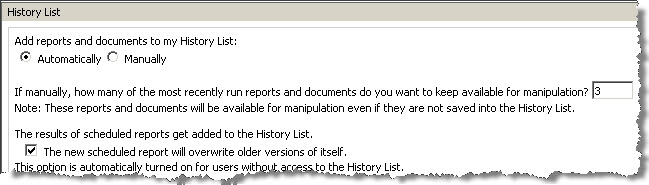
This setting will not only add automatically every executed report to the user’s History List but also will keep the job alive and the message will not be dropped from the History List while the Report Execution time is not exceeded.
The first two settings interact depending on which one is greater. For example, the administrator set the ‘Web user session idle time’ = 5 minutes while the ‘Report execution time’ = 2 minutes. In this scenario the ‘Web user session idle time’ > ‘Report execution time’.
The following tables consolidate what the results are if the user remains idle while answering the prompt. These tests results assume that the Web admin setting ‘Allow automatic login if session is lost’ is checked
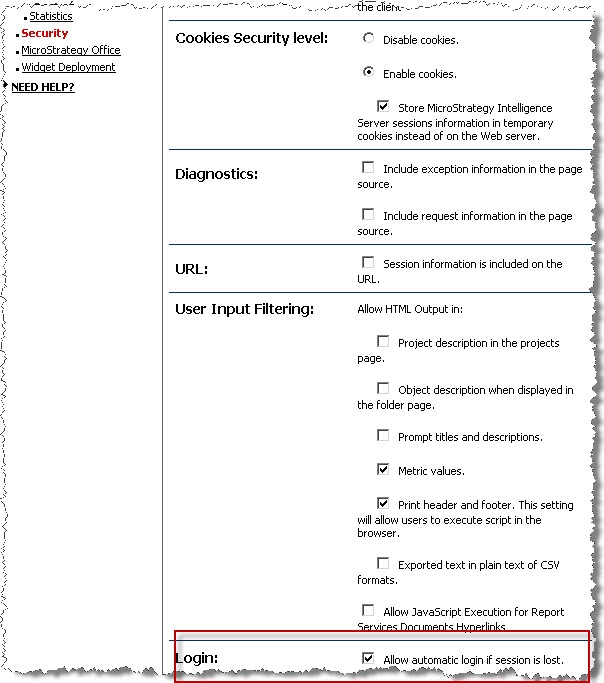
Table 1. ‘Web user session idle time’ > ‘Report execution time’
Governing Setting exceeded | ‘Add reports and documents to my History List’ setting | |
| Auto | Manual |
Report Execution | Error in report results | Error in report results |
Web idle time | Error in report results | Job Expired |
Any time the ‘Report Execution time’ has been exceeded the user won’t be able to retrieve the results since Intelligence Server has removed that job from his lists/memory.
Table 2. ‘Report execution time’ > ‘Web user session idle time’
Governing Setting exceeded | ‘Add reports and documents to my History List’ setting | |
| Auto | Manual |
Report Execution | Error in report results | Job Expired |
Web idle time | Report runs successfully | Job Expired |
For successful report execution there are two options:
1) User might exceed ‘Web idle time’ but not ‘Report execution time’ and must have the ‘Add reports and documents to History List’ Web setting in ‘automatic’.
2) If the ‘Add reports and documents to History List’ in Strategy Web History List setting is set to Manual, then every user must keep report execution under the allotted ‘Web user session idle time’.
In summary, when the Web user idle time is exceeded the user session is removed from Strategy Intelligence server however since the 'Add reports and documents to History List' is set to Automatically the message is kept on Strategy Intelligence Server memory and can be retrieved. This is only true if the Report Execution time is not been reached yet at which point the message is removed from memory.
