EducationSoftwareStrategy.com
StrategyCommunity

Knowledge Base

Product

Community

Knowledge Base

TopicsBrowse ArticlesDeveloper Zone

Product

Download SoftwareProduct DocumentationSecurity Hub

Education

Tutorial VideosSolution GalleryEducation courses

Community

GuidelinesGrandmastersEvents
x_social-icon_white.svglinkedin_social-icon_white.svg
Strategy logoCommunity

© Strategy Inc. All Rights Reserved.

LegalTerms of UsePrivacy Policy
  1. Home
  2. Topics

KB42811: How to associate an Information Window with the Interactive Bubble Graph Widget


Community Admin

• Strategy


It may be necessary to associate an Information Window with the bubbles of the Interactive Bubble Graph Widget in MicroStrategy Web. In order to do this, users simply set the attribute related to the bubbles to act as a selector and target an Information Window panel stack. However, when testing this, the resulting behavior is that upon clicking on a bubble, nothing happens. If the default drilling action of the bubble widget is enabled, it overrides the selector’s action and the info window is never triggered.

SYMPTOM:
It may be necessary to associate an Information Window with the bubbles of the Interactive Bubble Graph Widget in Strategy Web. In order to do this, users simply set the attribute related to the bubbles to act as a selector and target an Information Window panel stack. However, when testing this, the resulting behavior is that upon clicking on a bubble, nothing happens. If the default drilling action of the bubble widget is enabled, it overrides the selector’s action and the info window is never triggered. .
 
STEPS TO REPRODUCE:
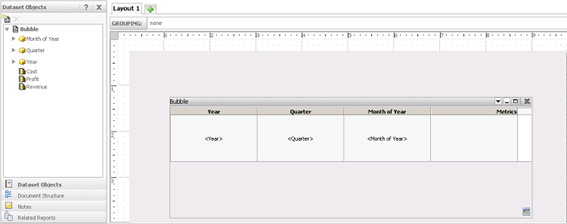
  1. Create a report with the Year, Quarter and Month of Year attributes in the rows, the Revenue, Profit and Cost metrics in the columns, and a report filter with Year equals 2011.
  2. Convert this report into a document and apply the Interactive Bubble Graph widget to the grid.
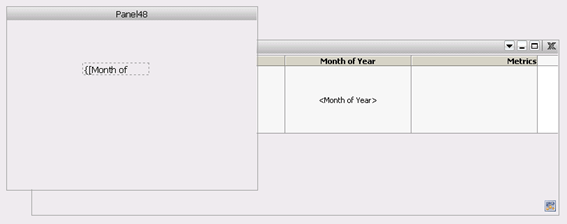
  3. Create a Panel Stack with the following dynamic text {}, like shown below. 
ka04W000000ObLWQA0_0EM4400000026lM.png

CAUSE:
This is a limitation of the Interactive Bubble Graph widget in Strategy Web.
 
ACTION:
In order for a bubble graph widget to interact with an information window panel stack, a stand-alone panel stack selector is required to act as proxy between the bubble and the info window.
 
Follow the steps provided below:
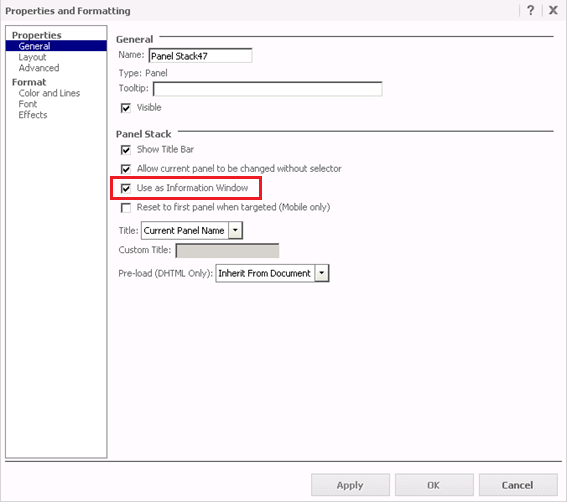
  • Configure this Panel Stack as Information Window, like shown below.
ka04W000000ObLWQA0_0EM4400000026lU.png
  • Associate the Month of Year attribute in the widget as a selector that targets the information window panel stack.
  • Run the dashboard in Flash Mode.
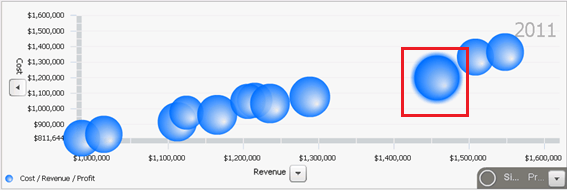
  • Click on a bubble, the Information Window is not displayed, like shown below.
ka04W000000ObLWQA0_0EM4400000026lS.png
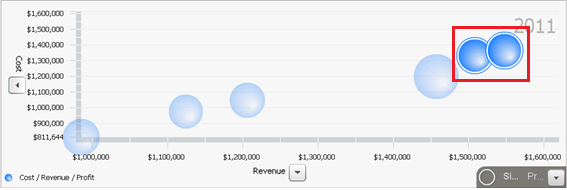
  • Enable the drilling option.
  • When double clicking on the bubble, the drilling action is performed instead, like shown below.
ka04W000000ObLWQA0_0EM4400000026lO.png
  • At this point, clicking the bubble for Month of Year, the Information Window still does not appear, like shown below. 
    • Start with the Interactive Bubble Graph Widget similar to the one created above, like shown below:
ka04W000000ObLWQA0_0EM4400000026lJ.png
    • Follow the steps in tech note KB42143 to create a stand-alone panel stack selector that triggers an information window and target the panel stack created in step 2.
      Note: the selector’s display title picks up the name of the panel it targets. If necessary, rename the panel of the panel stack created in step 2.
    • Configure the Month of Year attribute in the Interactive Bubble Graph widget as a selector that targets the Panel Stack created in step 2.
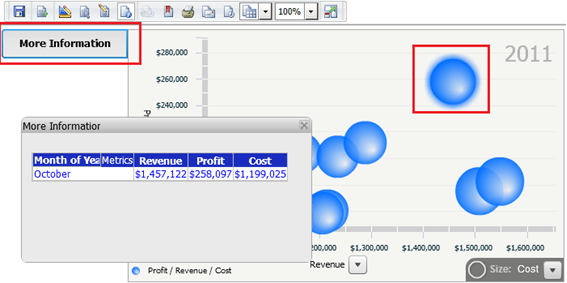
    • Execute the Dashboard in Flash Mode, click on a bubble and then click on the panel stack selector, like shown below:
ka04W000000ObLWQA0_0EM4400000026lQ.png
    • This will still work even after enabling the drilling option.

Comment

0 comments

Details

Knowledge Article

Published:

June 2, 2017

Last Updated:

June 2, 2017