EducationSoftwareStrategy.com
StrategyCommunity

Knowledge Base

Product

Community

Knowledge Base

TopicsBrowse ArticlesDeveloper Zone

Product

Download SoftwareProduct DocumentationSecurity Hub

Education

Tutorial VideosSolution GalleryEducation courses

Community

GuidelinesGrandmastersEvents
x_social-icon_white.svglinkedin_social-icon_white.svg
Strategy logoCommunity

© Strategy Inc. All Rights Reserved.

LegalTerms of UsePrivacy Policy
  1. Home
  2. Topics

KB42860: How to enable failed-request tracing in Microsoft Internet Information Server (IIS) 7


Community Admin

• Strategy


Request-based tracing provides a great way to figure out what exactly is happening with your requests and why it is happening when there's a problem in the IIS installation.

Request-based tracing provides a great way to figure out what exactly is happening with your requests and why it is happening when there's a problem in the IIS installation.
 
Problems like poor performance on some requests, HTTP 400 or 500 status code errors or authentication related errors can be difficult to troubleshoot unless the user captures the full trace when the problem occurs. Failed-request tracing is designed to troubleshoot this type of problems in Microsoft Internet Information Server (IIS) 7.
 
To enable it, follow the next steps:
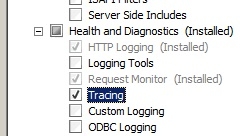
 

  •  Install the tracing role service to use failed request tracing
    • On the taskbar, clickStart, point to Administrative Tools, and then click Server Manager.
    • In the "Server Manager" hierarchy pane, expand Roles, and then click Web Server (IIS).
    • In the Web Server (IIS) pane, scroll to the Role Services section, and then click Add Role Services.
    • On the "Select Role Services" page of the Add Role Services Wizard, select Tracing, and then click Next
ka04W000000OgWrQAK_0EM4400000026lu.jpeg
    • On the Confirm Installation Selections page, click Install.
    • On the Results page, click Close.
  • Enable Tracing
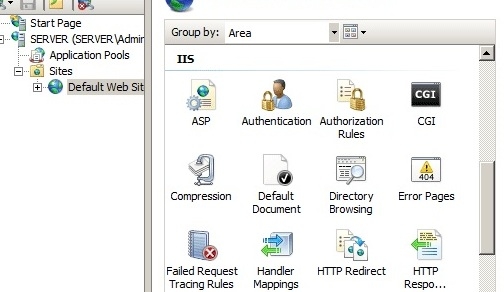
    • In the Connections pane from IIS Manager, select the server connection, site, application, or directory for which you want to configure failed request tracing (For this case, it would be the Strategy Application).
    • In the Actions pane, click Failed Request Tracing...
ka04W000000OgWrQAK_0EM4400000026lp.jpeg
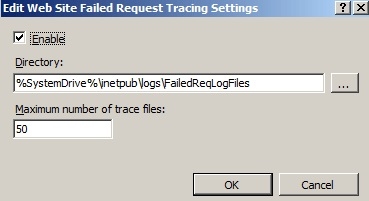
    • In the "Edit Web Site Failed Request Tracing" Settings dialog box, select the Enable check box to enable tracing, leave the default value or type a new directory where you want to store failed request log files in the Directory box, type the number of failed request trace files you want to store in the Maximum number of trace files box, and then click OK.
ka04W000000OgWrQAK_0EM4400000026lr.jpeg

 
After enabling tracing, the user should be able to find all the failed request log files in the folder specified in step 3.
 
Refer to the following web page for more information on how to enable tracing in Microsoft Internet Information Server - IIS 7.x
http://www.iis.net/configreference/system.webserver/tracing


Comment

0 comments

Details

Knowledge Article

Published:

June 16, 2017

Last Updated:

June 16, 2017