INTRODUCTION:
It is not possible to change the Microchart widget background color through its properties. Thus, this technical note describes how to use a panel stack as the widget background to obtain the desired visualization.
ACTION:
Note this sample is based on the Strategy Tutorial Project.
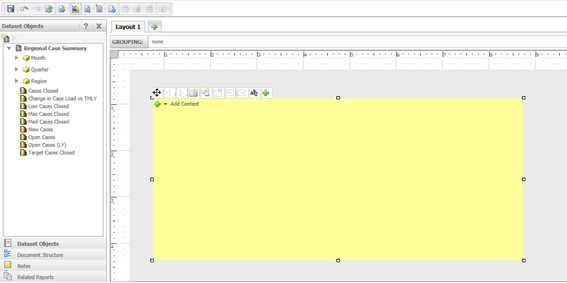
1) Create a new dashboard, insert a panel stack and fill its background with the desired color, as shown:
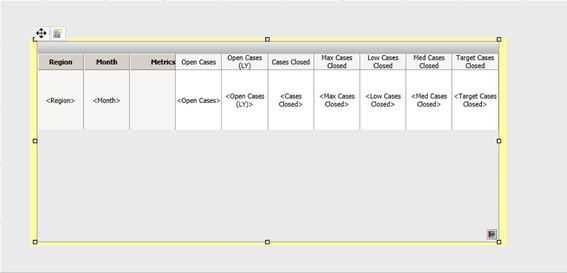
2) Insert the Microchart Widget, add to it two attributes and seven metrics:
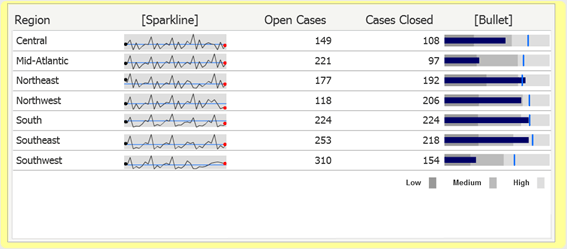
3) Run the dashboard in Flash view mode.
4) Switch to Editable mode, right click on the grid and select the Properties and Formatting > Color and Lines option.
5) Select Row Axis in the first combo box and Header in the second. Under Fill, select the same color previously applied to the panel stack background.
6) Repeat the step 5 to Column Axis, Header and All Metrics – Header.
7) Switch to Flash view mode, right click on the Microchart Widget area and select Properties.
8) Select Opacity in the combo box, select 0% for the Background opacity and enable the Inherit grid formatting option, as shown:
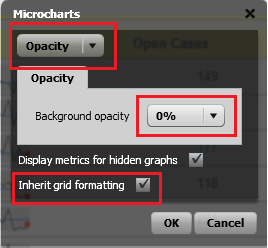
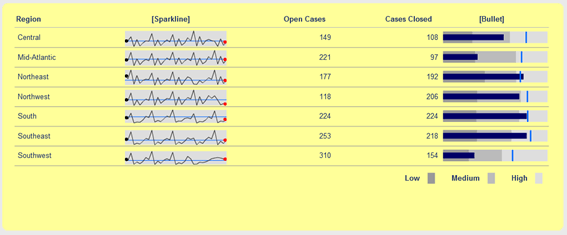
When the Microchart Widget background opacity is set to 0%, the Widget background got transparent so the panel stack color appears as it were the Widget background:
NOTE:
For more information about creating a Microchart Widget, read the Strategy Technical Note:
