EducationSoftwareStrategy.com
StrategyCommunity

Knowledge Base

Product

Community

Knowledge Base

TopicsBrowse ArticlesDeveloper Zone

Product

Download SoftwareProduct DocumentationSecurity Hub

Education

Tutorial VideosSolution GalleryEducation courses

Community

GuidelinesGrandmastersEvents
x_social-icon_white.svglinkedin_social-icon_white.svg
Strategy logoCommunity

© Strategy Inc. All Rights Reserved.

LegalTerms of UsePrivacy Policy
  1. Home
  2. Topics

KB428998: "SQLEngine got an Exception from DFC: [DFCENGINE] Engine Logic: HAD-MDX error..." error message is returned when trying to edit an attribute or run a report with the attribute in MicroStrategy 10.x


Community Admin

• Strategy


SUMMARY:
This Technical Note describes an issue that occurs when a user attempts to edit an attribute, or run a report that was created with the attribute in Strategy Developer 10.4. The issue was identified in version 10.4, and a resolution is provided below for use in the Strategy release.
 
SYMPTOM:
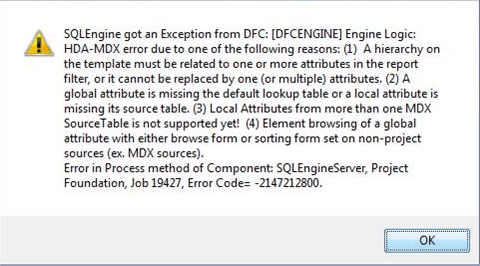
In Strategy 10.4, users may receive the following error message when attempting to edit an attribute, or run a report that was created with the attribute:
ka04W000000OfGEQA0_0EM440000002Wzo.jpeg

Figure 1: Error message received when attempting to edit the attribute


SQLEngine got an Exception from DFC: Engine Logic: HDA-MDX error due to one of the following reasons: (1) A hierarchy on the template must be related to one or more attributes in the report filter, or it cannot be replaced by one (or multiple) attributes. (2) A global attribute is missing the default lookup table or local attribute is missing its source table. (3) Local Attributes from more than one MDX SourceTable is not supported yet! (4) Element browsing of a global attribute with either browse form or sorting form set on non-project sources (ex. MDX sources).
Error in Process method of Component: SQLEngineServer, Project ‘xxx’, Job 19427, Error Code= -2147212800.
 
STEPS TO REPRODUCE:
Follow these steps to reproduce the issue in a Strategy Tutorial Project.

  • Create a new attribute.
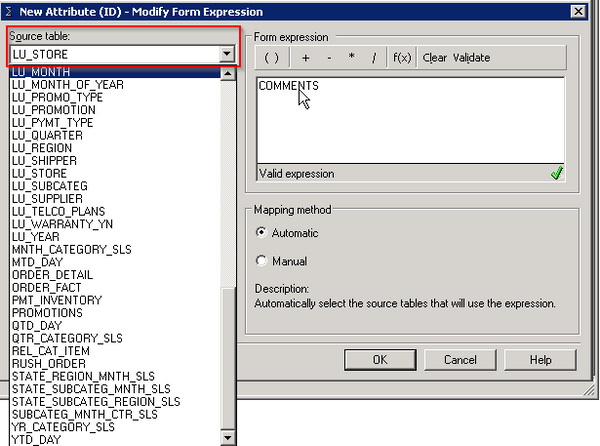
  • In the 'Form Expression’ window, enter an expression or select a table column and validate. However, the ‘Source table’ used in the expression is not available in the ‘Source table’ list.
ka04W000000OfGEQA0_0EM440000002Wzg.jpeg
  • Figure 2: Attribute editor window with table missing in the Source tables list
  • Set the source table as 'Lookup table' for the attribute.
  • Save and Close, and then update schema
  • Try editing the attribute or run a report that was created with the attribute.

 
CAUSE:
This issue is as a result of the metadata being in an inconsistent state.
 
ACTION:
Run ScanMD as per technical note KB295369 in order to address the inconsistency.


Comment

0 comments

Details

Knowledge Article

Published:

December 26, 2018

Last Updated:

December 26, 2018