When Strategy Analytics Developer(MAD) pre-9.4.1.2 version is installed in the same root folder as existing Strategy Office (such as Strategy Office is installed in c:\MSTR\Office, and MAD is installed in c:\MSTR), the security settings of Strategy Office folders and files will be deleted.
After user install MAD pre-9.4.1.2 on the same root folder as Strategy Office:
1. If user clicks the office configuration shortcut in start menu, the error message will say the target can’t be found.
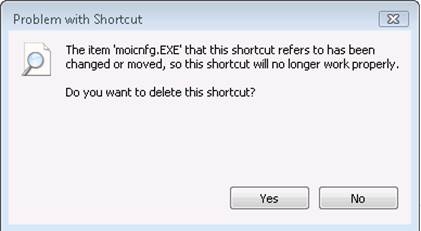
2. If user tries to open the Strategy Office root folder, the error message will say they have no permission:
3. When the issue occurs, user would not be able to see the Strategy Plug-in Microsoft Office products.
The above issue would NOT occur if :
1. User installs MAD in different folder from Strategy Office
2. User installs MAD 9.4.1.2 in the same folder as existing Strategy Office without installing any previous MAD versions.
Note :
If user meets this problem, the following actions would not fix it :
1. Uninstall MAD
2. Upgrade the exiting MAD to 9.4.1.2
Workaround:
Option 1: Manually set an owner to all folders and files under MSTR office, and grant full permission for the user you are using.
Option 2: Run the bat file attached in this Technote as Administrator. The bat file will automatically detect the office installation path, set administrators group as the owner for all MSTR office folders and files, and grant full access for Everyone group to those folders and files.

grantpermission
KB429192
