SYMPTOM:
The Consolidation attributes are not available to be selected as Break By criterion for RunningSum metrics. Only regular attributes are available for this usage purpose.
STEPS TO REPRODUCE:
Follow the steps below in order to reproduce this scenario using Strategy Tutorial:
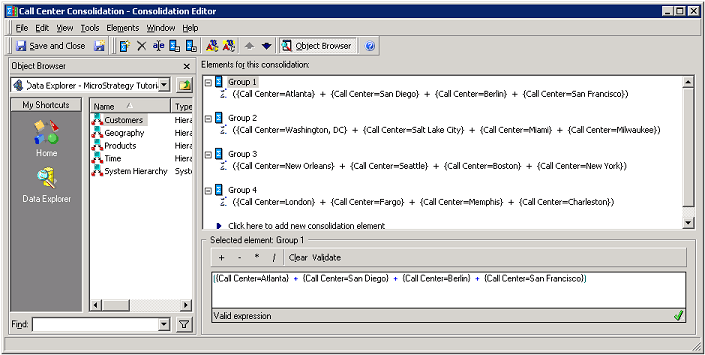
1) Create a consolidation using the Call Center attribute elements:
Group 1: Atlanta, San Diego, Berlin and San Francisco
Group 2: Washington, DC, Salt Lake City, Miami and Milwaukee
Group 3: New Orleans, Seattle, Boston and New York
Group 4: London, Fargo, Memphis and Charleston:
The consolidation content should be similar to:
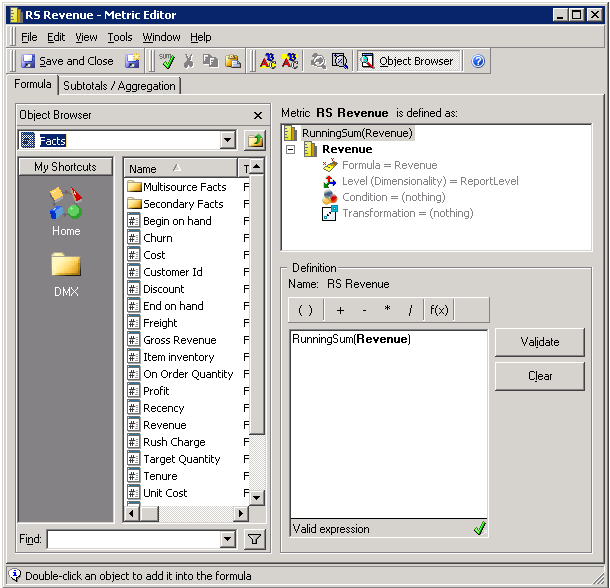
2) Create a RunningSum metric over the regular Revenue metric:
Sample Code/Error
Metric Formula: RunningSum (Revenue)
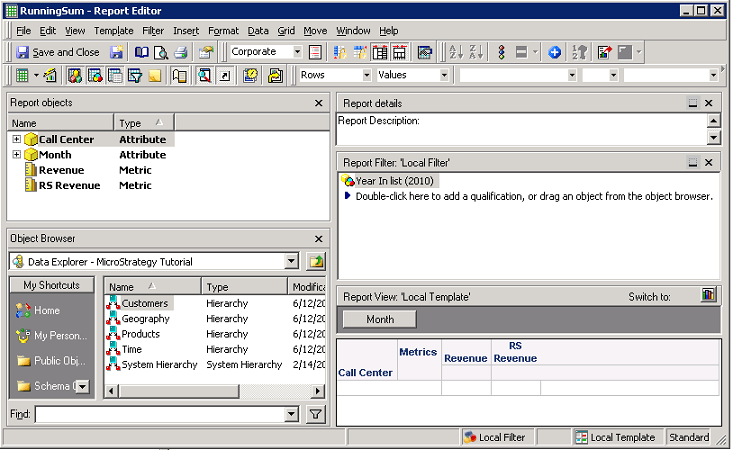
3) Create a new report and add to:
Rows: Call Center attribute
Page-by: Month attribute
Columns: RunningSum metric newly created and the Revenue regular metric
Report Filter - Local Filter: a filter of type Attribute qualification based on the Year attribute and its element 2010:
The report content should be similar to:
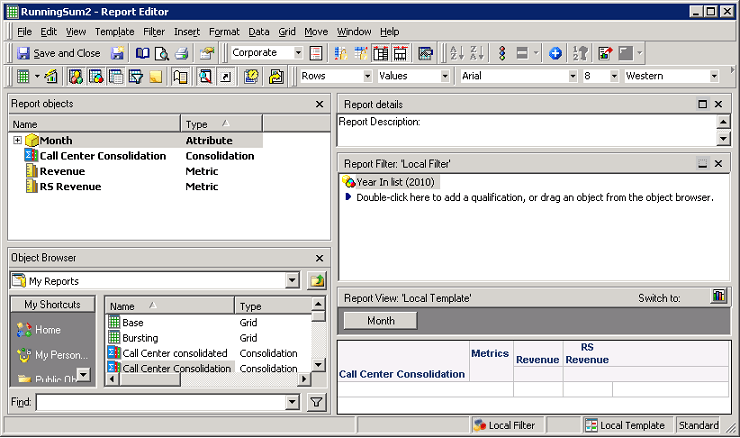
4) Create one more new report and add to:
Rows: consolidation created at the Step 1
Page-by: Month attribute
Columns: RunningSum metric newly created and the Revenue regular metric
Report Filter - Local Filter: a filter of type Attribute qualification based on the Year attribute and its element 2010:
The report content should be similar to:
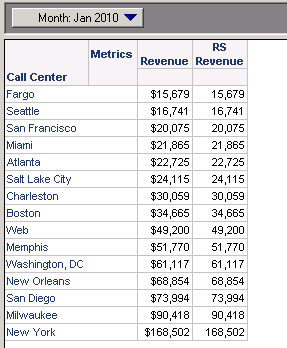
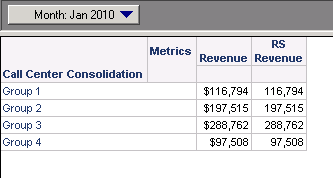
5) Run and compare the results of both reports, selecting the Page-by element Jan 2010:
First report:
Second report:
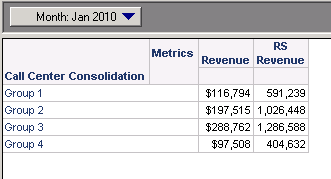
Since the first month Jan 2010 was selected in the Page-by, the results from both metrics should the same; however, the RunningSum metric values from second report are different.
CAUSE:
This is working as designed since the RunningSum metric values of the second report were calculated without considering the consolidation attributes as Break By criterion.
ACTION:
An enhancement request was submitted to the Strategy Technology department. Strategy will continue to investigate and post updates as soon as they are available.
WORKAROUND:
1) Edit the RunningSum metric
2) In the Subtotals / Aggregation tab, uncheck the Allow Smart Matric option
3) Right mouse click on the RunningSum function and select the Properties option
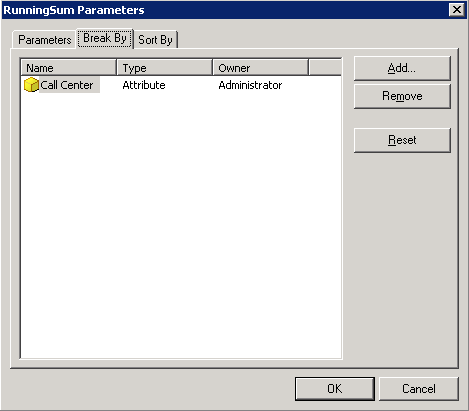
4) In the Break By tab, add the same attribute used to compound the consolidation groups:
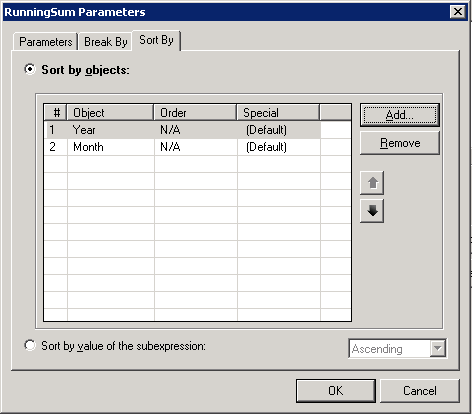
5) In the Sort By tab add the Year and Month attributes:
6) If the attributes used to compound the consolidation elements are part of the report definition, all of them should be removed from report definition.
7) Run the report, so notice that the RunningSum metric values were calculated properly:
KB42936
