EducationSoftwareStrategy.com
StrategyCommunity

Knowledge Base

Product

Community

Knowledge Base

TopicsBrowse ArticlesDeveloper Zone

Product

Download SoftwareProduct DocumentationSecurity Hub

Education

Tutorial VideosSolution GalleryEducation courses

Community

GuidelinesGrandmastersEvents
x_social-icon_white.svglinkedin_social-icon_white.svg
Strategy logoCommunity

© Strategy Inc. All Rights Reserved.

LegalTerms of UsePrivacy Policy
  1. Home
  2. Topics

KB43071: "Error loading MicroStrategy Diagnostics and Performance Logging Tool" error occurs when opening the MicroStrategy Diagnosis and Performance Logging Tool in MicroStrategy 9.x on Unix/Linux


Community Admin

• Strategy


When lauching the MicroStrategy Diagnosis and Performance Logging Tool 9.x (mstrdiag) in a graphical (GUI) setting on Linux, the following error appears: 'Error loading MicroStrategy Diagnostics and Performance Logging Tool’

SYMPTOM:
When lauching the Strategy Diagnosis and Performance Logging Tool 9.x (mstrdiag) in a graphical (GUI) setting on Linux, the following error appears:
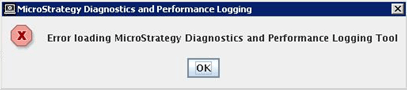


ka04W000000OhhWQAS_0EM4400000029cO.png


‘Error loading Strategy Diagnostics and Performance Logging Tool’
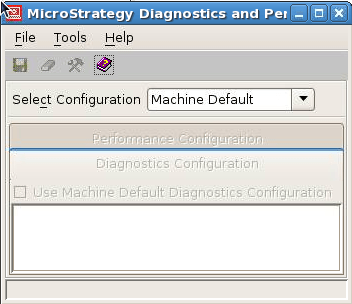
 
After clicking 'OK', the tool displays but everything else is disabled / greyed out:
 

ka04W000000OhhWQAS_0EM4400000029cP.png

 
If the Diagnosis and Performance Tool was executed in a terminal window, the following stack trace appears:


java.lang.IllegalArgumentException: Destination with name DSSPerformanceMonitor not found

at com.Strategy.web.objects.admin.serverconfig.LogDestinationsImpl.getItemByName(Unknown Source)

at com.Strategy.web.objects.admin.serverconfig.PerformanceLoggingConfigurationImpl.getDestination(Unknown Source)

at com.Strategy.tools.madpcfg.DiagPerfLogging.populatePerfTableData(Unknown Source)

at com.Strategy.tools.madpcfg.DiagPerfLogging.updatePerformance(Unknown Source)

at com.Strategy.tools.madpcfg.DiagPerfLogging.updateTabs(Unknown Source)

at com.Strategy.tools.madpcfg.DiagPerfLogging.loadForm(Unknown Source)

at com.Strategy.tools.madpcfg.DiagPerfLogging.<init>(Unknown Source)

at com.Strategy.tools.madpcfg.MADPCfg.<init>(Unknown Source)

at com.Strategy.tools.madpcfg.MADPCfg.main2(Unknown Source)

at com.Strategy.tools.madpcfg.MADPCfg$1.run(Unknown Source)

at java.lang.Thread.run(Unknown Source)

 
CAUSE:
Per the stack trace, the a configuration for the listed destination, in this example 'DSSPerformanceMonitor', either does not exist or cannot be found. This file is used by the Strategy Diagnostics and Performance Logging Tool to load the settings. If it does not exist or is missing, the tool does not load.
 
ACTION:
To resolve the issue, the offending log destination just needs to be added to the configuration. This can be accomplished by running the following command:
 

mstrctl -s IntelligenceServer ssc

This will provide an empty line to start entering the configuration information. Add the following substituting the 'n' value listed below with the name of the offending destination from the stack trace:
 

<configuration>

<log_destinations>

<log_destination n="DSSPerformanceMonitor" tp="4" max_size="2048" callstack_message_ids=""/>

</log_destinations>

</configuration>

 
Note: "tp" is the type of n value. After adding the log entry, restart the i-server for the log to take effect.
This will add the log entry to the appropriate place in configuration so that the Strategy Diagnostics and Performance Logging Tool can run. For more information about using the command line for changing logging destinations and settings refer to the following Strategy Knowledge Base technical notes:

  • KB15868: How to modify diagnostics logging for MicroStrategy components from the command line in Windows and Unix/Linux environments.
  • KB16605: “How to enable/disable performance counter logging for MicroStrategy server instances from the command line using MSTRCTL command in MicroStrategy Intelligence Server 8.1.x and 9.x”

Comment

0 comments

Details

Knowledge Article

Published:

April 22, 2017

Last Updated:

April 22, 2017