SYMPTOM:
On Windows 2008 64-bit machine, when user opening MDX Cube Catalog to connect to SAP BW 7 using JCo 3.x in Desktop 9.2.x - 9.4.x, the following error message appears.
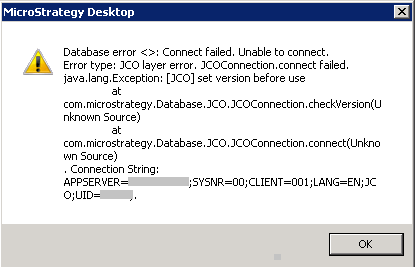
Database error <>: Connect failed. Unable to connect.
Error type: JCO layer error. JCOConnection.connect failed. java.lang.Exception: set version before use
at com.Strategy.Database.JCO.JCOConnection.checkVersion(Unknown Source)
at com.Strategy.Database.JCO.JCOConnection.connect(Unknown Source). Connection String: ...;
CAUSE:
The JCo 3.x connector files sapjco3.jar and sapjco3.dll are not available for Strategy to connect the SAP BW cube. Either of the two circumstances below will cause the required connector files unavailable:
ACTION:
The following two steps must be done:
For Windows 64-bit operating systems, locate the files at 'Program Files (x86)\Common Files\MicroStrategy\'.
For Windows 32-bit operating systems, locate the files at 'Program Files \Common Files\MicroStrategy\'.
For Windows 64-bit operating systems, the following Windows registry location is used:
Sample Code/Error
HKEY_LOCAL_MACHINE\SOFTWARE\Wow6432Node\MicroStrategy\JNI Bridge\Config for DataServices\JCO Ver.3
AdditionalClassPath= <location of sapjco3.jar file>\sapjco3.jar
For Windows 32-bit operating systems, the following Windows registry location is used:
Sample Code/Error
HKEY_LOCAL_MACHINE\SOFTWARE\MicroStrategy\JNI Bridge\Config for DataServices\JCO Ver.3
Additional Classpath=C:\Program Files\Common Files\MicroStrategy\sapjco3.jar
NOTE: If Strategy Developer is running on Windows 64-bit operating system, the connector libraries should be 32-bit and not 64-bit.
