EducationSoftwareStrategy.com
StrategyCommunity

Knowledge Base

Product

Community

Knowledge Base

TopicsBrowse ArticlesDeveloper Zone

Product

Download SoftwareProduct DocumentationSecurity Hub

Education

Tutorial VideosSolution GalleryEducation courses

Community

GuidelinesGrandmastersEvents
x_social-icon_white.svglinkedin_social-icon_white.svg
Strategy logoCommunity

© Strategy Inc. All Rights Reserved.

LegalTerms of UsePrivacy Policy
  1. Home
  2. Topics

KB43082: How to use a custom image as a map marker in Google Maps when using IIS and MicroStrategy Web 9.4.1 and above.


Community Admin

• Strategy


How to use a custom image as a map marker in Google Maps when using IIS and MicroStrategy Web 9.4.1 and above.

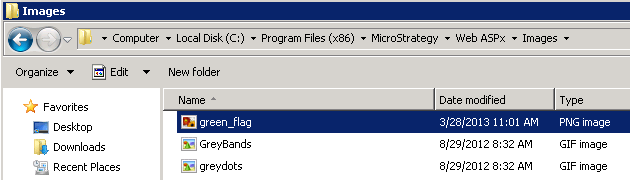
Follow the instructions below to use a custom image as a map marker for the Google Maps widget in Strategy Web 9.4.1 and above:

  • Create the image and save it in the following folder:


    <Strategy Home>\Web ASPx\Images


    Note: The default images for Google Maps markers are 23x28 pixels PNG files like shown below.
ka04W000000OcAjQAK_0EM4400000026jM.png
  • Add the path for the image with a unique name and ID to the file markerStyle.properties located at:


    <Strategy Home>\Web ASPx\WEB-INF\classes\resources
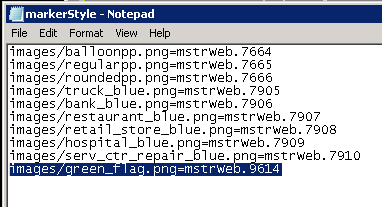


    The content of the file looks as below:  
ka04W000000OcAjQAK_0EM4400000026jO.png
  • 
    images/green_flag.png=mstrWeb.9614


  • Add a descriptor for the image to the descriptor files that matches the locale used. These files are located at:


    <Strategy Home>\Web ASPx\WEB-INF\classes\resources


    For instance, users in the United States would modify the MessagesBundle_en_US.properties and MessagesBundle.properties, as below.
    This determines how this marker option will be labeled in the widget settings. If this step is skipped, the name used in the markerStyle.properties file will be used.
    Note: Ensure that the new map marker's ID does not overwrite an already existing ID.
    .


    mstrWeb.9614=Green Flag


  • Restart the web server.

In Strategy Web, the Map widget's settings should now show the new option as labeled in the descriptor files, shown below:
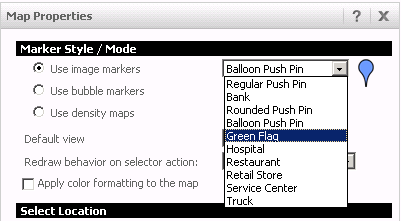
 

ka04W000000OcAjQAK_0EM4400000026jN.png

 
Once the new marker is chosen in the settings, execute the dashboard, and notice that the new marker is used, shown below:
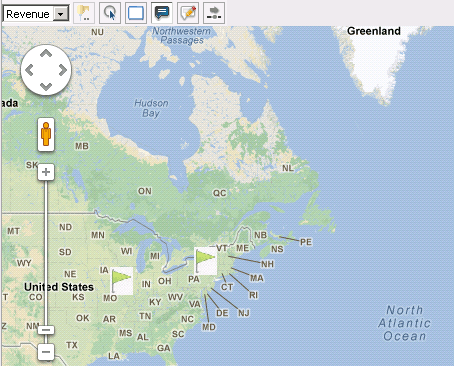
 

ka04W000000OcAjQAK_0EM4400000026jL.png

 
CUSTOMIZATION WARNING:
This customization is provided as a convenience to Strategy users and is only directly applicable to the version stated. While this code may apply to other releases directly, Strategy Technical Support makes no guarantees that the code provided will apply to any future or previous builds. In the event of a code change in future builds, Strategy Technical Support makes no guarantee that an updated version of this particular customization will be provided. In the event of a code change in future builds, Strategy may not be able to provide additional code on this matter even though this customization is provided at this time for this specific build. For enhancements to this customization or to incorporate similar functionality into other versions, contact your Account Executive to inquire about Strategy Consulting assistance.


Comment

0 comments

Details

Knowledge Article

Published:

May 19, 2017

Last Updated:

May 19, 2017