INTRODUCTION:
This technical note explains how to create a shortcut to filter by reusing a filter in definition of another filter in Strategy Command Manager 9.4.x-10.x.
SAMPLE:
Notice this sample is based on the Strategy Tutorial Project.
1) Using either Strategy Developer or Command Manager, create the first filter that will be used in the second filter definition as a shortcut. The image below shows a supposed filter composed by the condition Year In list (2011). It was saved as Year = 2011:

2) Create the second filter using Strategy Command Manager 9.4.x-10.x. In this example, the script was created as follow: CREATE FILTER "Nested Filter" IN FOLDER "\Public Objects\Filters" EXPRESSION "" ON PROJECT "Strategy tutorial";
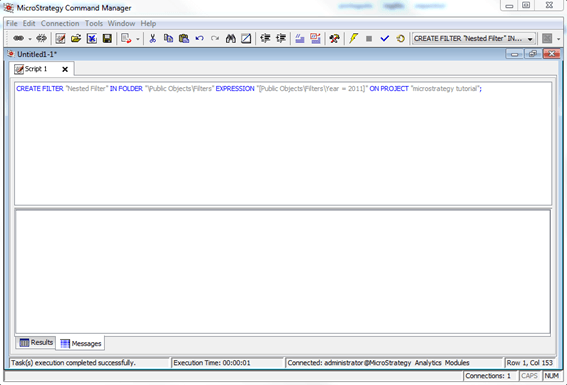
3) Execute the script.
4) In Strategy Developer, connect to the Strategy Analytics Modules project source.
5) Open the Strategy Tutorial project.
6) Edit the Nested Filter filter located into the Public Objects >> Filters folder.
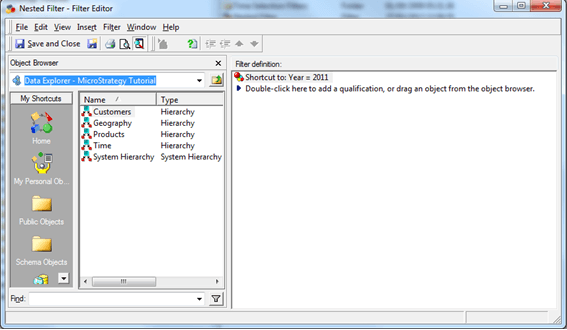
7) Notice the filter definition expression that appears as Shortcut to: Year = 2011: