EducationSoftwareStrategy.com
StrategyCommunity

Knowledge Base

Product

Community

Knowledge Base

TopicsBrowse ArticlesDeveloper Zone

Product

Download SoftwareProduct DocumentationSecurity Hub

Education

Tutorial VideosSolution GalleryEducation courses

Community

GuidelinesGrandmastersEvents
x_social-icon_white.svglinkedin_social-icon_white.svg
Strategy logoCommunity

© Strategy Inc. All Rights Reserved.

LegalTerms of UsePrivacy Policy
  1. Home
  2. Topics

KB43307: The primary and default DB instance(s) of the project is/are not added to the package as the object dependencies in MicroStrategy Object Manager 9.x.


Community Admin

• Strategy


The primary and default DB instance(s) of the project is/are not added to the package as the object dependencies in MicroStrategy Object Manager 9.x.

 
SYMPTOM:
 
The primary and default DB instance(s) of the project is/are not added to the package as the object dependencies in Strategy Object Manager 9.x even 'Show System Objects' option is selected, as shown below:

ka04W000000Ogv4QAC_0EM440000002Cpf.jpeg

 
NOTE: Run the report, and check SQL View. Notice that the DB instance 'Tutorial Data' is used, as shown below:
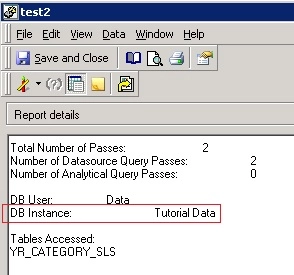
ka04W000000Ogv4QAC_0EM440000002CpW.jpeg

 
And 'Tutorial Data' is the primary and default database instance of the project, as shown below:
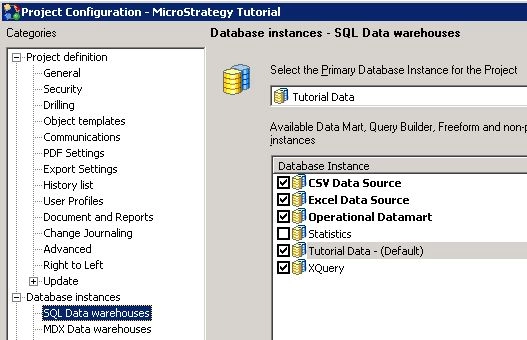
ka04W000000Ogv4QAC_0EM440000002CpT.jpeg


CAUSE:
 
This behavior is by design. The default / primary database instance of the project will be not added to the package as the object dependencies of a RLOAP report.
 
But if the report is FFSQL, XDA etc, the respective database instance(s) will be added to preserve metadata consistency.
 
 
ACTION:
 
Configuration Packages can be used to migrate database instances. For the steps below to create a configuration package in Strategy Object Manager 9.x:
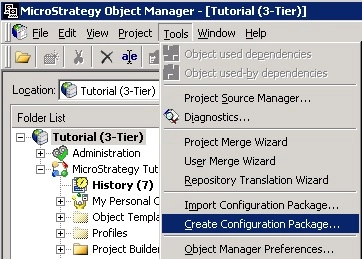
  • Select the project source / Administration in Object Manager, go to Menu -> Tools -> Create Configuration Package, as shown below:
ka04W000000Ogv4QAC_0EM440000002CpV.jpeg
  • Click on 'Search for configuration objects' and search for the required database instance.
  • Drag and drop the object to the 'Create Configuration Package' window.
  • Click on 'Add All Used Dependencies', as shown below:
ka04W000000Ogv4QAC_0EM440000002CpU.jpeg
  • Click on Proceed to create the configuration package.


Comment

0 comments

Details

Knowledge Article

Published:

June 8, 2017

Last Updated:

June 8, 2017