EducationSoftwareStrategy.com
StrategyCommunity

Knowledge Base

Product

Community

Knowledge Base

TopicsBrowse ArticlesDeveloper Zone

Product

Download SoftwareProduct DocumentationSecurity Hub

Education

Tutorial VideosSolution GalleryEducation courses

Community

GuidelinesGrandmastersEvents
x_social-icon_white.svglinkedin_social-icon_white.svg
Strategy logoCommunity

© Strategy Inc. All Rights Reserved.

LegalTerms of UsePrivacy Policy
  1. Home
  2. Topics

KB43312: "-Table-TableObject is not found in DFCSchema during DFC conversion.." error message appears when viewing SQL of a report in MicroStrategy Developer


Stefan Zepeda

Salesforce Solutions Architect • Strategy


This article notes an error that can occur when missing a database instance in MicroStrategy

 
SYMPTOM:
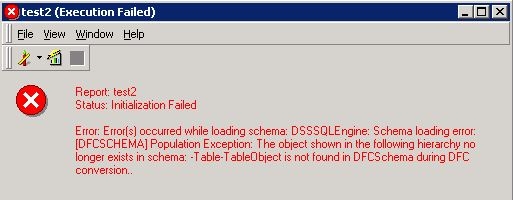
"-Table-TableObject is not found in DFCSchema during DFC conversion.." error message appears when viewing SQL of a report in Strategy Developer, as shown below:
ka02R000000kcVdQAI_0EM440000002Cpl.jpeg


Status: Initialization Failed 
Error(s) occurred while loading schema: DSSSQLEngine: Schema loading error: Population Exception: The object shown in the following hierarchy no longer exists in schema: -Table-TableObject is not found in DFCSchema during DFC conversion..

  
And an entry with same error can be found in DSSErrors.log file.
 
STEPS TO REPRODUCE:
For the steps below to reproduce the issue in Tutorial project:

  1. Create a report with only metric in Developer. Save and close the report.
  2. Open Object Manager and create a package. Add the report and add all used dependencies. Click on Proceed to create the update package.
  3. Open Connectivity Wizard to create a DSN to point to an empty database space.
  4. Open Configuration Wizard to create Metadata tables in the empty database space.
  5. In Desktop, create a new project source to connect to the new Metadata.
  6. Create a new empty project.
  7. Go to Object Manager to import the package into the new project.
  8. Go to Developer, right mouse click on the report -> View SQL, and the error occurs.

 
CAUSE:
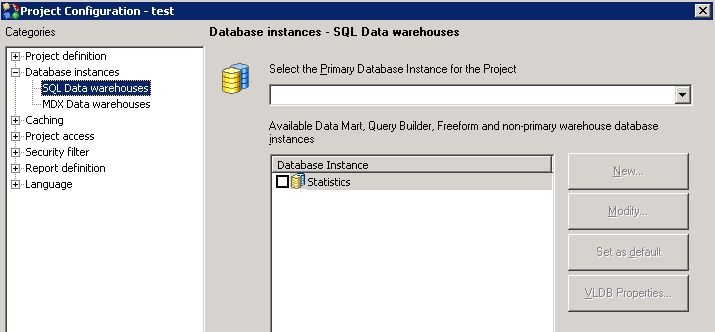
A possible reason of the issue is that there is no Database Instance for the project, as shown below:
ka02R000000kcVdQAI_0EM440000002Cpi.jpeg

 
As explained in the article KB43307: The primary and default DB instance(s) of the project is/are not added to the package as the object dependencies in MicroStrategy Object Manager, the database instance may not be added in the package. As a result, the missing database instance will cause the issue.
 
ACTION:
Way 1:
  • Create a Configuration Package in Strategy Object Manager to migrate the Database Instances.
    • Refer to the ACTION part of article KB43307: The primary and default DB instance(s) of the project is/are not added to the package as the object dependencies in MicroStrategy Object Manager.
  • Import the configuration package to the new project.
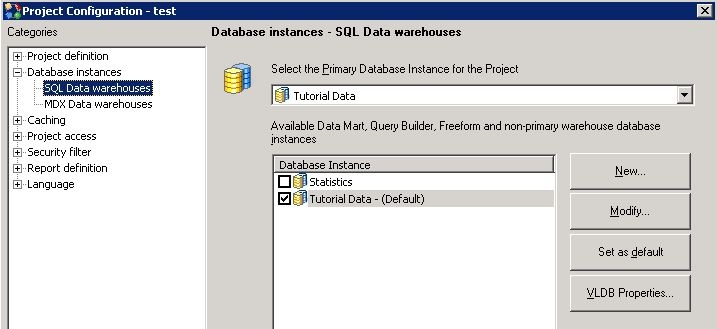
  • Go to Project Configuration -> Database instances -> SQL Data warehouses, and selet the primary / Default database instance, as shown below:
ka02R000000kcVdQAI_0EM440000002Cpj.jpeg

Comment

0 comments

Details

Knowledge Article

Published:

April 14, 2017

Last Updated:

April 14, 2017