EducationSoftwareStrategy.com
StrategyCommunity

Knowledge Base

Product

Community

Knowledge Base

TopicsBrowse ArticlesDeveloper Zone

Product

Download SoftwareProduct DocumentationSecurity Hub

Education

Tutorial VideosSolution GalleryEducation courses

Community

GuidelinesGrandmastersEvents
x_social-icon_white.svglinkedin_social-icon_white.svg
Strategy logoCommunity

© Strategy Inc. All Rights Reserved.

LegalTerms of UsePrivacy Policy
  1. Home
  2. Topics

KB43313: How to recursively search for all the reports and documents that contain a column in MicroStrategy Desktop 9.x


Stefan Zepeda

Salesforce Solutions Architect • Strategy


In some business scenarios, it is required to recursively search for all the reports and documents that contain a column in MicroStrategy Developer 9.x-10.x.

 
In some business scenarios, it is required to recursively search for all the reports and documents that contain a column in Strategy Developer 9.x-10.x.
 
For example, it is required to search for all the reports and documents that contain the column 'CATEGORY_ID' in table 'LU_CATEGORY', as shown below:
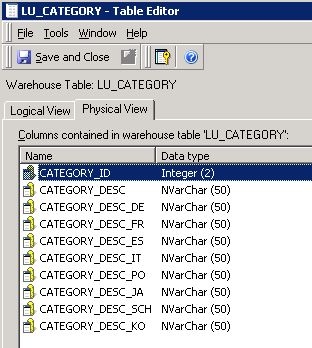
ka02R000000kZk4QAE_0EM440000002CpS.jpeg

 
For the steps below to achieve the requirement:
  • Display all the hidden and invisible folders/objects in Strategy Developer 9.x-10x.
    Refer to: Technical Note 19828: How to display hidden and invisible folders/objects in MicroStrategy Developer 9.x?
     
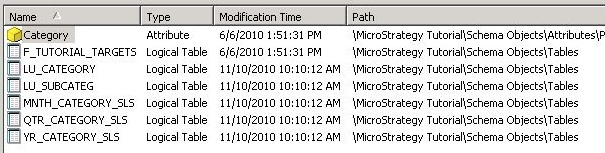
  • Go to System Objects -> Columns, right mouse click on the column 'CATEGORY_ID', and select 'Search for Dependents'. And the direct dependents of the column are listed, as shown below:
ka02R000000kZk4QAE_0EM440000002Cpr.jpeg
  • NOTE: Remember these objects or keep this window open as a reference for the following steps.
     
  • Go back to Strategy Desktop, right mouse click on the project -> Search for Objects.
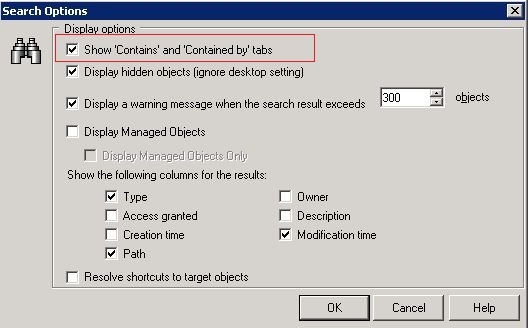
  • Go to Menu -> Tools -> Options. And check the option to Show 'Contains' and 'Contained by' tabs, as shown below:
ka02R000000kZk4QAE_0EM440000002CpX.jpeg
  • Go to 'Object Types' tab, and select 'Report' and 'Document'.
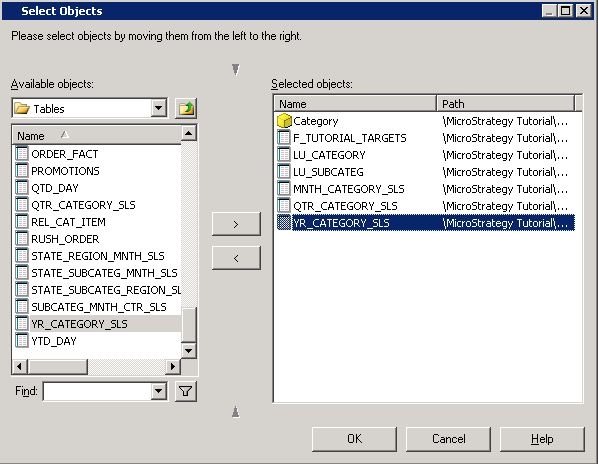
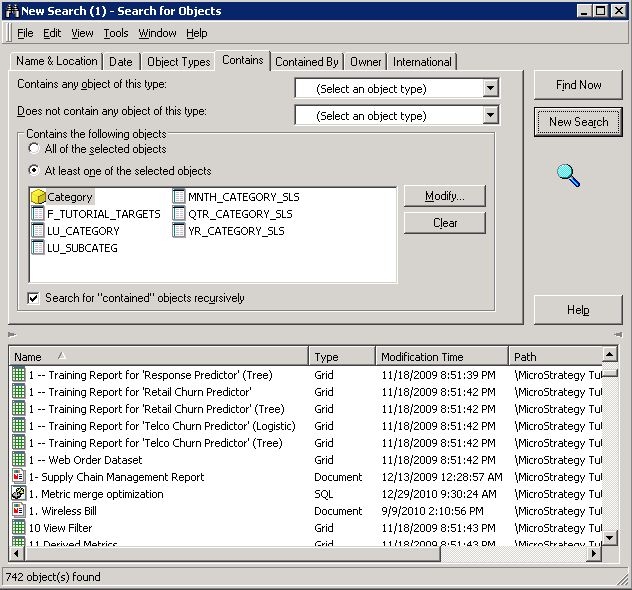
  • Go to 'Contains' tab, and click on Add button. Search and add the objects that are dependents of the column (listed in the result of Step 2), as shown below:
ka02R000000kZk4QAE_0EM440000002Cpd.jpeg
  • NOTE: Selected objects here cannot be system objects. Hence the dependents of the column are added instead of the column itself.
     
  • Click on OK to add the objects.
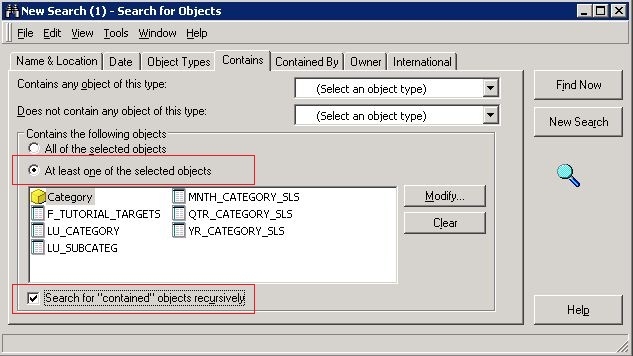
  • Select 'At least one of the selected objects', and check the option 'Search for "contained" objects recursively, as shown below:
ka02R000000kZk4QAE_0EM440000002CpR.jpeg
  • Click on 'Find Now' to search for all the reports and documents that contain the column.
     
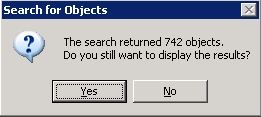
    NOTE: If there are too many objects in the result, a notification message may pop up, as shown below:
ka02R000000kZk4QAE_0EM440000002Cpb.jpeg
  • Click on Yes to list the result.
     
  • The result is as shown below:
ka02R000000kZk4QAE_0EM440000002CpZ.jpeg

 
Registry Modification:
WARNING:
Modifying registry values incorrectly may cause serious, system-wide problems that may require the re-installation of Microsoft Windows NT/2000. Any edit of the registry is done at the user's own risk. Since these are user-initiated changes, they are not covered by any Strategy warranty. If using Microsoft Windows NT/2000, the user should backup the registry and/or update an Emergency Repair Disk (ERD) prior to alterations.


Comment

0 comments

Details

Knowledge Article

Published:

June 8, 2017

Last Updated:

June 8, 2017