EducationSoftwareStrategy.com
StrategyCommunity

Knowledge Base

Product

Community

Knowledge Base

TopicsBrowse ArticlesDeveloper Zone

Product

Download SoftwareProduct DocumentationSecurity Hub

Education

Tutorial VideosSolution GalleryEducation courses

Community

GuidelinesGrandmastersEvents
x_social-icon_white.svglinkedin_social-icon_white.svg
Strategy logoCommunity

© Strategy Inc. All Rights Reserved.

LegalTerms of UsePrivacy Policy
  1. Home
  2. Topics

KB43365: How to change the port number of Intelligence Server running on Unix/Linux machine in command line mode


Community Admin

• Strategy


How to change the port number of Intelligence Server running on Unix/Linux machine in command line mode

This document provides steps to change the port number for Strategy Intelligence Server running on Unix/Linux machine, from command line.
 
To run scripts in the following steps, users need to locate to the bin directory contained in the Strategy Home folder.
 

  • Stop the running Intelligence Server by executing the command below:
     
    
    ./mstrctl -s IntelligenceServer stop

     
  • Run the scripts below to start the Intelligence Server configuration.
     
    
    ./mstrsvr-configure

    Press Enter.
  • Type in the port number to use. Press Enter.
ka04W000000Of65QAC_0EM4400000029ai.png
  • Type in the DSN of metadata database. Press Enter.
ka04W000000Of65QAC_0EM4400000029aq.png
  • Type in the login of the DSN. Press Enter.
ka04W000000Of65QAC_0EM4400000029ak.png
  • Type in the password of the DSN. Press Enter.
ka04W000000Of65QAC_0EM4400000029am.png
  • Specify which server definition to use. If no server definition is given in this field, default server definition will be used. Press Enter.
ka04W000000Of65QAC_0EM4400000029as.png
  • When the updating is done, following message will appear.
ka04W000000Of65QAC_0EM4400000029ao.png
  • Start Intelligence Server  

 
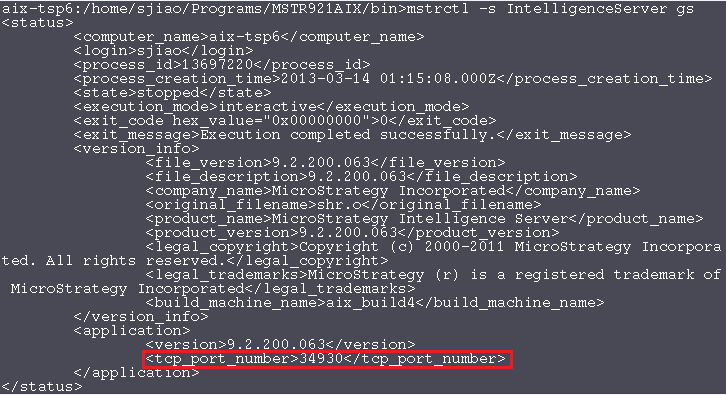
Following script can be run to see whether the port number is updated.


./mstrctl -s IntelligenceServer gs
 

ka04W000000Of65QAC_0EM4400000029aY.png

Comment

0 comments

Details

Knowledge Article

Published:

June 8, 2017

Last Updated:

June 8, 2017