EducationSoftwareStrategy.com
StrategyCommunity

Knowledge Base

Product

Community

Knowledge Base

TopicsBrowse ArticlesDeveloper Zone

Product

Download SoftwareProduct DocumentationSecurity Hub

Education

Tutorial VideosSolution GalleryEducation courses

Community

GuidelinesGrandmastersEvents
x_social-icon_white.svglinkedin_social-icon_white.svg
Strategy logoCommunity

© Strategy Inc. All Rights Reserved.

LegalTerms of UsePrivacy Policy
  1. Home
  2. Topics

KB43396: How to create a filter or report that is automatically filtered by User Login in MicroStrategy Developer


Stefan Zepeda

Salesforce Solutions Architect • Strategy


How to create a filter or report that is automatically filtered by User Login in MicroStrategy Developer

At times it may be wanted to limit the amount of information an end user can see in specific prompts and reports. Unlike a security filter which applies to all reports/prompts in a project, this method allows a developer to dynamically control the information seen by relating the User Login to relevant data.
 
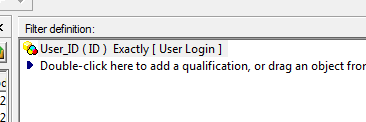
Step 1: Create a filter that sets a user attribute equal to the System Prompt "User Login".
 

ka02R000000kcavQAA_0EM440000002Cq8.png

 
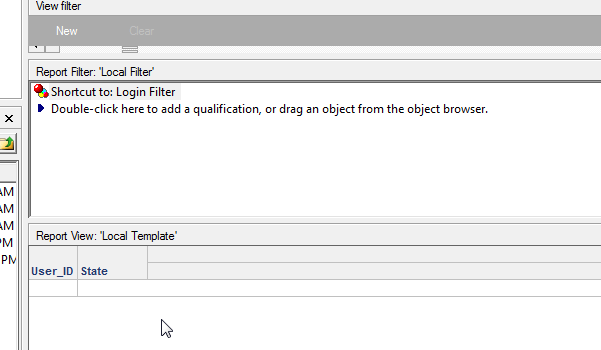
Step 2: Create a new report that includes the User attribute, the other attribute that you wish to filter. and the new filter created in Step 1.
 

ka02R000000kcavQAA_0EM440000002Cq6.png

 
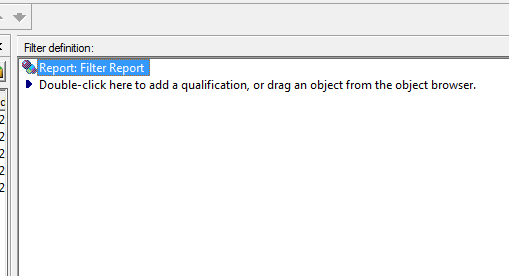
Step 3: Create a new filter that is a shortcut to report pointing to the report created in Step 2.
 

ka02R000000kcavQAA_0EM440000002CqF.png

 
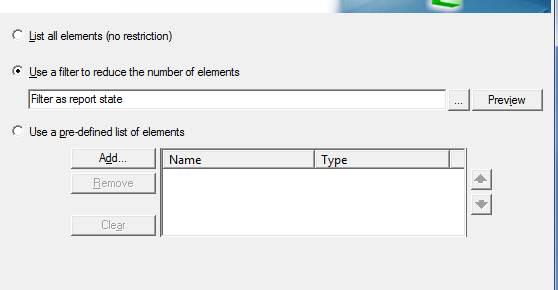
Step 4: Attach the newly created filter (Step 3) to either a report or prompt.
 

ka02R000000kcavQAA_0EM440000002CqA.png

 
Upon execution the User Login id will be pulled automatically and filter the correct values in the prompt or report from the table in the database.


Comment

0 comments

Details

Knowledge Article

Published:

April 11, 2017

Last Updated:

April 11, 2017