Starting in Strategy Web 9.3.0, it is possible to control the refresh behavior of a Data Import cube by using the data refresh options. These options can be accessed by clicking on the "refresh" icon, located in the upper-right of the Data Import window, like shown below:
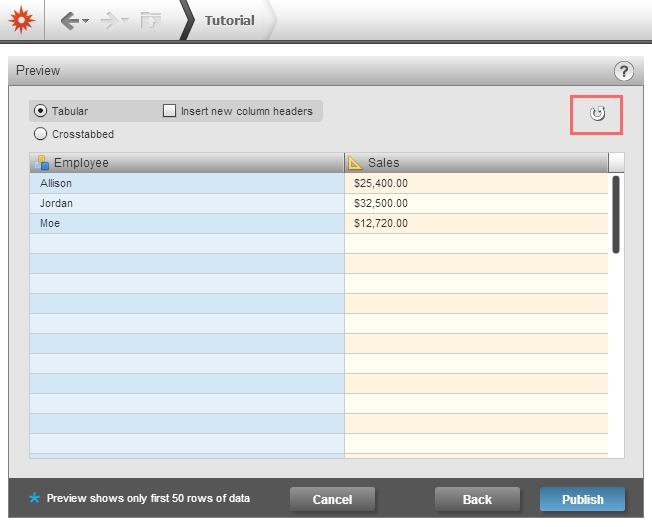
After clicking on this button, users will be prompted for one of three possible options, like shown below:
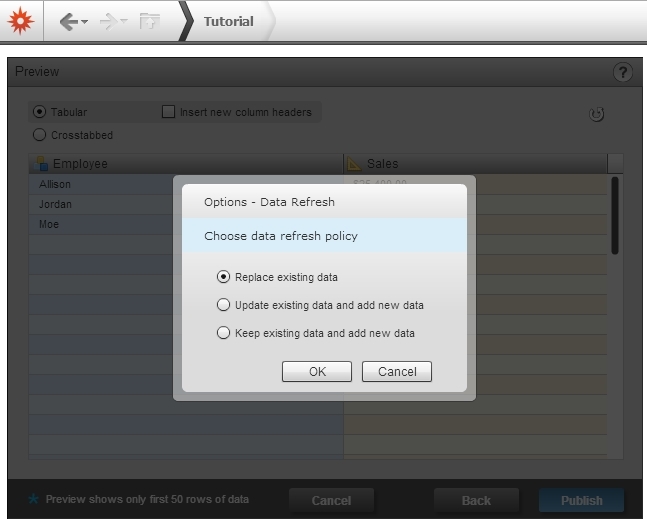
These options only pertain to the case where a user is using Data Import to edit an existing cube, not to create a new cube. In the case of creating a new cube, none of these options are relevant. An explanation of the options is given below:
Replace existing data
With this option selected, all data from the original Data Import cube will be replaced with the new contents from the current Data Import session. This is essentially the same as deleting the existing cube, then creating a new cube with the new data.
Update existing data and add new data
With this option selected, any changes in the data source that can be mapped to the existing attributes and metrics in the original cube will be published to the cube, and any new data will be added as additional rows or columns.
Keep existing data and add new data
With this option selected, any new data from the data source will be published to the cube, but all existing data from the original cube will remain intact. This is particularly useful if the data source no longer contains data from the existing cube, only new data. Essentially, this will append the data from the data source to the original cube.
