When opening a schema editor such as Architect, Attribute Editor, Fact Editor, etc. users are prompted as to whether they want to view the object in Read Only or Edit mode. If users select the option to "Remember my selection as default preference for future session" they will no longer be prompted for this.
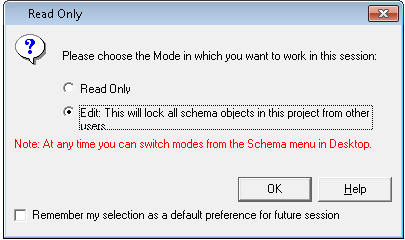
Once the option to "Remember my selection as default preference for future session" has been selected there is no way to change the default mode through the Strategy Developer GUI.
NOTE: Users can still switch between Read Only mode and Edit mode from the Schema menu by selecting or clearing the "Read Only Mode" option.
If the user would like for the prompt to appear again whenever opening schema objects this can be done through the registry. The registry setting HKEY_CURRENT_USER\Software\Strategy\DSS Agent\DSS Agent\PromptReadOnlyMode controls whether the prompt appears or not. Modifying this from "no" to "yes", while Strategy Desktop is closed, will allow the prompt to appear again.
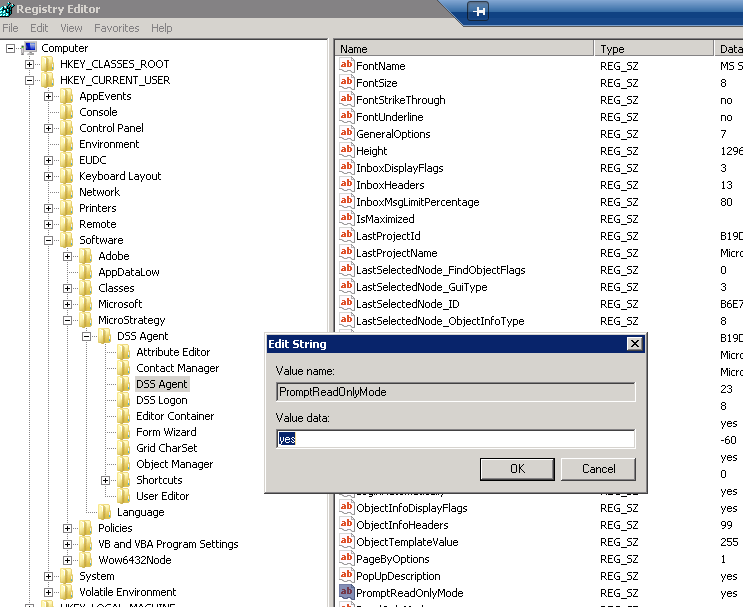
NOTE: This is under the HKEY_CURRENT_USER registry so this will only apply to that user.
WARNING:
Modifying registry values incorrectly may cause serious, system-wide problems that may require the re-installation of Microsoft Windows NT. Any edit of the registry is done at the user's own risk. Since these are user-initiated changes, they are not covered by any Strategy warranty. If using Microsoft Windows NT, the user should backup the registry and/or update an Emergency Repair Disk (ERD) prior to alterations.
