In situations where Strategy offers post-certification/support for a particular database, it may be required to install a DBMS object. This file is provided by Strategy Technical Support upon request. In order to install this provided file, refer to the below steps:
Example of how to install the DBMS object for Actian Vectorwise
1. Obtain the DBMS object from Technical Support, in this case the object is called 'ActianVW20.PDS'
2. Stop Strategy Intelligence Server (all nodes of Strategy Intelligence Server cluster) and terminate all connections to the metadata from other Strategy sources (such as Strategy Desktop, Strategy Object Manager, etc.)
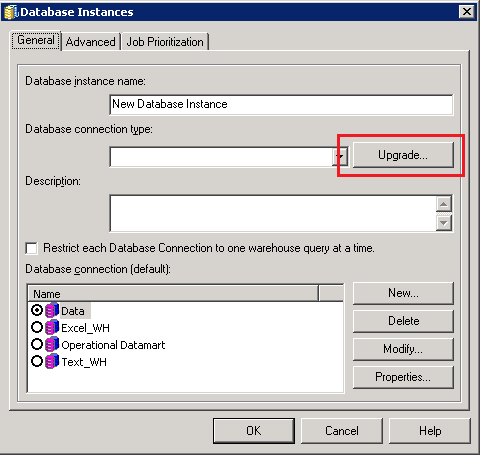
3. Launch Strategy Developer and login to a 2-tier project source. Go to Database Instance Manager and edit the warehouse Database Instance. Click on the 'Upgrade' button located next to 'Database Connection Type' as shown below:
4. The following window appears. Browse files so that the 'DB types script file' is pointing to the "ActianVW20.PDS" file obtained in Step 1. Click on the Load button, as shown below:
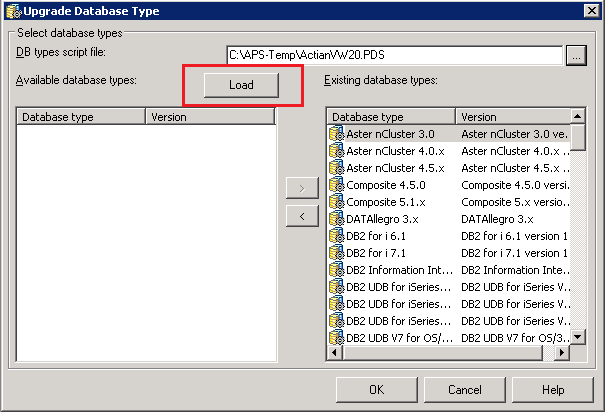
5. The 'Available database types' (left pane of the dialog window) is now populated. Move the "ActianVW20.PDS" object from the left pane to the right using the arrow key, as shown below:

6. Click OK. "VectorWise 2.0.x" now appears as an available database connection type. Select "VectorWise 2.0.x".
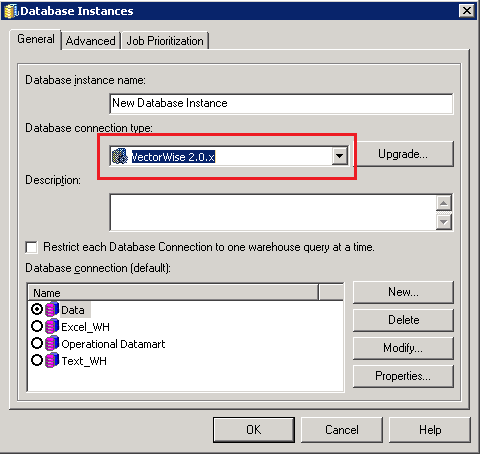
7. Click OK and save the Database Instance.
8. Reload the project so that the new settings take effect. This entails disconnecting and re-connecting to the project source.
NOTE: The above example was only for the Actian Vectorwise 2.0, the name of the DBMS object provided will vary depending upon the database vendor.
Third Party Software Installation WARNING
The third-party product(s) discussed in this technical note is manufactured by vendors independent of Strategy. Strategy makes no warranty, express, implied or otherwise, regarding this product, including its performance or reliability.
