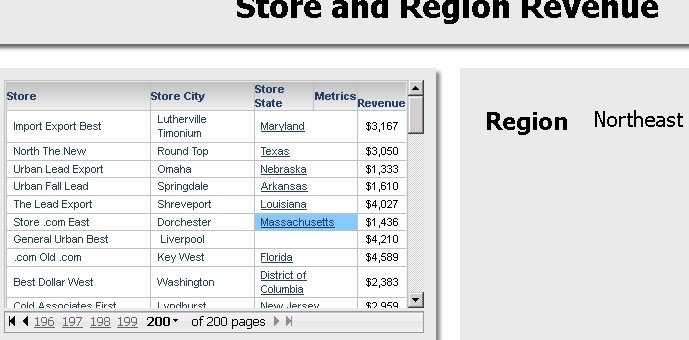
Strategy 9.3.1 introduces a new feature - the ability for users to define a freeform condition in a Freeform SQL or XQuery report that can be targeted by a Unit Condition selector on a grid in a Report Services document or dashboard in Strategy Web. The following steps explain the process that users can use to define and use this feature.
Users should be aware that as of the 9.3.1 release, only attribute elements may be passed to the targeted freeform SQL report, and at this time only a single attribute element can be selected to target with. This feature may be enhanced in future releases. Users should contact Strategy Technical support for assistance with enhancements to the feature.
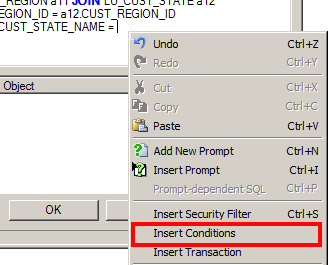
1. Users should create a new Freeform SQL report and right mouse click in the freeform definition to select the 'Insert Conditions' dialog box.
2. The user is now prompted to select the attribute whose elements will be passed to the targeted report, and the conditional SQL that must be issued when the report is run.
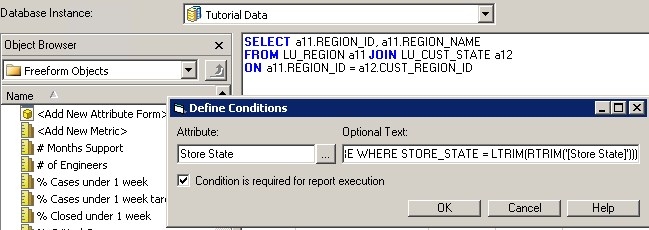
Note: Users should be aware that once the condition is defined, the editor does not currently allow this to be modified, and the definition would need to be deleted and a new condition defined on the report.
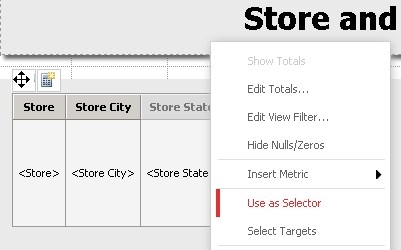
3. Users should then create a new document or dashboard and add the targeting dataset and the freeform SQL report that will be targeted to the document. The grid containing the attribute that will be used as a selector must be added to the document, and users would need to right click on the attribute in the grid and select the option to use as a selector as shown below:
4. To set the properties of the selector, users should right click on the attribute once again and select 'Edit selector' as shown below:
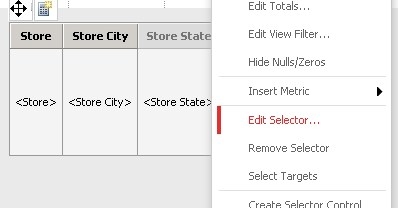
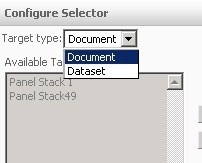
5. In the selector dialog box, users should switch from the default Target type - 'Document' selector to the 'Dataset' option as shown below:
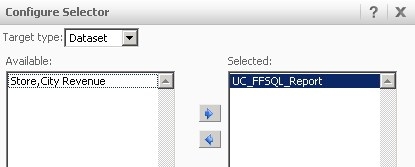
6. Once the Target type selector option has been changed, the dialog box showing the datasets on the dashboard will be displayed. Users should select the correct dataset to be used as the target.
7. Users can make any other changes they require and then save and run the document. After execution users can observe the results of changing the selector and noting that the 'freeform condition' on the targeted dataset is changed and the results displayed in the document.