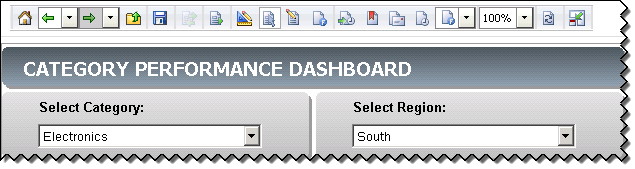
It is possible to configure a Report Services Document as the user's project home page instead of the standard home page in Strategy Web
Follow the steps below in order to configure a Report Services Document as the user's project home page. This sample is based on the Strategy Tutorial project.
1) Go to Strategy Web, log onto the desired project with the own user's credential:

2) Execute the desired Report Services Document.
NOTE: Document must be executed before could be set as home page.
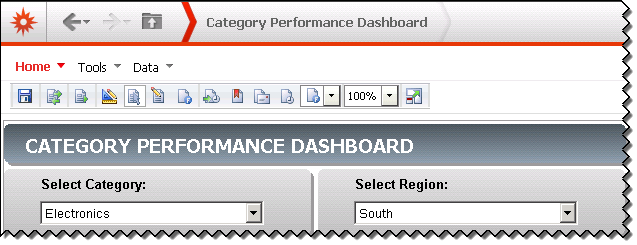
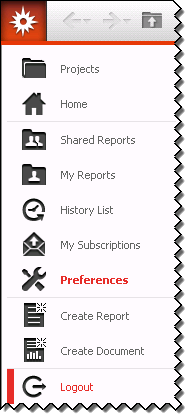
3) Click on the main menu and select the Preferences option:

4) In Preferences, on the left panel, under the Preferences Level menu, click on the User Preferences option, so on the right panel, under General, in the Default start page section, check the Last document:xxxx radio button:
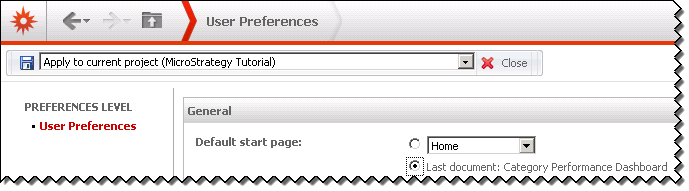
5) To apply this configuration, click on the Save button after selecting the Apply to current project (Project Name) option.
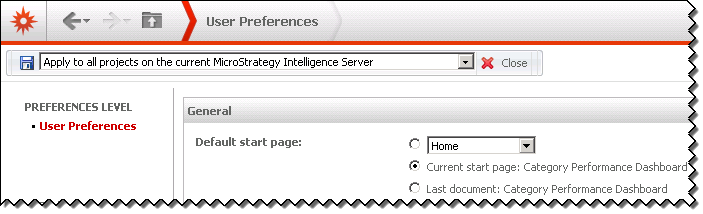
6) After applying this change, a new Default stat page option appears as Current start page: xxxxx:
7) Close the user's session by clicking on the main menu Logout option:
8) After applying this configuration, the referred Report Services Document will be displayed as the user's project home page: