EducationSoftwareStrategy.com
StrategyCommunity

Knowledge Base

Product

Community

Knowledge Base

TopicsBrowse ArticlesDeveloper Zone

Product

Download SoftwareProduct DocumentationSecurity Hub

Education

Tutorial VideosSolution GalleryEducation courses

Community

GuidelinesGrandmastersEvents
x_social-icon_white.svglinkedin_social-icon_white.svg
Strategy logoCommunity

© Strategy Inc. All Rights Reserved.

LegalTerms of UsePrivacy Policy
  1. Home
  2. Topics

KB43634: How to use a selector to control which metrics display in a grid in a document depending on which attribute element is selected in MicroStrategy Web 9.3.1


Community Admin

• Strategy


How to use a selector to control which metrics display in a grid in a document depending on which attribute element is selected in MicroStrategy Web 9.3.1

SYMPTOM
Suppose certain attribute elements always return 0 or NULL for specific metrics. For example, in the grid below, suppose that Metric2 always returns 0 for element1, and Metric1 always returns 0 for element2:
 

 Element 1
100

 Element 1
100

 Element 1
100

 Element 2
013

 Element 2
013

 Element 2
013


Suppose the reporting requirement is to be able to use an attribute element selector based on Attribute, so that when element1 is selected, only Metric1 is displayed on the grid, and when element2 is selected, only Metric2 is displayed on the grid.
 
ACTION
Currently there is no way to accomplish this with the out-of-the-box Strategy 9.x platform. However, an enhancement request was logged for this feature. Contact Strategy Technical Support for an update on this issue.
 
WORKAROUND
Consider using a panel selector instead of an attribute element selector and putting two different grids, one on each of the two different panels in the same panel stack. Each grid will contain the attribute elements and metrics desired.
 
See below for an example of how to accomplish this in Strategy Tutorial:
  • Create a panel stack with two panels.
  • Rename the panels as: Books and Electronics
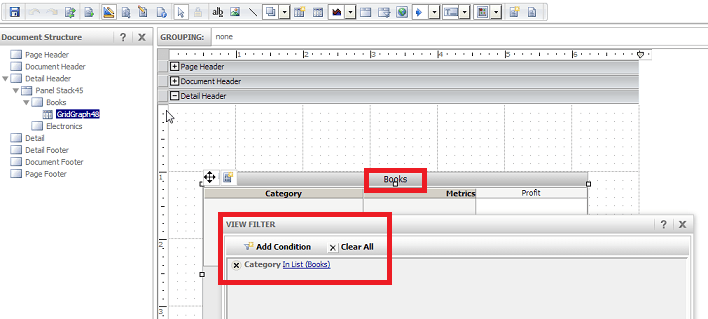
  • On the Books panel, put a grid that only contains the Category attribute and the Profit metric.
  • Add a view filter on the grid that filters the Category attribute so that only Books is shown, like seen below.
ka04W000000OgxoQAC_0EM4400000026fi.png
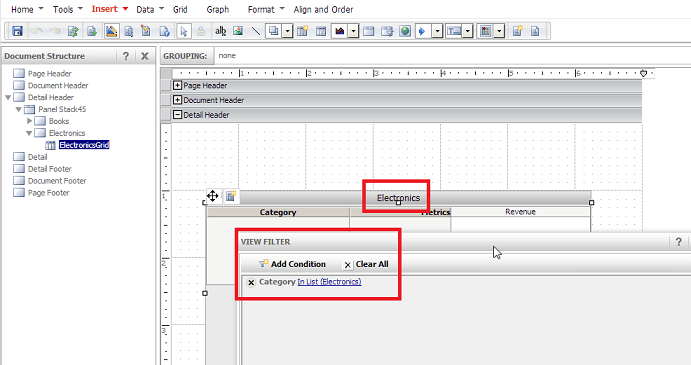
  • On the Electronics panel, put a grid that only contains the Category attribute and the Revenue metric.
  • Add a view filter on the grid that filters the Category attribute so that only Electronics is shown, like seen below.
ka04W000000OgxoQAC_0EM4400000026fw.png
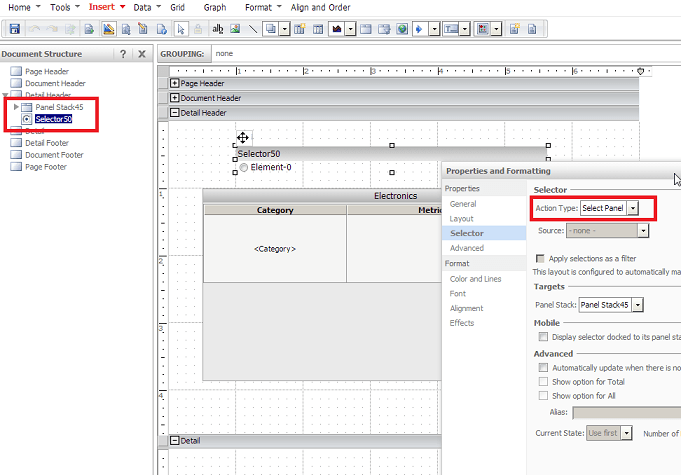
  • Create a panel selector for the panel stack and put it outside the panel stack, like shown below.
ka04W000000OgxoQAC_0EM4400000026fn.png
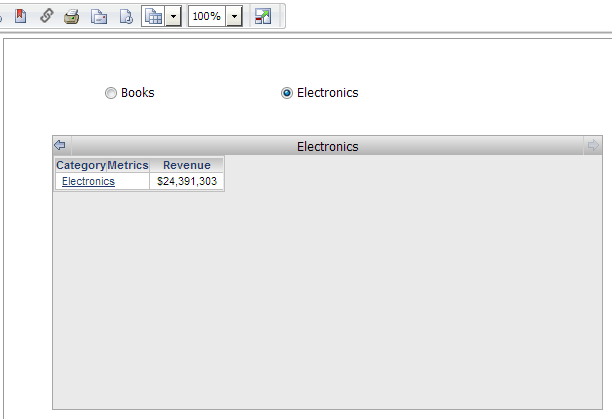
  • Now, when the document is run in Interactive Mode, the panel selector appears to be an attribute element selector that also controls whether Revenue or Profit is shown on the grid.
ka04W000000OgxoQAC_0EM4400000026fk.png

Note: Refer to tech note KB19625 for more information on how multiple panels and multiple grid instances can affect the performance of a dashboard.


Comment

0 comments

Details

Knowledge Article

Published:

June 7, 2017

Last Updated:

June 7, 2017