EducationSoftwareStrategy.com
StrategyCommunity

Knowledge Base

Product

Community

Knowledge Base

TopicsBrowse ArticlesDeveloper Zone

Product

Download SoftwareProduct DocumentationSecurity Hub

Education

Tutorial VideosSolution GalleryEducation courses

Community

GuidelinesGrandmastersEvents
x_social-icon_white.svglinkedin_social-icon_white.svg
Strategy logoCommunity

© Strategy Inc. All Rights Reserved.

LegalTerms of UsePrivacy Policy
  1. Home
  2. Topics

KB4371: How to select or modify the column data type for an attribute or fact in MicroStrategy Architect 9.x and 10.x


Community Admin

• Strategy


How to select or modify the column data type for an attribute or fact in MicroStrategy Architect 9.x and 10.x

To select or modify the column data type for a particular attribute or fact, follow the steps below:
  • Locate and edit the attribute or fact to be modified.
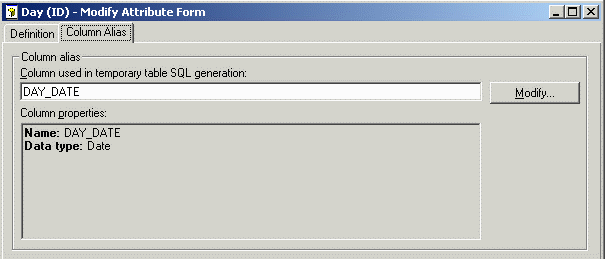
  • If editing a fact, click on the Column Alias tab. For an attribute, the Column Alias tab is available only when modifying an attribute form. For the Day attribute's ID, the data type is Date.

ka04W000000OhmmQAC_0EM440000002GJN.gif
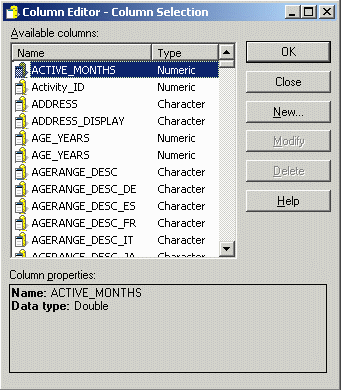
  • Click on 'Modify' to open the Column Editor - Column Selection window as shown below:

ka04W000000OhmmQAC_0EM440000002GJM.gif
  • This window lists all the column aliases (attributes/facts) currently in the project. It is possible to rename an existing column alias, but not to change its data type because data type changes would impact physical table definitions. To alter the data type, it is necessary to create a new column alias and assign it to the attribute form or fact.
     
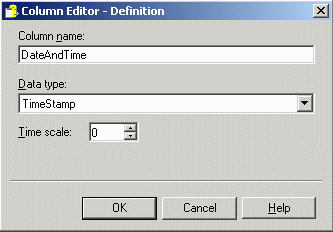
  • Click on 'New' to create a new column alias. Enter the name of the column and select the data type (in this case, 'TimeStamp').

ka04W000000OhmmQAC_0EM440000002GJU.gif
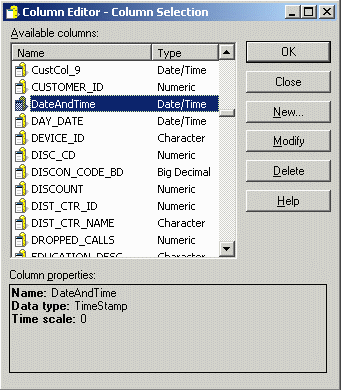
  • Click on 'OK'. The Column Editor - Column Selection window re-appears, with the new column in the list.

ka04W000000OhmmQAC_0EM440000002GJl.gif
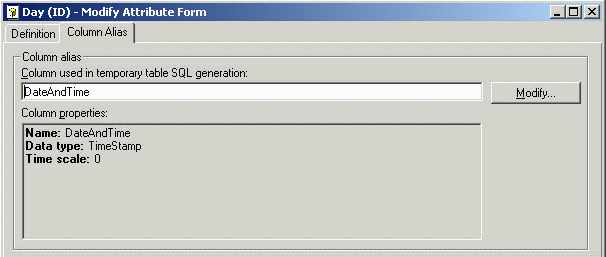
  • Select the newly created column (notice the Data type is 'Date/Time') and click 'OK' to return to the Column Alias tab. The column alias will now show the desired data type.

ka04W000000OhmmQAC_0EM440000002GJL.gif
  • Click on 'Save and Close'. (If editing an attribute, first click OK in the attribute form editor to return to the main attribute editor window.)

Note: Even though the name of the form or fact's column alias has been changed, the Strategy SQL Generation Engine will use the correct physical column names wherever the attribute form appears in SQL. The Engine looks up column names based on the column objects associated with the physical table object in the metadata. Setting a different column alias for an attribute form or fact does not change the columns associated with the table.
 
However, if intermediate tables need to be created for the report and explicit table creation is used (per the table creation type VLDB property), the name given to the new column alias will be used in the CREATE TABLE statement.
 
Sql
create table #ZZEA00(
   DateAndTime   DATETIME,
   WJXBFS1   FLOAT)
 
insert into #ZZEA00
select   a11.DAY_DATE    DateAndTime,
   sum((a11.TOT_DOLLAR_SALES - a11.TOT_COST))    WJXBFS1
from   DAY_CTR_SLS   a11
group by   a11.DAY_DATE
 
select   a12.MONTH_ID    MONTH_ID,
   a13.MONTH_DESC    MONTH_DESC0,
   pa11.DateAndTime    DateAndTime,
   pa11.WJXBFS1    WJXBFS1
from   #ZZEA00   pa11
   join   LU_DAY   a12
       on  (pa11.DateAndTime = a12.DAY_DATE)
   join   LU_MONTH   a13
       on  (a12.MONTH_ID = a13.MONTH_ID)
 
drop table #ZZEA00


Comment

0 comments

Details

Knowledge Article

Published:

April 14, 2017

Last Updated:

April 14, 2017