EducationSoftwareStrategy.com
StrategyCommunity

Knowledge Base

Product

Community

Knowledge Base

TopicsBrowse ArticlesDeveloper Zone

Product

Download SoftwareProduct DocumentationSecurity Hub

Education

Tutorial VideosSolution GalleryEducation courses

Community

GuidelinesGrandmastersEvents
x_social-icon_white.svglinkedin_social-icon_white.svg
Strategy logoCommunity

© Strategy Inc. All Rights Reserved.

LegalTerms of UsePrivacy Policy
  1. Home
  2. Topics

KB43765: How to enable a user to change their password during their next login to Web in MicroStrategy 2021


Stefan Zepeda

Salesforce Solutions Architect • Strategy


How to enable a user to change their password during their next login to Web in MicroStrategy 2021

Follow the steps below in order to enable a user to change their password during their next login to Web Strategy 
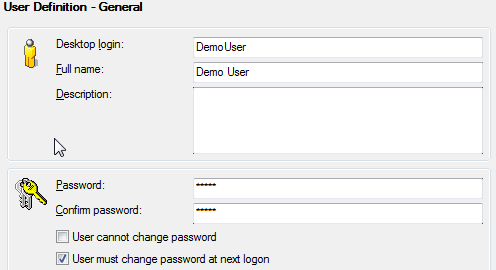
  • In Developer/Workstation, enable the option "User must change password at next log on" setting as shown below.
     
ka0PW00000019MDYAY_0EM440000002Cm8.png
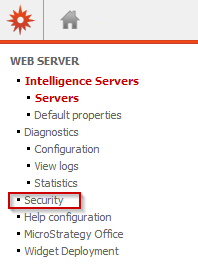
  • In Strategy Web, go to Web Administrator > Security as shown below.
     
ka0PW00000019MDYAY_0EM440000002CmA.png
  • On the "Login" section, check the option "Allow users to change expired password" as shown below.
     
ka0PW00000019MDYAY_0EM440000002Cm1.png
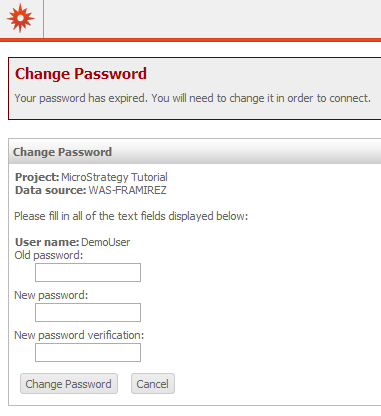
  • Login and the system will prompt the user for a new password as shown below.
     
ka0PW00000019MDYAY_0EM440000002Cls.png

 
Note: If the "Allow users to change expired password" is not checked in Web Administrator > Security, the following error will appear:

ka0PW00000019MDYAY_0EM440000002CmC.png


Comment

0 comments

Details

Knowledge Article

Published:

April 14, 2017

Last Updated:

March 7, 2024