EducationSoftwareStrategy.com
StrategyCommunity

Knowledge Base

Product

Community

Knowledge Base

TopicsBrowse ArticlesDeveloper Zone

Product

Download SoftwareProduct DocumentationSecurity Hub

Education

Tutorial VideosSolution GalleryEducation courses

Community

GuidelinesGrandmastersEvents
x_social-icon_white.svglinkedin_social-icon_white.svg
Strategy logoCommunity

© Strategy Inc. All Rights Reserved.

LegalTerms of UsePrivacy Policy
  1. Home
  2. Topics

KB4377: How to create a consolidation in MicroStrategy


Stefan Zepeda

Salesforce Solutions Architect • Strategy


How to create a consolidation in MicroStrategy

What are consolidations?
Consolidations are used within templates to specify the data users wish to view in their report. Consolidations allow users to group attribute elements in new ways without changing the metadata and warehouse definitions. Consolidations enable users to create customized groupings that allow row calculations between elements of a given attribute.
 
How can users access the Consolidation Editor?
To access the Consolidation Editor, execute the following:
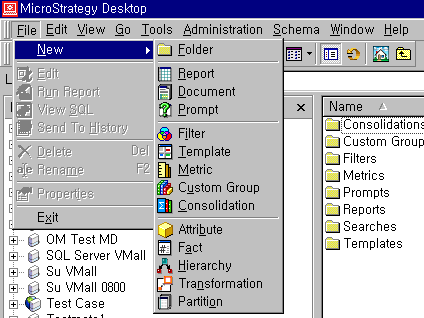
  • From the File menu, go to New and choose Consolidation.
     
ka044000000kJHOAA2_0EM440000002GJt.gif
  •  
    NOTE: Users must be granted 'Create Application Objects' and 'Use Consolidation Editor' privileges.

 
How do users create a consolidation?
  • The methods below may be used to create a new consolidation element:
     
    • From the Object Browser, drag and drop an attribute element into the Elements for this consolidation section.
    • Under Elements for this consolidation, select 'Click here' to add a new consolidation element.
    • Under Elements for this consolidation, right-click and select Add Element.
    • On the toolbar, click Add Element.
    • From the Elements menu, choose Add Element.
  •  
    The following is an example of a 'Customer Geography' consolidation:
     
ka044000000kJHOAA2_0EM440000002GJz.gif
  • Save the consolidation.
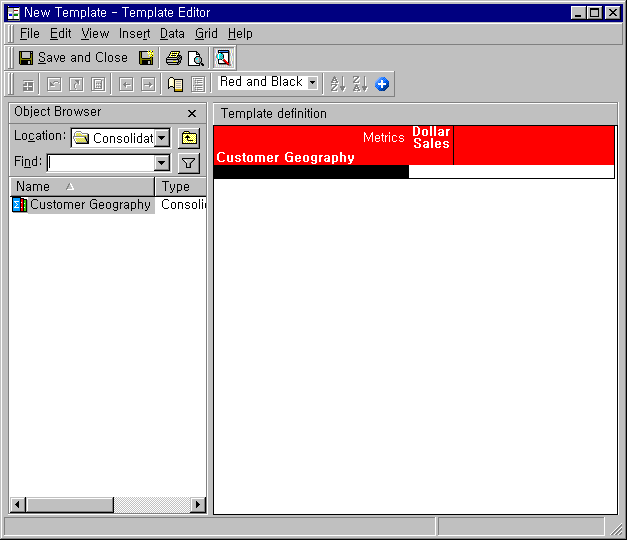
  • Place the newly created consolidation in the template.
     
ka044000000kJHOAA2_0EM440000002GJy.gif


KB4377


Comment

0 comments

Details

Knowledge Article

Published:

June 8, 2017

Last Updated:

December 31, 2018