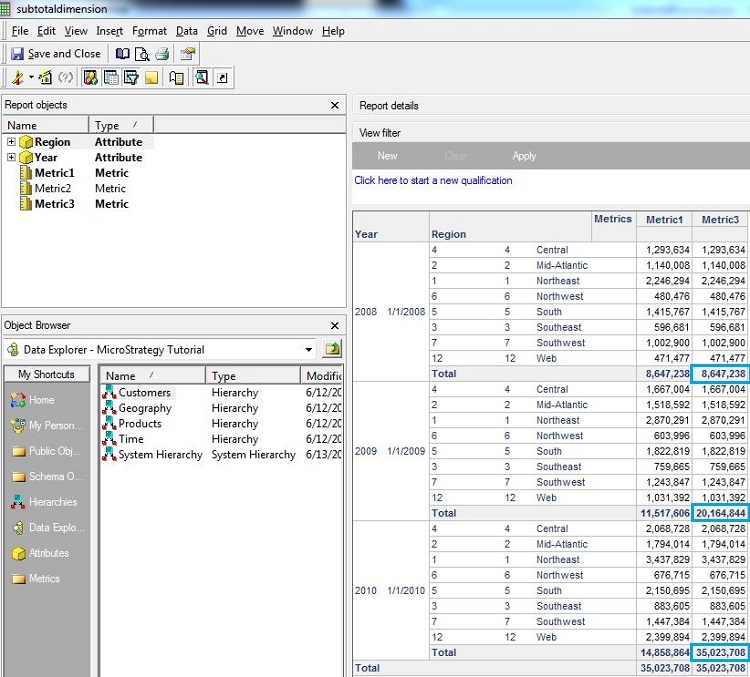
Using the Strategy Tutorial project, follow the steps below in order to implement a RunningSum calculation only for a metric subtotal in Strategy
1) Create the metric that needs to have the desired RunningSum subtotal, in this example, Metric1, as shown:
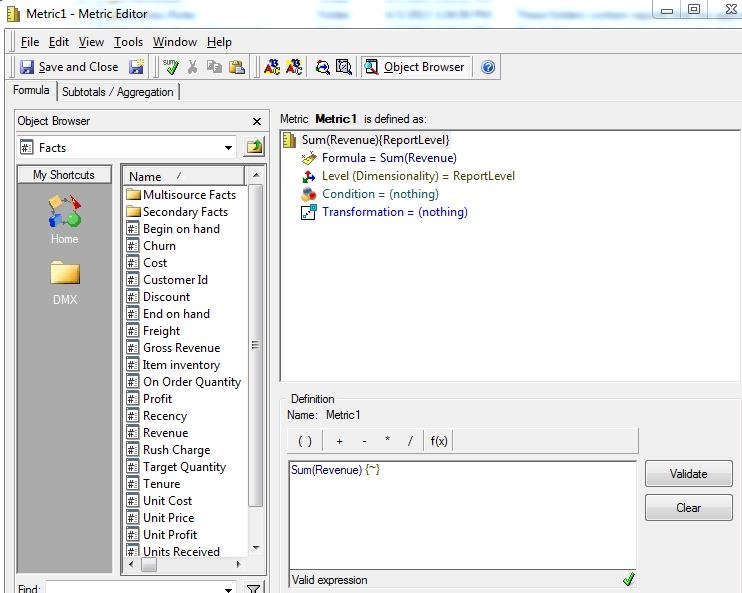
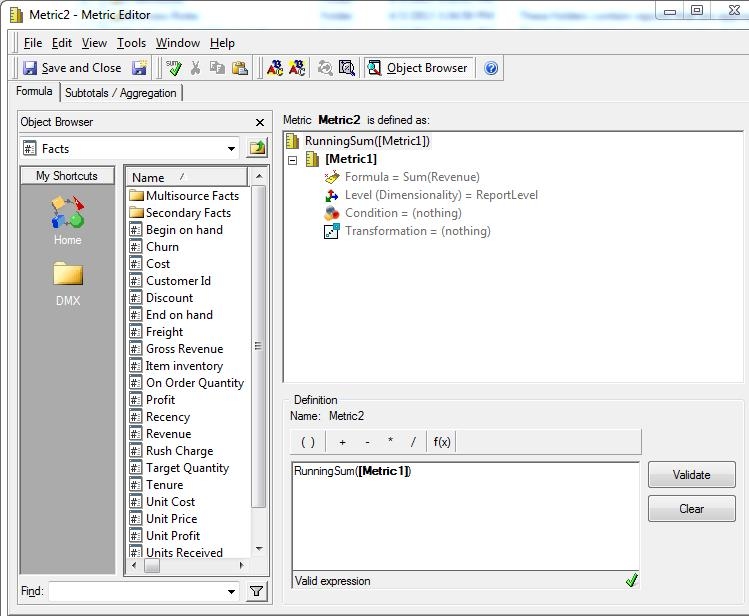
2) Create a second metric that will perform the calculation of the RunningSum, in this example Metric2:
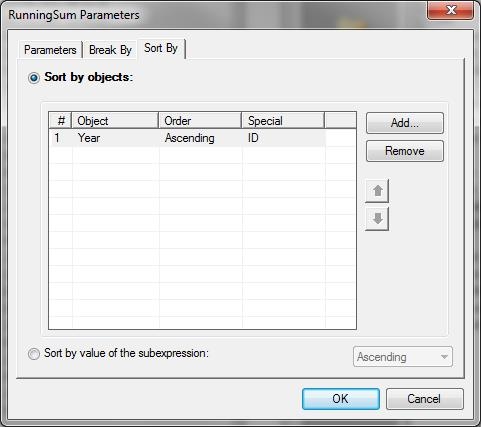
3) Still in the definition of Metric2, right mouse click on the RunningSum function, select the RunningSum parameters option. In the Sort By tab, add the attribute that will be used as the sort criteria, in this example the Year attribute:
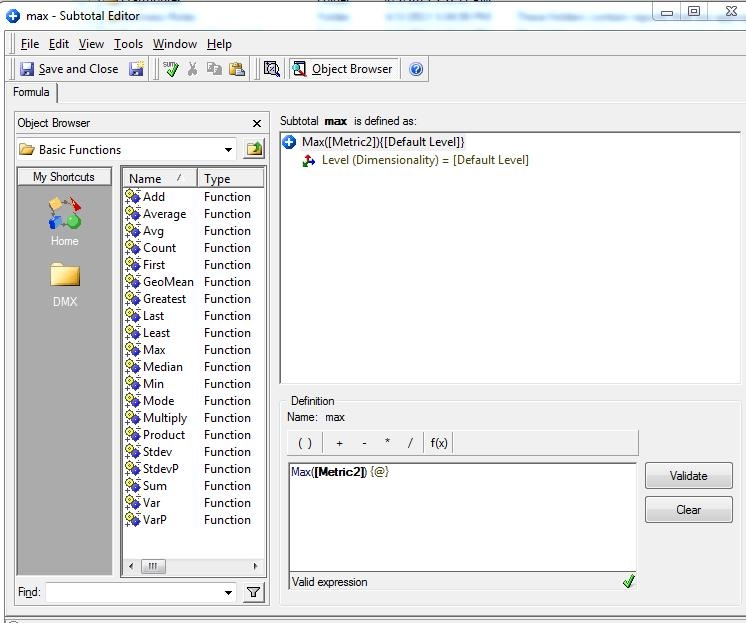
4) Create a custom subtotal as a Max of the Metric2 metric, using the formula Max(Metric2), as shown:
5) Create a new metric for the subtotal, in this example Metric3. Define its formula as Metric1 + (Metric2 * 0) or Metric1 * (Metric2 / Metric2), as shown
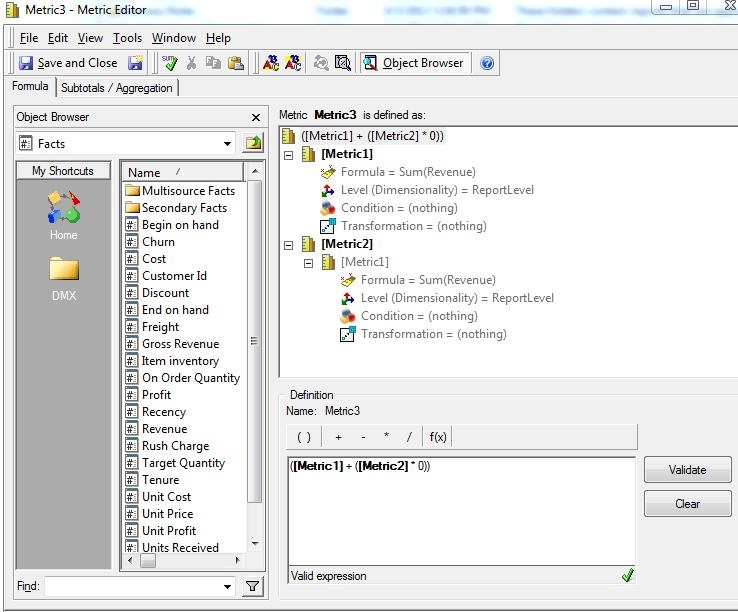
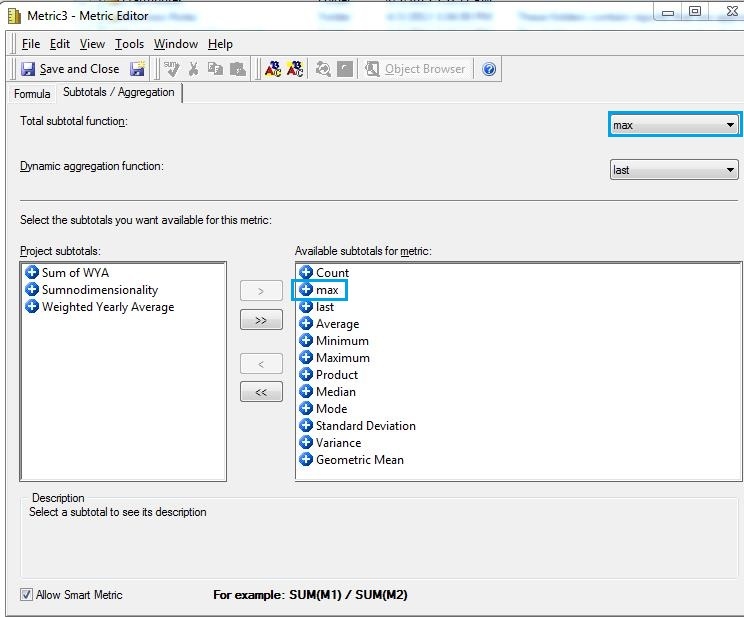
6) Still in the definition of Metric3:
a) Move the newly created subtotal from Project Subtotals to Available subtotals for metric
b) Select the newly created subtotal in Total subtotal function by clicking on the Drop-down list, clicking on More and selecting the referred subtotal in its location
c) Check the Allow Smart Metric option
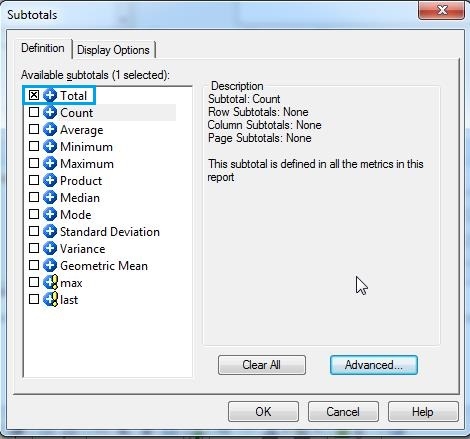
7) In the report editor, click on the Data menu, select the Subtotals option then select Total, as shown:
8) In the resulting report, Metric3 has the values of Metric1 and the subtotals of Metric2, as shown: