EducationSoftwareStrategy.com
StrategyCommunity

Knowledge Base

Product

Community

Knowledge Base

TopicsBrowse ArticlesDeveloper Zone

Product

Download SoftwareProduct DocumentationSecurity Hub

Education

Tutorial VideosSolution GalleryEducation courses

Community

GuidelinesGrandmastersEvents
x_social-icon_white.svglinkedin_social-icon_white.svg
Strategy logoCommunity

© Strategy Inc. All Rights Reserved.

LegalTerms of UsePrivacy Policy
  1. Home
  2. Topics

KB4384: How to create a filter definition prompt in MicroStrategy Developer


Stefan Zepeda

Salesforce Solutions Architect • Strategy


How to create a filter definition prompt in MicroStrategy Developer

What are prompts?
Prompts in Strategy Developer are used to enable metric, filter, template, custom group or report modification. These modifications are implemented by applying certain conditions on one or more of the attributes, attribute elements, metrics or other objects that the report may include. With prompts, users can:

  • Apply conditions or modify components in a report at run time, thus eliminating the need for preliminary definitions.
  • Execute a report multiple times, selecting a different answer to a given prompt each time, receiving, as result, a set of immediate answers to compare.

 
What are filter definition prompts?
Filter definition prompts are used for qualifying the value of attributes, attribute elements and metrics. There are four different ways to create filter definition prompts.

  1. Choose from all attributes in a hierarchy.
     
    These prompts allow users to qualify on attributes and elements from a specific hierarchy, all hierarchies in the project, or hierarchies returned by a search object to reduce the number of attributes available at run time. With this type of prompt, users can either qualify on one or more attribute elements or identify elements in a list.
     
  2. Qualify on an attribute.
     
    These prompts allow users to qualify on an attribute and a specific form for that attribute.
     
  3. Choose from an attribute element list.
     
    This prompt restricts the attribute elements from which a user may choose when running a report. This restriction is implemented either through the use of a filter or the creation of a predefined list.
     
  4. Qualify on an metric.
     
    This prompt allows users to qualify on a metric at run time.

 
How is the Prompt Generation Wizard accessed?
To access the Prompt Generation Wizard, execute the following:
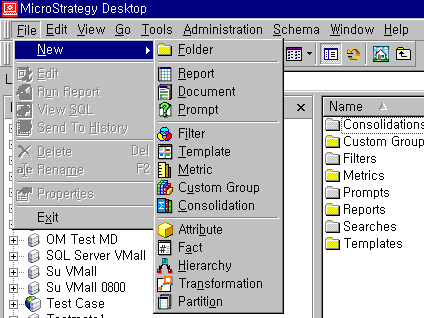
  • Go to 'New' from the File menu, and choose 'Prompt'.
     
ka02R000000kbocQAA_0EM440000002GIj.gif
  •  
    NOTE: Users must be granted 'Create Application Objects' and 'Use Prompt Editor' privileges.

 
How is a filter definition prompt created by choosing from all attributes in a hierarchy?
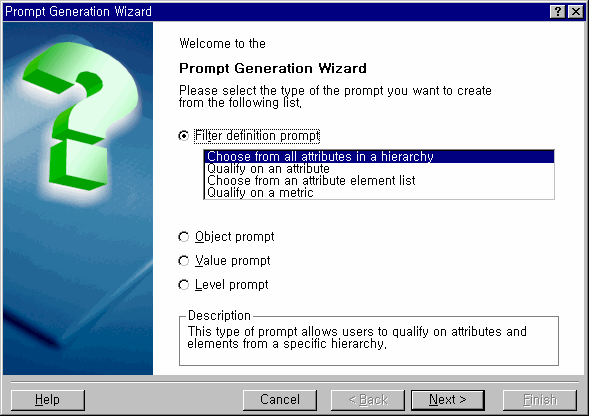
  • From the Prompt Generation Wizard, select 'Filter definition prompt'. From the list of filter definition prompts, select 'Choose from all attributes in a hierarchy' and click on 'Next'.
     
ka02R000000kbocQAA_0EM440000002GJ9.gif
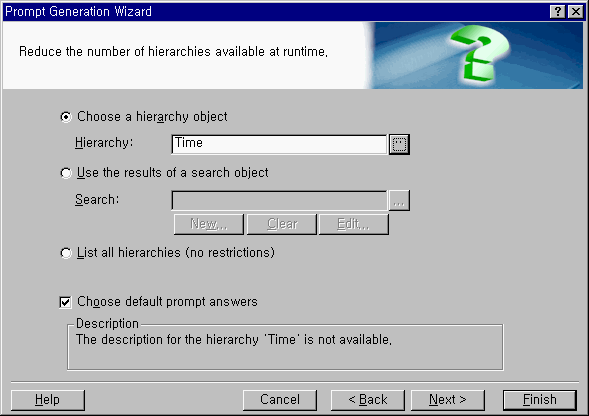
  • Perform one of the following actions to select which hierarchies will be available in the prompt.
     
    • Select 'Choose a hierarchy object'. Enter the name of the hierarchy or click on the ellipsis '... ' to browse for one.
       
      OR
       
    • Select 'Use the results of a search object'. Click on the ellipsis '... ' to select a search object from a list of available searches. Select the search object and click on 'OK'.
       
      OR
       
    • Select 'Use the results of a search object'. Click on 'New' to create a new search object. In the 'Search for Objects' dialog box, define the search and click on 'OK'. Save the search.
       
      OR
       
    • Select 'List all hierarchies (no restrictions)' to allow users to choose from all hierarchies in the project.
ka02R000000kbocQAA_0EM440000002GJG.gif
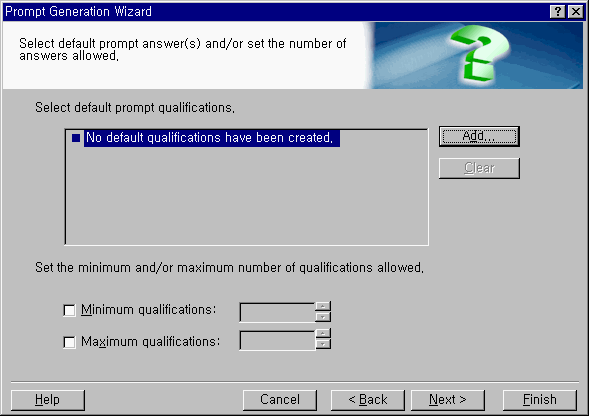
  • To specify default answers for the prompt, check the 'Choose default prompt answers' check box and click on 'Next'. The following options exist:
     
    • To specify default prompt answers, click on 'Add'. The 'Select Objects' dialog box opens. From the list of available objects, select the objects to be used as default values for the prompt and click on '>' to add them to the list of selected objects. Click on 'OK' when finished.
    • To limit the minimum and maximum number of attribute elements a user is allowed to choose, check the appropriate check box and set the limit.Click on 'Next'.
ka02R000000kbocQAA_0EM440000002GIq.gif
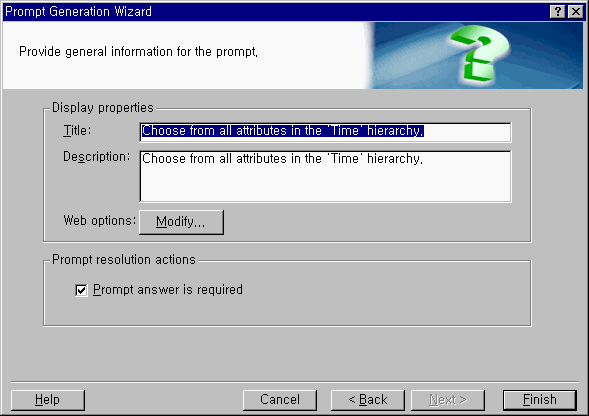
  • Enter a title and a description for the prompt. Click on 'Modify' to determine how the prompt will appear in Strategy Web. The 'Choose a Prompt Style' dialog box opens. Select a prompt style and click on 'OK'. To ensure this prompt requires an answer, select the 'Prompt answer is required' check box.
     
ka02R000000kbocQAA_0EM440000002GIn.gif
  • Click on 'Finish' and save the prompt.

 
How is a filter definition prompt created by qualifying on an attribute?
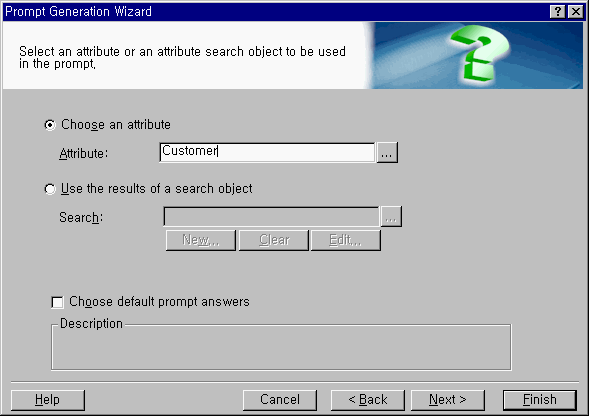
  • From the Prompt Generation Wizard, select 'Filter definition prompt'. From the list of filter definition prompts, select 'Qualify on an attribute' and click on 'Next'.
  • To select an attribute on which to qualify, perform one of the following actions:
     
    • Select 'Choose an attribute'. Enter the name of the attribute on which to qualify or click on the ellipsis '... ' to browse for one.
       
      OR
       
    • Select 'Use the results of a search object'. Click on the ellipsis '...' to select a search object from a list of available searches. Select the search object and click 'OK'.
       
      OR
       
    • Select 'Use the results of a search object'. Click on 'New' to create a new search object. In the 'Search for Objects' dialog box, define the search and click 'OK'. Save the search.
ka02R000000kbocQAA_0EM440000002GIv.gif
  • To specify default answers for the prompt, check the 'Choose default prompt answers' check box and click on 'Next'. Execute one of the following options:
    • To specify default prompt answers, click on 'Add'. The 'Select Objects' dialog box opens. From the list of available objects, select the objects to be used as default values for the prompt and click on '>' to add them to the list of selected objects. Click 'OK'.
       
      OR
       
    • To limit the minimum and maximum number of attribute elements a user is allowed to choose, check the appropriate check box and set the limit. Click on 'Next'.
  • Enter a title and a description for the prompt. Click on 'Modify' to determine how the prompt will appear in Strategy Web. The 'Choose a Prompt Style' dialog box opens. Select a prompt style and click on 'OK'. To ensure this prompt requires an answer, select the 'Prompt answer is required' check box.
  • Click on 'Finish' and save the prompt.

 
How is a filter definition prompt created by choosing from an attribute element list?
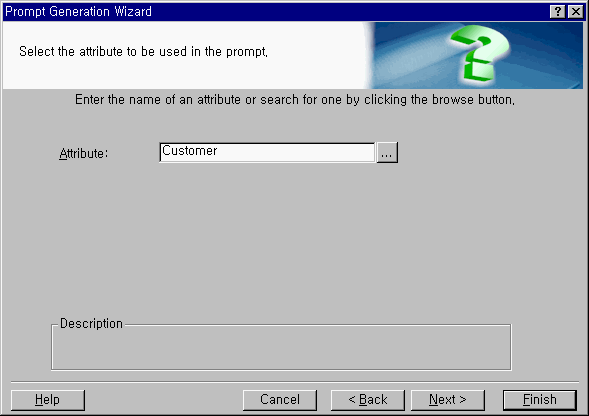
  • From the Prompt Generation Wizard, select 'Filter definition prompt'. From the list of filter definition prompts, select 'Choose from an attribute element list' and click on 'Next'.
  • To choose which attribute elements will be available in the prompt, perform one of the following actions:
     
    • Enter the name of the attribute and click on 'Next'.
       
      OR
       
    • Click on the ellipsis '...' to select an attribute from a list of available attributes. Select an attribute and click 'OK'. Click on 'Next'.
ka02R000000kbocQAA_0EM440000002GIp.gif
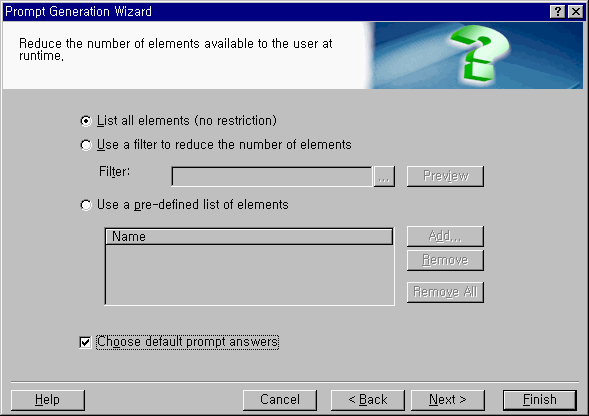
  • Select how the list of attribute elements will be restricted by executing one of the following actions:
     
    • Select 'List all elements (no restrictions)'.
       
      OR
       
    • Select 'Use a filter to reduce the number of elements' and enter a filter name in the entry box (or browse for one by clicking on the ellipsis '…').
       
      OR
       
    • Select 'Use a pre-defined list of elements' and click on 'Add'. The Select Elements dialog box, from which the elements can be chosen and made available to the user at run time, opens.
ka02R000000kbocQAA_0EM440000002GIl.gif
  • To specify default answers for the prompt, check the 'Choose default prompt answers' check box and click on 'Next'. Execute one the following options:
     
    • To specify default prompt answers, click on 'Add'. The 'Select Objects' dialog box opens. From the list of available objects, select the objects to be used as default values for the prompt and click on '>' to add them to the list of selected objects. Click 'OK'.
    • To limit the minimum and maximum number of attribute elements a user is allowed to choose, select the appropriate check box and set the limit.Click on 'Next'.
  • Enter a title and a description for the prompt. Click on 'Modify' to determine how the prompt will appear in Strategy Web. The 'Choose a Prompt Style' dialog box opens. Select a prompt style and click on 'OK'. To ensure this prompt requires an answer, select the 'Prompt answer is required' check box.
  • Click on 'Finish' and save the prompt.

 
How is a filter definition prompt created by qualifying on a metric?
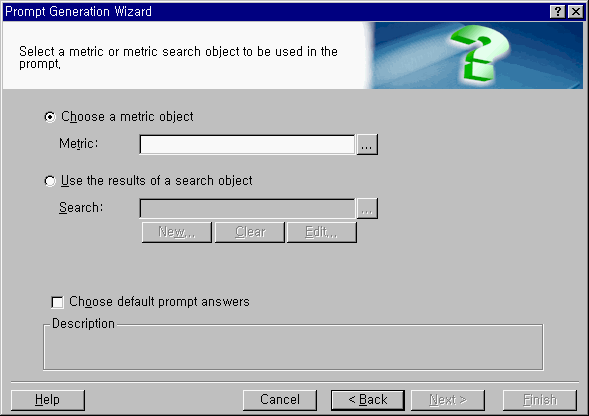
  • From the Prompt Generation Wizard, select 'Filter definition prompt'. From the list of filter definition prompts, select 'Qualify on a metric' and click on 'Next'.
  • To select a metric on which to qualify, perform one of the following actions:
     
    • Select 'Choose a metric object'. Enter the name of the metric on which to qualify or click on the ellipsis '... ' to browse for one.
    • Select 'Use the results of a search object'. Click on the ellipsis '…' to select a search object from a list of available searches. Select the search object and click on 'OK'.
    • Select 'Use the results of a search object'. Click on 'New' to create a new search object. In the Search for Objects dialog box, define the search and click 'OK'. Save the search.
ka02R000000kbocQAA_0EM440000002GIh.gif
  • To specify a default metric qualification for the prompt, check the 'Choose default prompt answers' check box and click on 'Next'. The following options exist:
     
    • To specify a default metric qualification, click on 'Add'. The Qualification Editor opens. Create the metric qualification and save it.
    • To limit the minimum and maximum number of metric qualifications a user may specify, check the appropriate check box and set the limit.Click on 'Next'.
  • Enter a title and description for the prompt. Click on 'Modify' to determine how the prompt will appear in Strategy Web. The 'Choose a Prompt Style' dialog box opens. Select a prompt style and click 'OK'. To ensure this prompt requires an answer, select the 'Prompt answer is required' check box.
  • Click on 'Finish' and save the prompt.

Comment

0 comments

Details

Knowledge Article

Published:

June 8, 2017

Last Updated:

June 8, 2017