This article describes an issue when utilizing EnterpriseDB 9.x to create a metadata repository or configure the Intelligence Server on Linux. Configuration Wizard will throw an error when creating the metadata repository and a separate error if the metadata repository is already created and attempt to configure the Intelligence Server to the EnterpriseDB 9.x metadata is made. This only happens in Linux for Strategy 10.x platform. Microsoft Windows is not affected by this issue.
Metadata repository creation error:
"Not enough privileges to create the metadata tables: Cannot find trusted procedural language 'plpgsql' installed. For information to create the language, see the product manuals."
"The metadata you selected has not been upgraded to the current version of Intelligence Server. Do you want to continue with Intelligence Server configuration? (To upgrade your metadata, complete the Intelligence Server configuration, and then on the main page of the Configuration Wizard, select the option Upgrade existing environment to Strategy Analytics Enterprise.)"
Strategy uses the default encoding of UTF8 for Linux during Configuration Wizard operations. However, Strategy does not ship the EnterpriseDB 9.x driver. The driver must be obtained by EnterpriseDB and the driver is configured to use Non-UTF8. This causes errors to arise when attempting to use the driver with EnterpriseDB 9.x and Strategy Configuration Wizard. The correct description and other parameters must be utilized in the DSN otherwise Strategy will not interact with EnterpriseDB appropriately and use the incorrect encoding.
1. Download and install the EnterpriseDB 9.x driver from their website.
2. Create a DSN entry in the ODBC.ini file that points to the database
3. Open Configuration Wizard in GUI mode and attempt to create the metadata repository. An error is thrown as shown below:

If the metadata repository has been already created using a Windows environment:
1. Download and install the EnterpriseDB 9.x driver from their website.
2. Create a DSN entry in the ODBC.ini file that points to the database
3. Open Configuration Wizard and attempt to Configure the Intelligence Server and the following error will occur:
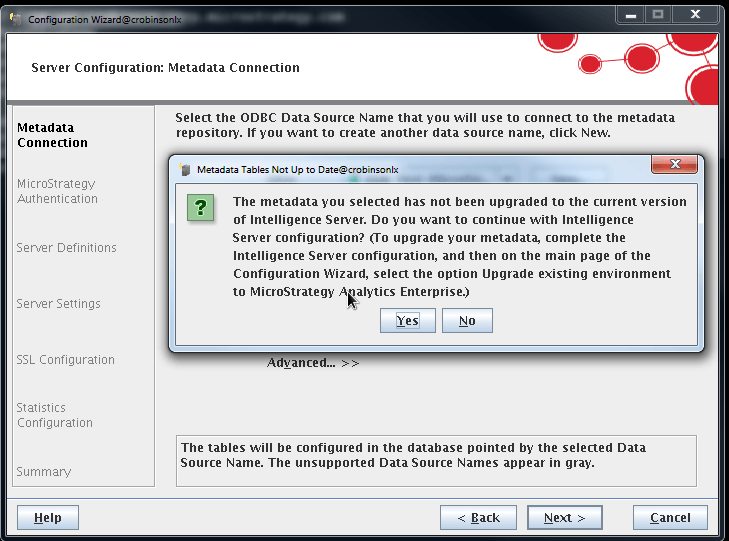
This is due to incorrect parameters utilized inside of the DSN.
When creating the DSN to EnterpriseDB, the following parameters must be added in addition to typical connectivity information:
Description=EnterpriseDB driver for Linux
UpdatableCursors=On
ConnSettings=set standard_conforming_strings=on;set backslash_quote=always
After including these parameters to the DSN, Configuration Wizard operations will work as expected.
KB438431
