EducationSoftwareStrategy.com
StrategyCommunity

Knowledge Base

Product

Community

Knowledge Base

TopicsBrowse ArticlesDeveloper Zone

Product

Download SoftwareProduct DocumentationSecurity Hub

Education

Tutorial VideosSolution GalleryEducation courses

Community

GuidelinesGrandmastersEvents
x_social-icon_white.svglinkedin_social-icon_white.svg
Strategy logoCommunity

© Strategy Inc. All Rights Reserved.

LegalTerms of UsePrivacy Policy
  1. Home
  2. Topics

KB438471: How to connect to Hive


Angel Merida Buen Abad

Product Owner • Strategy


This tutorial explains how to connect to Hive in MicroStrategy.

This tutorial covers the following scenarios for connecting to Hive:

  1. Connectivity to Hive 2.1 in Strategy 10.9
  2. Connectivity to HiveServer2 with SSL Enabled
  3. Connectivity in Strategy Web and Strategy Desktop
  4. Connectivity via JDBC
  5. Connectivity via DSN
  6. Connectivity to Hive 2.x in Windows
  7. Connectivity to Hive 2.x in Linux
  8. DSN-less Connectivity using the Hive Server Type setting
  9. DSN-less Connectivity using the Get Tables with Query setting

1. Connectivity to Hive 2.1 in Strategy 10.9

The following demonstrates DSN-less connectivity in Strategy Desktop 10.9 for Windows:
We also demonstrate DSN-less connectivity in Strategy Desktop 10.9 for Mac:


Connectivity was also demonstrated for Strategy Web 10.9:
 
Connectivity information
MapR Hive:
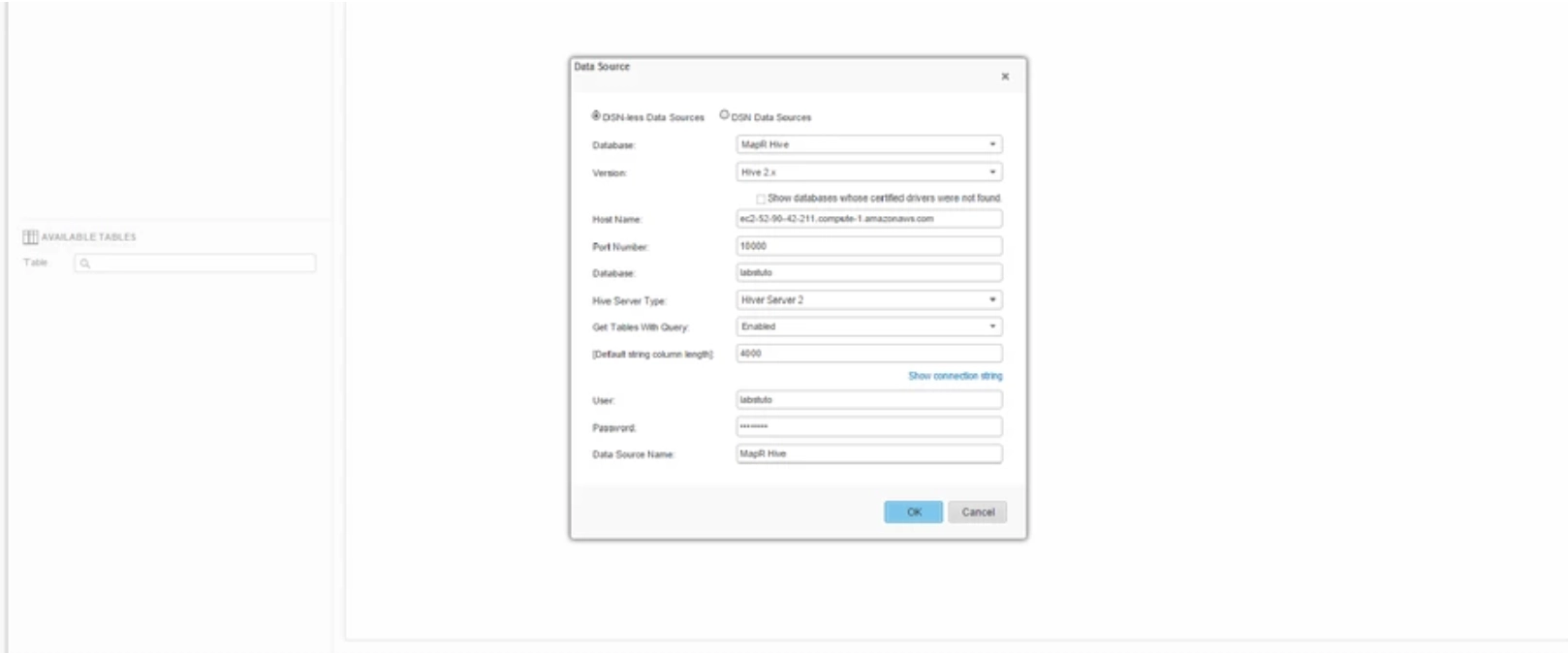
ka04W000000V3KPQA0_0EM4W000001IcOj.jpeg

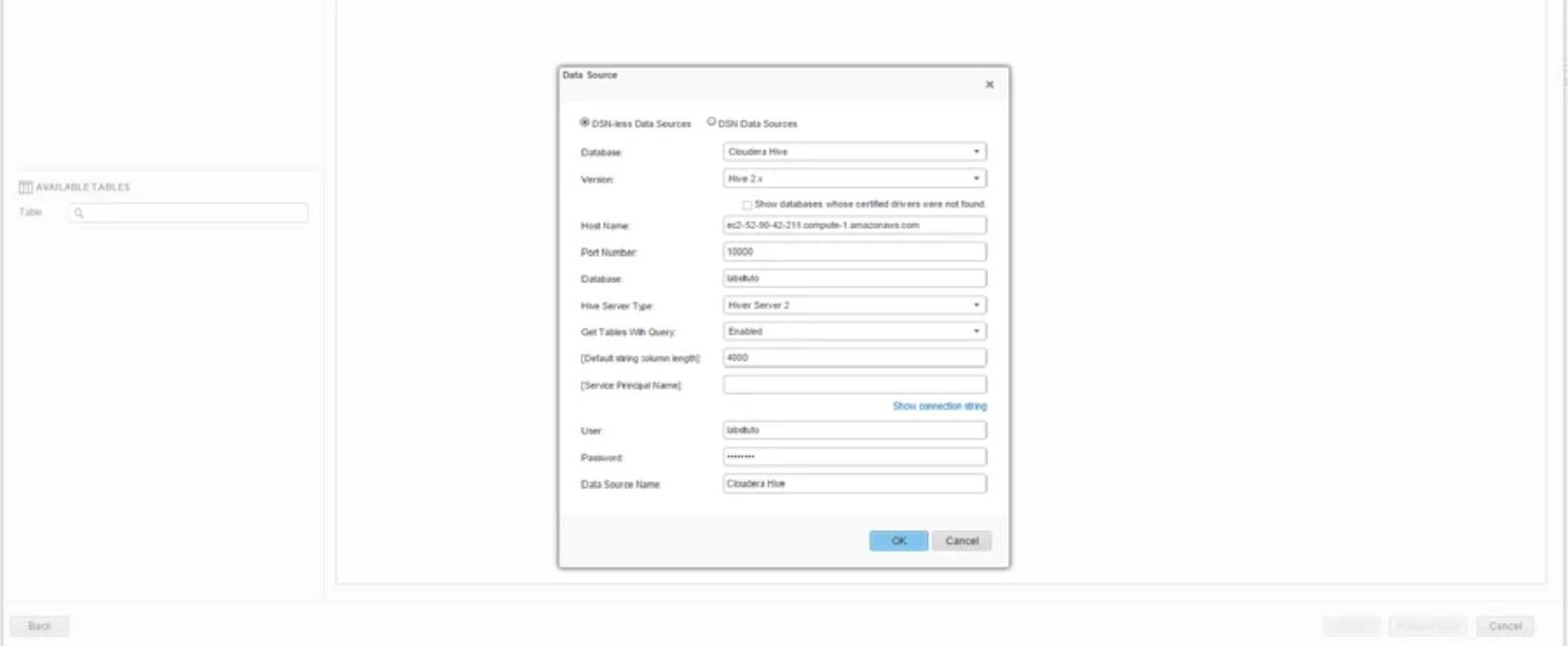
Cloudera Hive:

ka04W000000V3KPQA0_0EM4W000001IcOo.jpeg

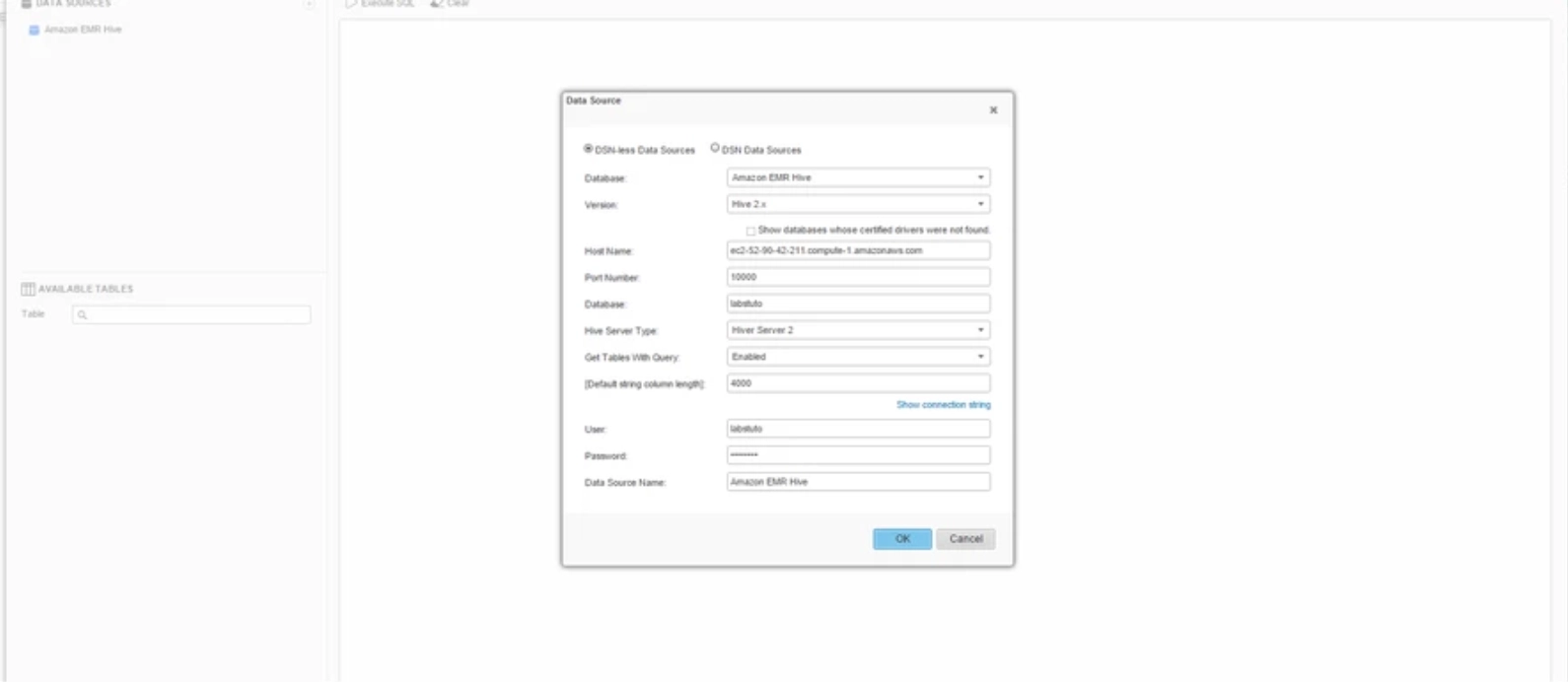
Amazon EMR Hive:

ka04W000000V3KPQA0_0EM4W000001IcOt.jpeg

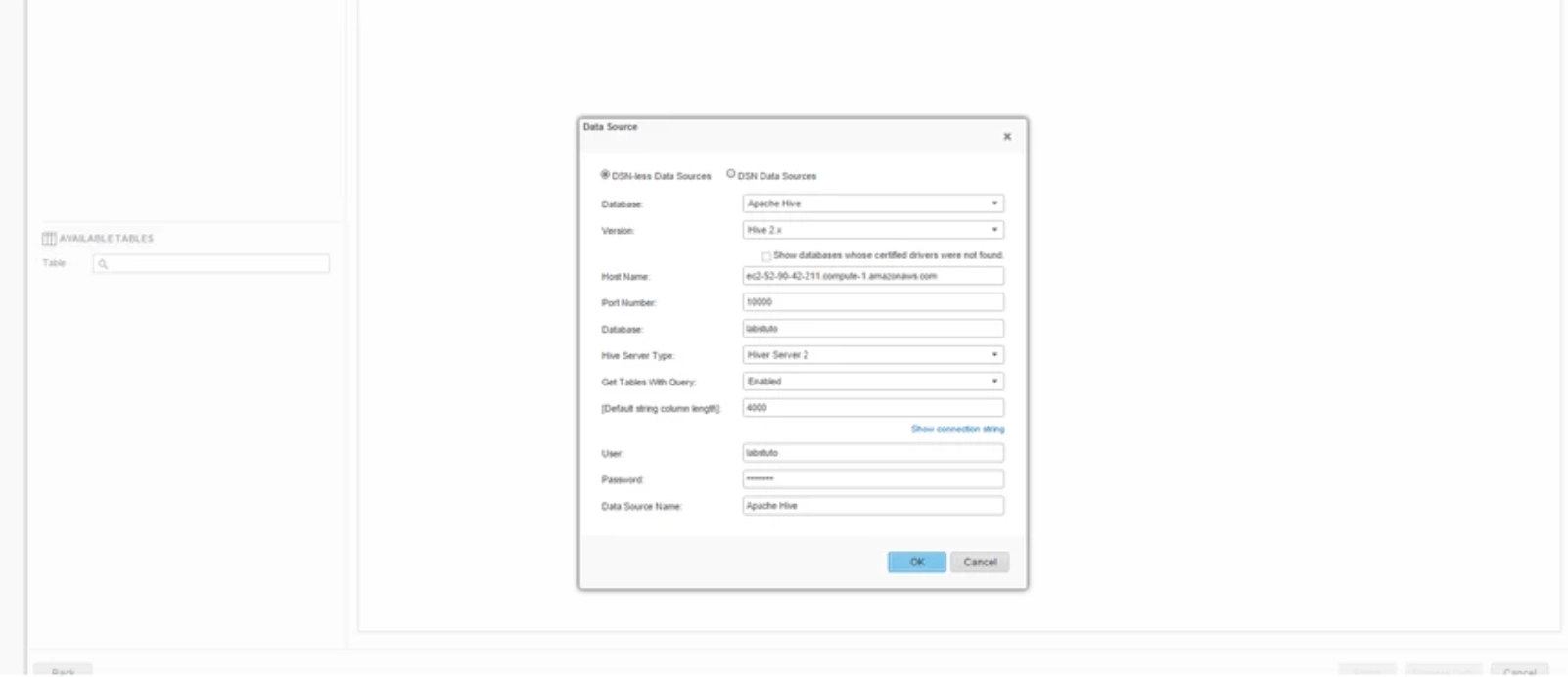
Apache Hive:

ka04W000000V3KPQA0_0EM4W000001IcOy.jpeg

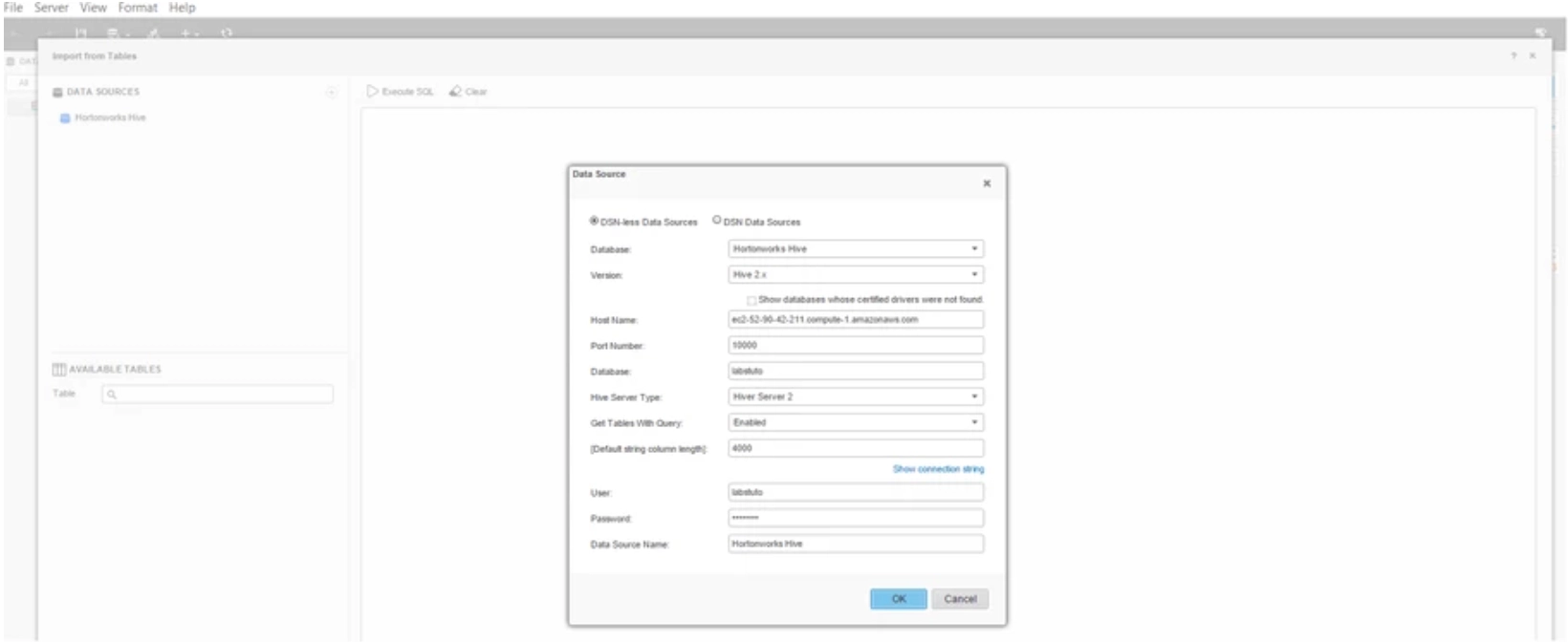
Hortonworks Hive:

ka04W000000V3KPQA0_0EM4W000001IcP3.jpeg

Amazon EMR Hive with Kerberos support:
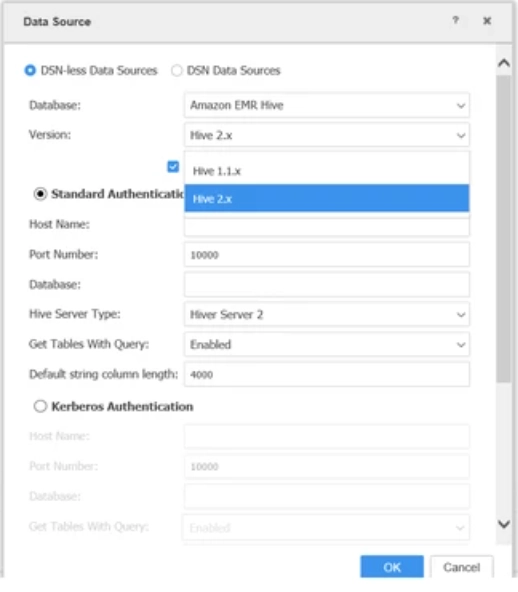
ka04W000000V3KPQA0_0EM4W000001IcPh.jpeg

Hive DSN:

ka04W000000V3KPQA0_0EM4W000001IcPm.jpeg

2. Connectivity to HiveServer2 with SSL Enabled

For more information on how to enable SSL on HiveServer2 and connect to Strategy 10.8 and above, click here.
The following demonstrates an ODBC Connection to HiveServer2 with the Strategy DB Query Tool:
We also demonstrate a connection to HiveServer2 with SSL Enable via 2-way SSL options in Strategy Web:


Connectivity is also demonstrated for HiveServer2 via SSL through a self signed certificate in Strategy Web:
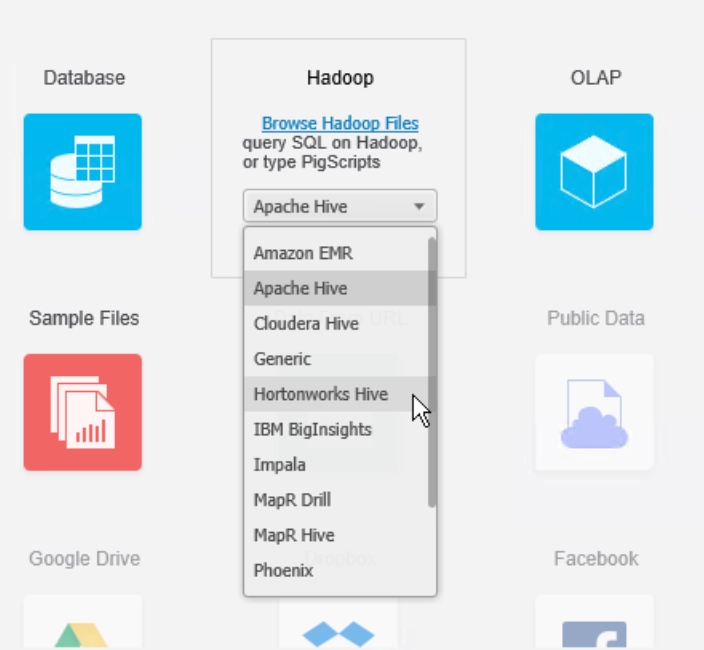
3. Connectivity in Strategy Web and Strategy Desktop

  1. Open Strategy Web and click Add external data.
  2. Mouse over the Hadoop data source options and choose Hortonworks Hive.
ka04W000000V3KPQA0_0EM4W000001IcPr.jpeg
  1. Select any of the 3 presented options (Build a Query, Type a Query, or Pick Tables).
  2. Click Add... link in the top right of the Data Sources pane.
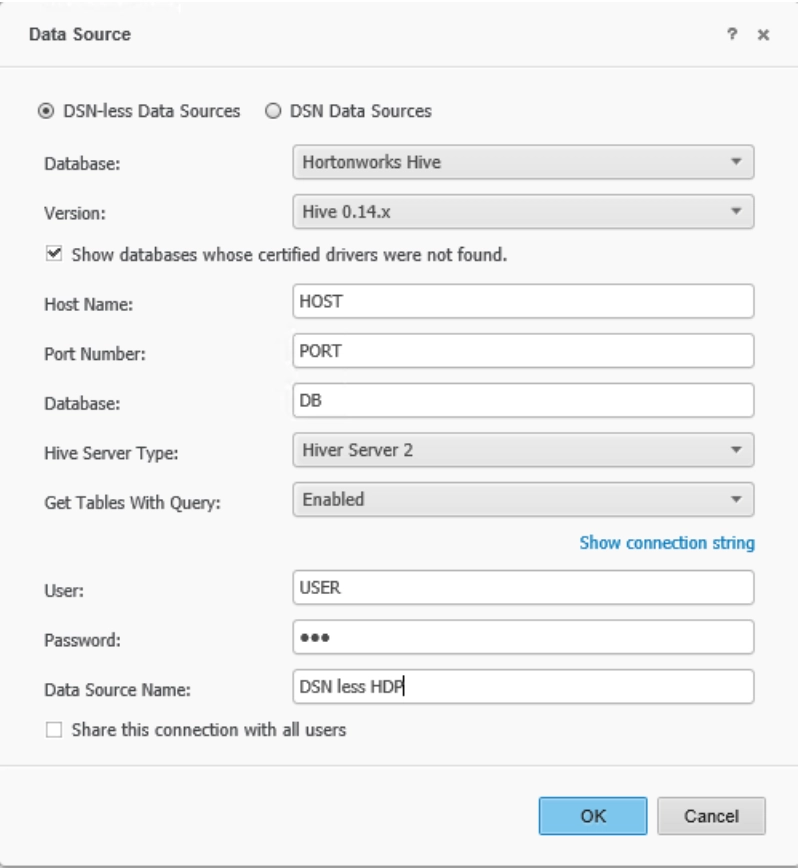
  3. Fill out the data source information by creating a DSN-less data source.
ka04W000000V3KPQA0_0EM4W000001IcPw.jpeg
  1. Click OK to save the changes
  2. Users can now use Web Data Import with the newly created ODBC connection.


4. Connectivity via JDBC 


The JDBC driver is supported only on Mac. The configuration for the Hive driver is the same as shown above for the DSN-less ODBC driver. From an end-user perspective, there is no difference between an ODBC and JDBC driver.


5. Connectivity via DSN

Configuration consists of three steps: create database instance, create a database connection, and configure and store credentials.
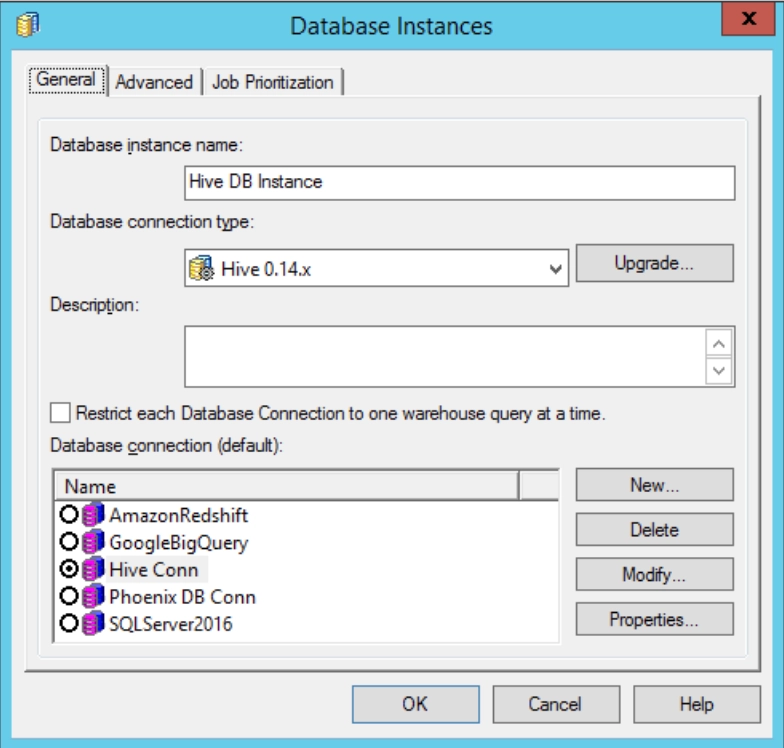
  1. Create a new database instance:
ka04W000000V3KPQA0_0EM4W000001IcQ1.jpeg

 
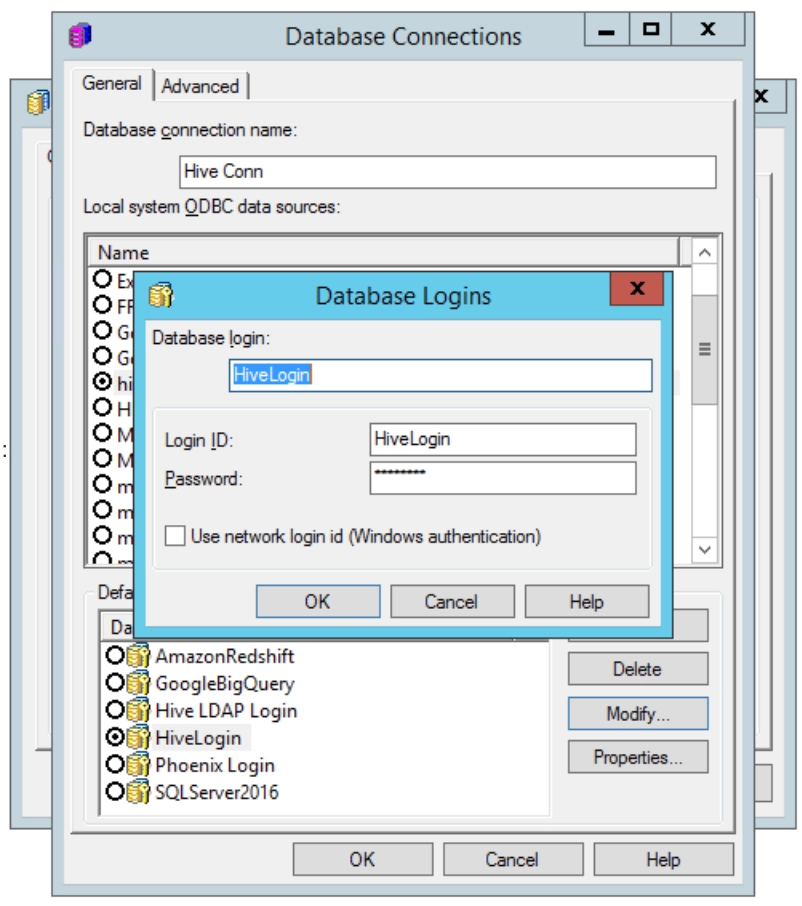
2. Create a database connection that points to the DSN:
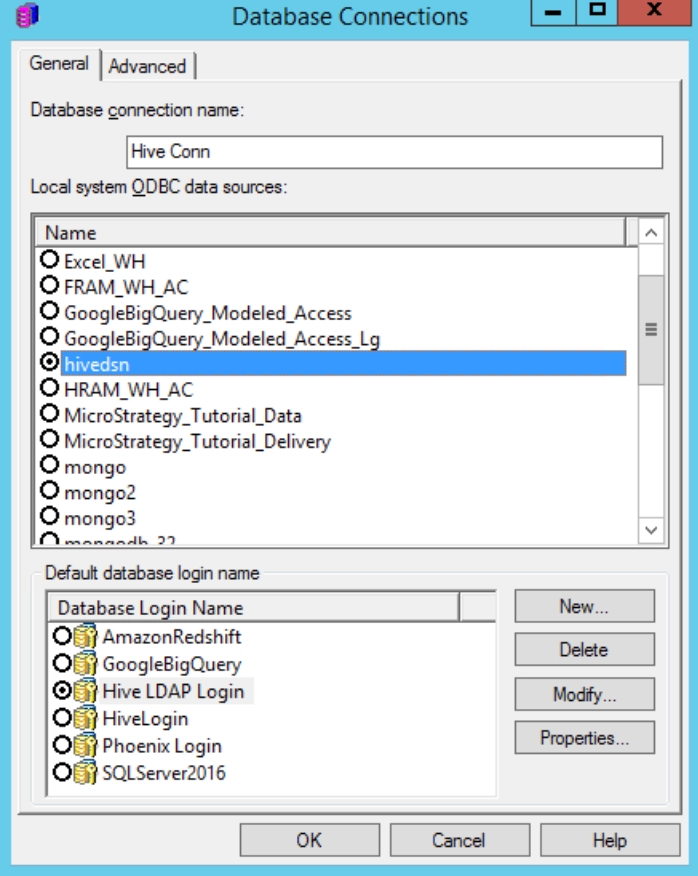
 

ka04W000000V3KPQA0_0EM4W000001IcQ6.jpeg


  • Configure and store credentials for the login:
ka04W000000V3KPQA0_0EM4W000001IcQB.jpeg


6. Connectivity to Hive 2.x on Windows

In this example, we are connecting to the “Interactive Hive” interface (LLAP).
Step 1: Once a HDP 2.5 or HDP 2.6 Hadoop cluster is setup, enable Interactive Query mode (LLAP).
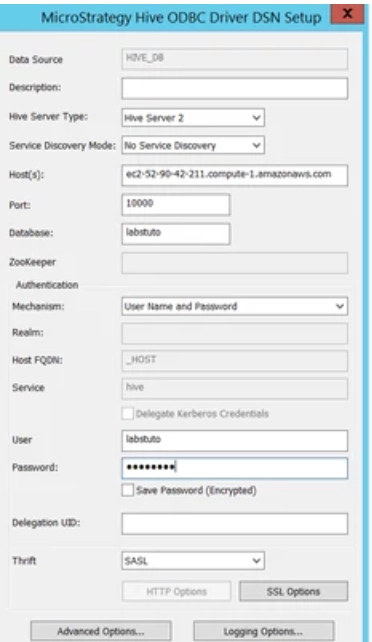
Step 2: Set up a DSN via ODBC Administrator (64 bit). You can do this using the Strategy Hive ODBC Driver or Hortonworks ODBC Driver for Hive.
Fill in the required parameters. The Service Discovery mode can be either “No Service Discovery” or Zookeeper. If you have additional zookeeper parameters, then enable Zookeeper as the discovery mode. If not, then the default of “No service Discovery” should work.
When HDP is setup using Hortonworks Data Cloud, then the default mode of connection is HTTP and the value for hive.server2.thrift.http.port is 10501. This is the port number we will use to connect via ODBC.
Also by default, Mechanism should be selected as “Username and Password”. You can use username: hive and password: hive to connect.
Step 3: Under Thrift Transport option, select HTTP as the mode of transport.
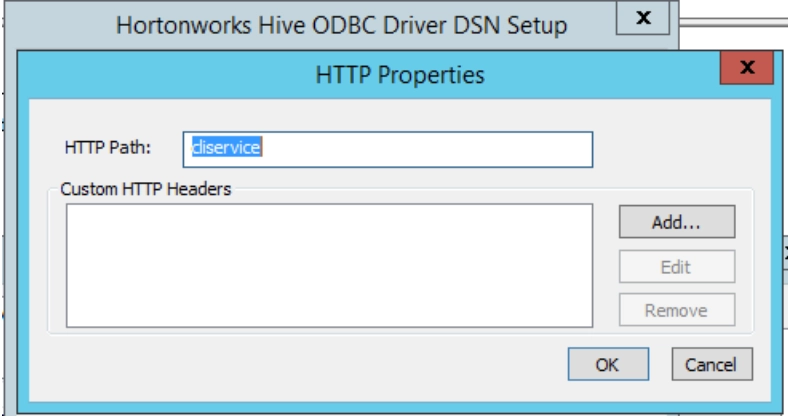
Step 4: Click on HTTP Options, and add: cliservice to the HTTPPath.
Example Screenshots are below. Test connect should work successfully.
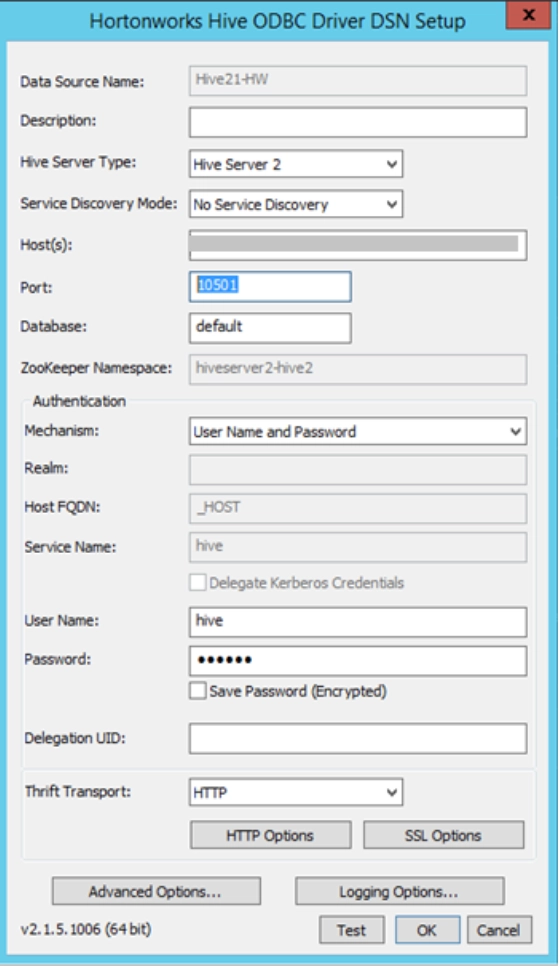
ka04W000000V3KPQA0_0EM4W000001IcQa.jpeg

 
HTTP Options:

ka04W000000V3KPQA0_0EM4W000001IcQf.jpeg

 
Step 5: Once ODBC DSN is created, you can make a connection through Strategy’s DBQuery tool to connect and run queries.
Step 6: Following a successful connection, you can setup Strategy’s DB Instance to point to the above DSN just created and further run queries to analyze and build cubes/reports.


7. Connectivity to Hive 2.x on Linux

As with the previous tutorial, we are connecting to the “Interactive Hive” interface(LLAP).
Step 1: Once a HDP 2.5 or HDP 2.6 Hadoop cluster is setup, enable Interactive Query mode(LLAP).
Step 2: Set up a DSN by editing the odbc.ini under Strategy installation folder. Use the Strategy Hive ODBC Driver that is shipped with the product to create this DSN.
Fill in the required parameters. The Service Discovery mode can be either “No Service Discovery” or Zookeeper. If you have additional zookeeper parameters, then enable Zookeeper as the discovery mode. If not, then the default of “No service Discovery” should work.
When HDP is setup using Hortonworks Data Cloud, then the default mode of connection is HTTP and the value for hive.server2.thrift.http.port is 10501. This is the port number we will use to connect via ODBC.
Step 3: Under ThriftTransport option, select HTTP as the mode of transport.
Step 4: Also add the parameter value “cliservice” to the HTTPPath.
Example ODBC.ini entry is below.
 [ODBC Data Sources]
Hive Driver=Strategy Hive ODBC Driver
 
[Hive Driver]
Driver= /opt/MicroStrategy/Strategy-Linux/install/lib/libhiveodbc_sb64.so
Description=Strategy Hive ODBC Driver
AuthMech=3
DefaultStringColumnLength=2147483647
FastSQLPrepare=0
GetTablesWithQuery=1
HiveServerType=2
HTTPPath=cliservice
Host=<hostname>
Port=10501
Schema=default
ServiceDiscoveryMode=0
ZKNamespace=
ThriftTransport=2
UseNativeQuery=1
KrbHostFQDN=[Hive Server 2 Host FQDN]
KrbServiceName=[Hive Server 2 Kerberos service name]
KrbRealm=[Hive Server 2 Kerberos realm]
SSL=0
TwoWaySSL=0
ClientCert=
ClientPrivateKey=
ClientPrivateKeyPassword=
 
Testing connectivity should work successfully following this ODBC creation.
 

8. DSN-less Connectivity using the Hive Server Type setting

When connecting to data sources using DSNs, the Strategy Hive ODBC driver provides several advanced options, including the following:
 

  • Hive Server Type (Overview)


From a Strategy perspective, Hive Server Type relates to whether or not native catalog functions are used to retrieve catalog information (for Hive Server 2), or if ODBC catalog functions are used (Hive Server 1).
 
This option can be utilized when creating a DSN connection to Hive, or additionally when creating a DSN-less connection to Hive. Users can update the value for this setting in the DSN-less connection by updating the connection string used.

 

Updating the Connection String

  1. From Strategy Web or Workstation connected to a Strategy environment, choose one of the connection options for Hive data sources
ka04W000000V3KPQA0_0EM4W000001IcQk.jpeg
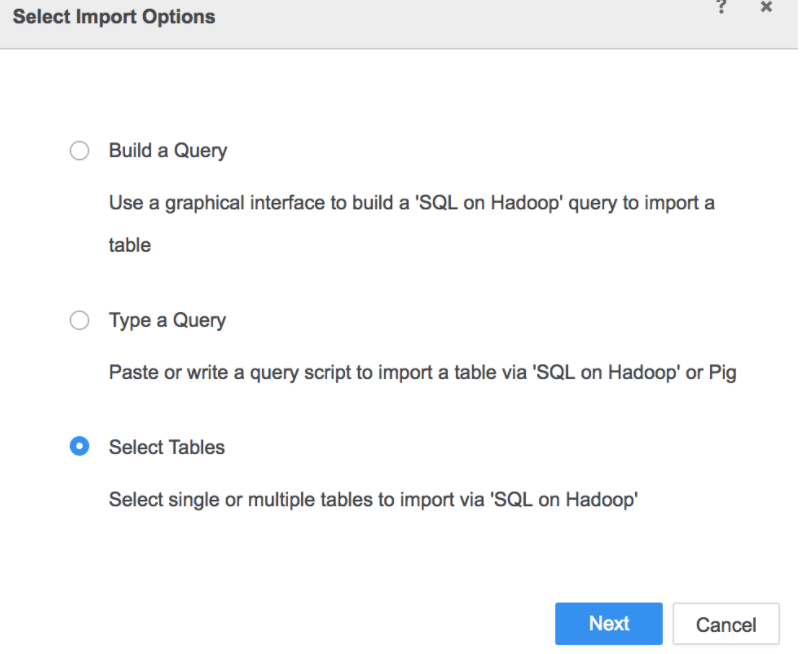
  1. Choose between the different Import Options and click ‘Next’
ka04W000000V3KPQA0_0EM4W000001IcQp.jpeg
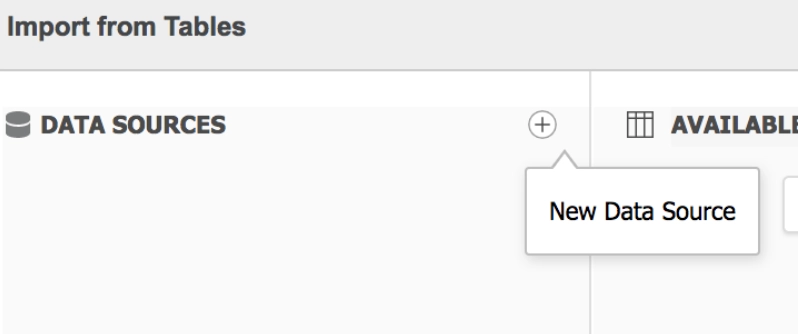
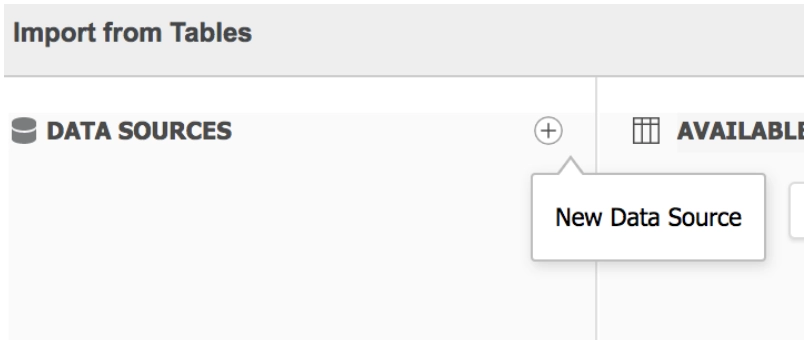
  1. From the Data Import interface, go to the Data Sources section to the left and click on the ‘+’ icon to begin creating your Hive connection
ka04W000000V3KPQA0_0EM4W000001IcQu.jpeg
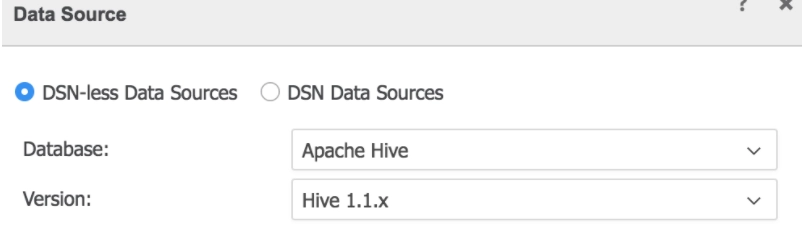
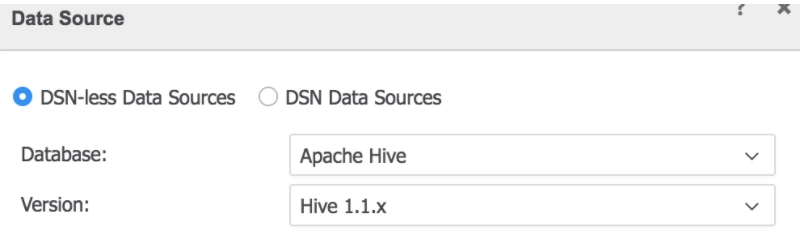
  1. From the opened Data Source editor, make sure the radio button for ‘DSN-less Data Sources’ is selected. The Database and Version drop downs should be modified to reflect your specific configuration
ka04W000000V3KPQA0_0EM4W000001IcQz.jpeg
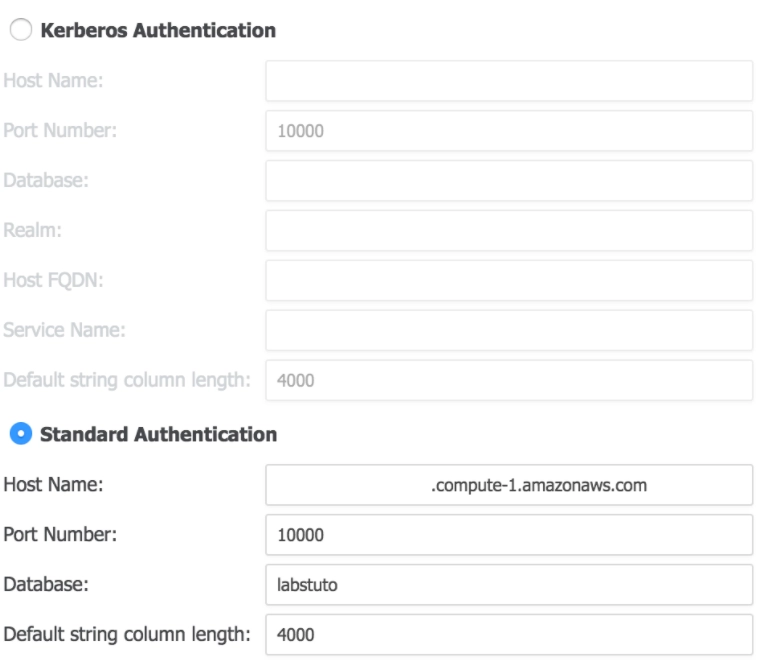
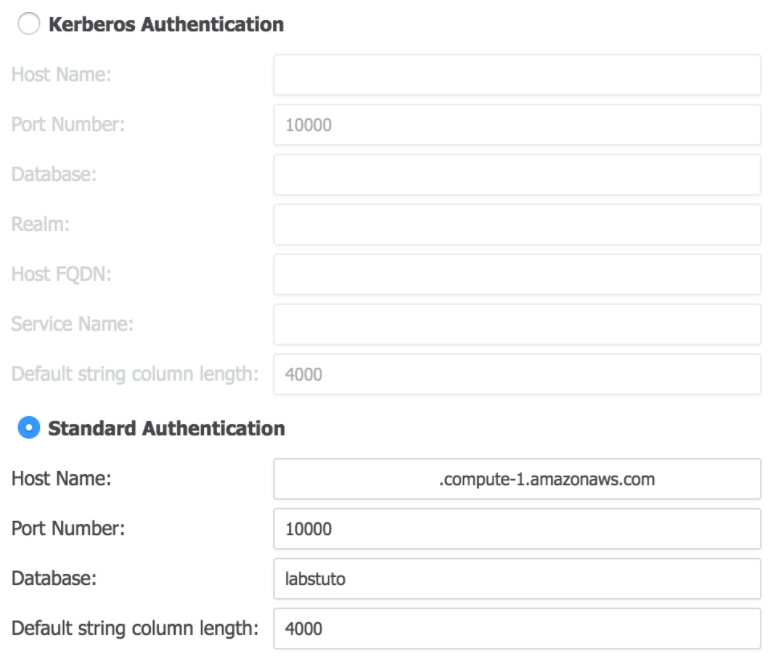
  1. Choose between the Kerberos or Standard authentication options and provide the proper values for each of the required parameters
ka04W000000V3KPQA0_0EM4W000001IcR0.jpeg
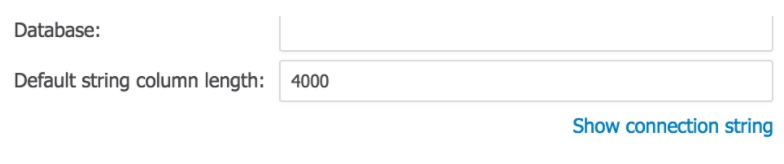
  1. Scroll to the bottom of the Data Source editor and click on the text for ‘Show connection string’
ka04W000000V3KPQA0_0EM4W000001IcRJ.jpeg
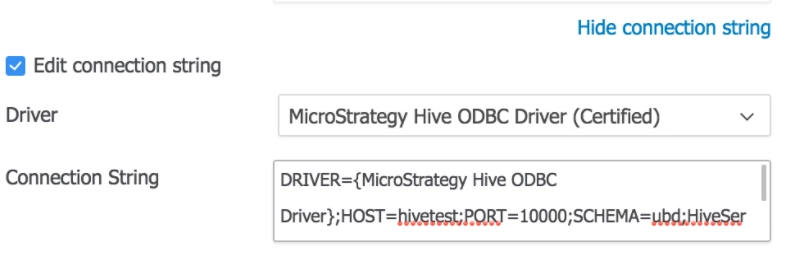
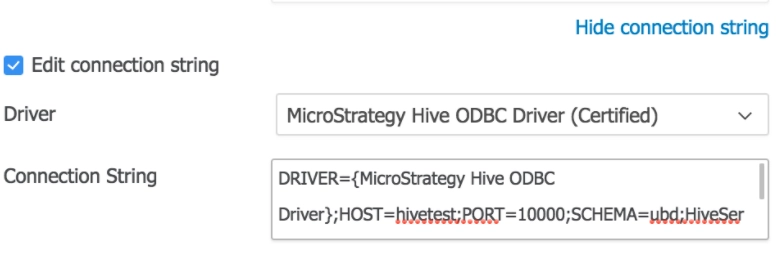
  1. From the newly exposed settings, select the checkbox for ‘Edit connection string’. The section for Connection String should now be editable
ka04W000000V3KPQA0_0EM4W000001IcRO.jpeg
  1. Within the connection string, you should see a few parameters which are only passed through the connection string:

DRIVER={Strategy Hive ODBC Driver};HOST=hivetest;PORT=10000;SCHEMA=ubd;HiveServerType=2;GetTablesWithQuery=1;UseNativeQuery=1;DefaultStringColumnLength=4000;

  1. The default value for HiveServerType is set to ‘2’, indicating Hive Server 2. To switch to Hiver Server 1, change the value to ‘1’
  2. After updating the connection string, provide the user name and password for the Hive connection and provide a data source name (user name and password are required but not used for Kerberos authentication). You should now be able to connect.


9. DSN-less Connectivity using the Get Tables with Query setting

When connecting to data sources using DSNs, the Strategy Hive ODBC driver provides several advanced options including the following:
 

  • Get Tables with Query (Overview)


Get Tables with Query* is used to determine whether:
           

  • To use the SHOW TABLES query to retrieve table names (e.g. ‘enabled’)
  • The driver uses the GetTables Thrift API call to retrieve table names (e.g. ‘disabled’)


*This is only applicable for configurations using Hive Server 2. (Source)
 
This options can be utilized when creating a DSN connection to Hive, or additionally when creating a DSN-less connection to Hive. Users can update the value for this setting in a DSN-less connection by updating the connection string used.
 

Updating the Connection String

  1. From Strategy Web or Workstation connected to a Strategy environment, choose one of the connection options for Hive data sources
ka04W000000V3KPQA0_0EM4W000001IcRT.jpeg
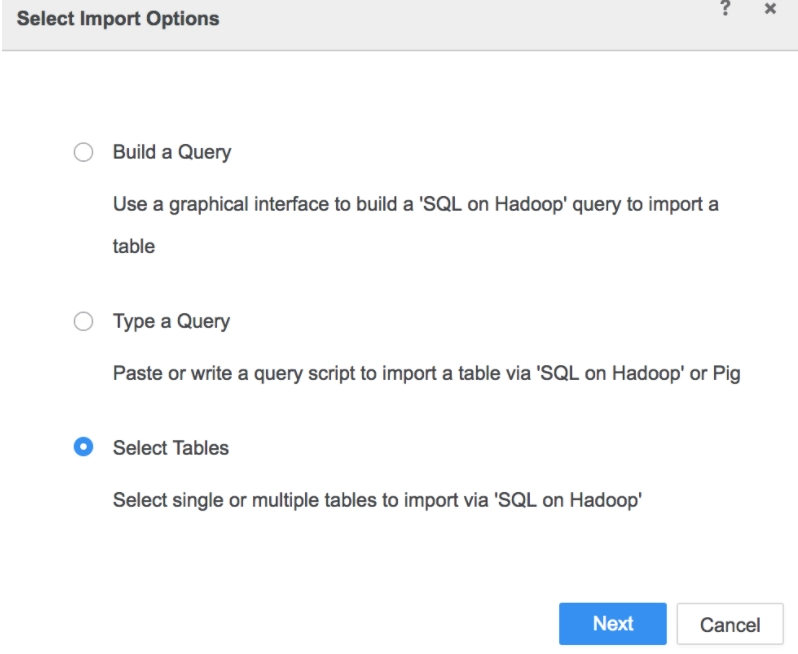
  1. Choose between the different Import Options and click ‘Next’
ka04W000000V3KPQA0_0EM4W000001IcRd.jpeg
  1. From the Data Import interface, go to the Data Sources section to the left and click on the ‘+’ icon to begin creating your Hive connection
ka04W000000V3KPQA0_0EM4W000001IcRi.jpeg
  1. From the opened Data Source editor, make sure the radio button for ‘DSN-less Data Sources’ is selected. The Database and Version drop downs should be modified to reflect your specific configuration
ka04W000000V3KPQA0_0EM4W000001IcRn.jpeg
  1. Choose between the Kerberos or Standard authentication options and provide the proper values for each of the required parameters
ka04W000000V3KPQA0_0EM4W000001IcRs.jpeg
  1. Scroll to the bottom of the Data Source editor and click on the text for ‘Show connection string’
ka04W000000V3KPQA0_0EM4W000001IcRx.jpeg
  1. From the newly exposed settings, select the checkbox for ‘Edit connection string’. The section for Connection String should now be editable
ka04W000000V3KPQA0_0EM4W000001IcS2.jpeg
  1. Within the connection string, you should see a few parameters which are only passed through the connection string:


DRIVER={Strategy Hive ODBC Driver};HOST=hivetest;PORT=10000;SCHEMA=ubd;HiveServerType=2;GetTablesWithQuery=1;UseNativeQuery=1;DefaultStringColumnLength=4000;

  1. The default value for GetTablesWithQuery is set to ‘1’, indicating that this setting is enabled. To disable, change the value to ‘0’
  2. After updating the connection string, provide the user name and password for the Hive connection and provide a data source name (user name and password are required but not used for Kerberos authentication). You should now be able to connect.


Comment

0 comments

Details

Knowledge Article

Published:

August 7, 2017

Last Updated:

November 9, 2018