One of the great tools you can use to build your own customization for Strategy Web is the Web Customization Editor(WCE), a free Eclipse plugin provided by Strategy.
Once WCE is installed, you can tweak some of its preferences to match your development environment better. This includes the default location for newly created plugins.
Let’s review how to access this feature. This article assumes you have installed the WCE plugin for Eclipse. A video on how to install the WCE
1. Launch Eclipse.
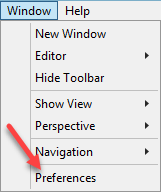
2.Open the Window menu and select Preferences.
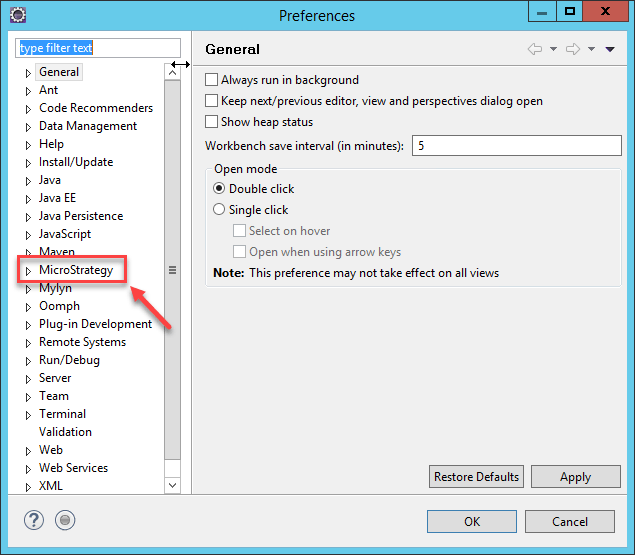
3. In the categories on the left, select Strategy.
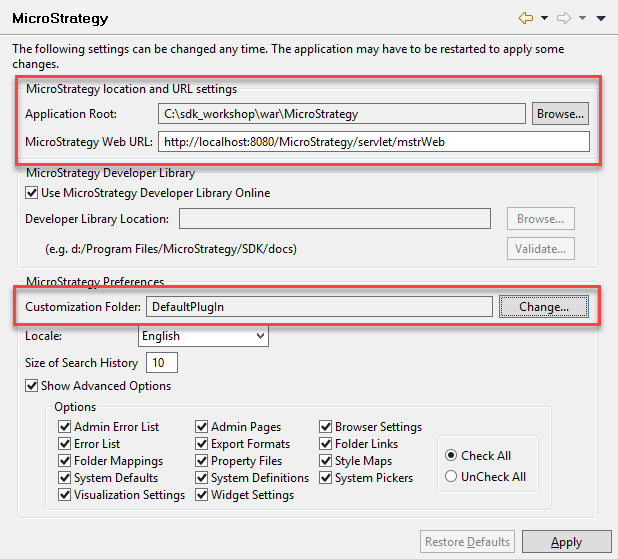
4. In Strategy location and URL settings, to adjust the Application Root, click Browse and navigate to the folder of the instance where Strategy Web (or Strategy Mobile if customizing the Mobile workflow) is hosted.
Note that any customization should be done in a test or development environment first. It is not recommended to make modifications directly in a production instance of Strategy Web.
5. Adjust the URL for the Strategy Web site. Make sure the proper port is part of the address. The link will look different if you use IIS or Tomcat Web servers.
6. In Strategy Preferences, to adjust the customization Folder (the plugin selected by default when Eclipse is launched in the WCE mode), click Change, and point to the folder of the desired plugin. By default, the DefaultPlugIn will be selected.
7. Click Apply.
8. Close OK to close the dialog.
9. Quit Eclipse and re launch it.
Your development environment now will perform its customizations in the place of your choice.
For more details on customizing Strategy Web, look into our class: SDK for Customizing Analytical Applications .
We also encourage you to download our Education Course Catalog 2022 :
If you have any questions, please contact us at education@microstrategy.com.
Happy customizing!
KB438479
