EducationSoftwareStrategy.com
StrategyCommunity

Knowledge Base

Product

Community

Knowledge Base

TopicsBrowse ArticlesDeveloper Zone

Product

Download SoftwareProduct DocumentationSecurity Hub

Education

Tutorial VideosSolution GalleryEducation courses

Community

GuidelinesGrandmastersEvents
x_social-icon_white.svglinkedin_social-icon_white.svg
Strategy logoCommunity

© Strategy Inc. All Rights Reserved.

LegalTerms of UsePrivacy Policy
  1. Home
  2. Topics

KB4385: How to create a metric in MicroStrategy Developer


Stefan Zepeda

Salesforce Solutions Architect • Strategy


How to create a metric in MicroStrategy Developer

What are metrics?
Metrics are analytical calculations performed against stored data to produce results that can, then, be either read as status material or analyzed for decision-making purposes. Users can define a metric within a report to specify the data to be displayed, or qualify a metric within an existing filter to limit the information shown.
 
How can users access the Metric Editor?
To access the Metric Editor, execute the following:
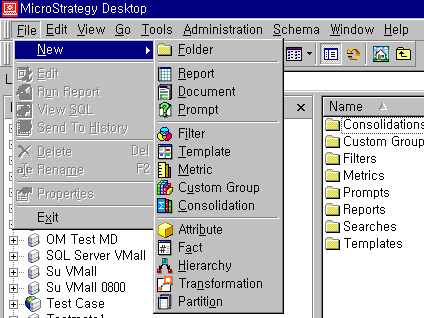
  • From the File menu, go to New and choose Metric.
     
ka02R000000kZimQAE_0EM440000002GJ2.gif
  •  
    NOTE: Users must be granted 'Create Applicaton Objects' and 'Use Metric Editor' privileges.

 
How do users create a simple metric?
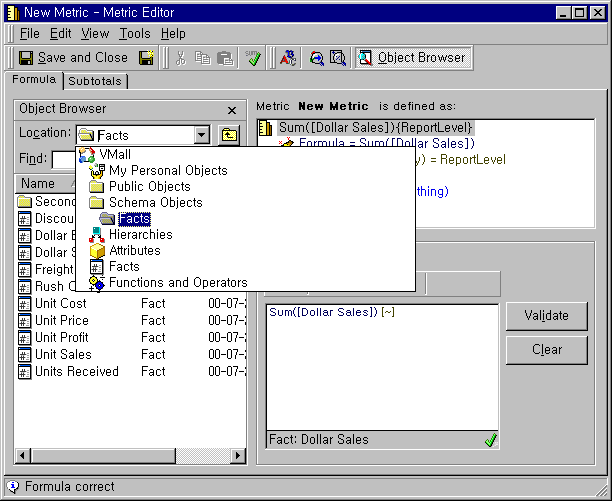
  • Double-click on any fact from the Object Browser to define a new metric. This defaults to creating a SUM(fact).
     
ka02R000000kZimQAE_0EM440000002GJ7.gif
ka02R000000kZimQAE_0EM440000002GIr.gif
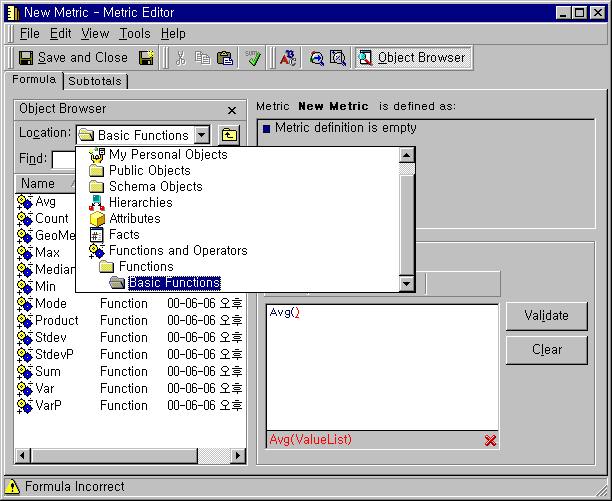
  • To use a different operator other than SUM, select another operator from Functions and Operators in the Object Browser and double-click on that operator.
     
ka02R000000kZimQAE_0EM440000002GJ1.gif
  • Double-click on any fact from the Object Browser to define a new metric with a new operator.
     
ka02R000000kZimQAE_0EM440000002GJ1.gif
  • Be sure to validate the new metric by selecting Validate.
  • Save the metric.

Comment

0 comments

Details

Knowledge Article

Published:

June 8, 2017

Last Updated:

June 8, 2017