EducationSoftwareStrategy.com
StrategyCommunity

Knowledge Base

Product

Community

Knowledge Base

TopicsBrowse ArticlesDeveloper Zone

Product

Download SoftwareProduct DocumentationSecurity Hub

Education

Tutorial VideosSolution GalleryEducation courses

Community

GuidelinesGrandmastersEvents
x_social-icon_white.svglinkedin_social-icon_white.svg
Strategy logoCommunity

© Strategy Inc. All Rights Reserved.

LegalTerms of UsePrivacy Policy
  1. Home
  2. Topics

KB438603: How to enable the counter for Memory for EXCEL Exporting from Diagnostics and Performance Logging tool for MicroStrategy Intelligence Server 10.x in Microsoft Windows and Linux/Unix


Community Admin

• Strategy


The following Knowledge Base article explains how to enable the counter “Memory for EXCEL Exporting” from Diagnostics and Performance Logging tool for Strategy Intelligence Server 10.x in Microsoft Windows and Linux/Unix operating systems. 
The Diagnostics and Performance Logging tool can be accessed in Microsoft Windows from Start -> Programs -> Strategy -> Tools -> Diagnostics Configuration, and on Linux/Unix from the mstrdiag command in the <MSTR_HOME>/bin folder.
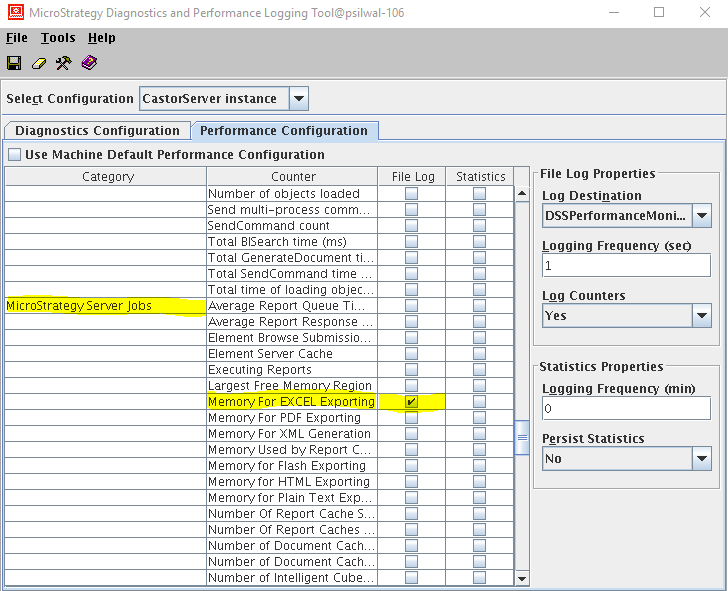
 

  • After launching the tool, go to the Performance Configuration Tab.
  • Under Category "Strategy Server Jobs" check the check box for Counter "Memory for EXCEL Exporting".
  • Set the logging frequency to 1 second or a low value such as 5 seconds.
ka04W000000Oay2QAC_0EM44000000VlIG.png
  • Save the changes.

Important Notes: 

  • Because of the current workflow, if the logging frequency is set to a higher value such as 30 seconds, it is possible for the counter to show a zero value. This is because memory is allocated on a temporary buffer (which is emptied once the export is done) and the counter value gets populated from that. Therefore if the frequency is set to a high value such as 60 seconds, it is possible that the export task is already complete and the buffer is empty. 
  • If the memory consumed (in exporting to Excel ) is less than 1MB, a value of "0" will be  written to PerformanceMonitor log file as the memory size is currently only recorded in MB. 


KB438603


Comment

0 comments

Details

Knowledge Article

Published:

September 5, 2017

Last Updated:

November 13, 2018