EducationSoftwareStrategy.com
StrategyCommunity

Knowledge Base

Product

Community

Knowledge Base

TopicsBrowse ArticlesDeveloper Zone

Product

Download SoftwareProduct DocumentationSecurity Hub

Education

Tutorial VideosSolution GalleryEducation courses

Community

GuidelinesGrandmastersEvents
x_social-icon_white.svglinkedin_social-icon_white.svg
Strategy logoCommunity

© Strategy Inc. All Rights Reserved.

LegalTerms of UsePrivacy Policy
  1. Home
  2. Topics

KB438606: How to upgrade the MicroStrategy SQL Server Wire Protocol ODBC Driver in MicroStrategy Secure Enterprise 10.4.0 -10.4.4 and 10.5 - 10.9 running on Linux operating systems


Frederick Kellerman

Cloud Support Expert I • MicroStrategy


This document provides steps for upgrading he MicroStrategy SQL Server Wire Protocol ODBC Driver in MicroStrategy Secure Enterprise 10.4.0 -10.4.4 and 10.5 - 10.9 running on Linux so that it can be used to connect to SQL Server 2016

OVERVIEW
Microsoft SQL Server 2016 is now certified as a warehouse with Strategy Secure Enterprise 10.4.x. To connect to this data source, it is recommended to upgrade the SQL Server driver on Strategy Secure Enterprise 10.4.0 - 10.4.4 to version 7.1.6 that will be shipped in newer Strategy versions. 
Note: The upgraded driver is available out-of-the-box with Secure Enterprise 10.4.5 (10.4 Hotfix 5), and it is not necessary for users to manually upgrade the driver using the steps provided in this document. However, users should implement Steps 2 and 3 below if they want to take advantage of the optimized SQL generation for Microsoft SQL Server 2016 in Strategy versions 10.4.x to 10.9. 
The following steps document how to upgrade the Strategy SQL Server Wire Protocol ODBC Driver in 10.4.0 -10.4.4 and 10.5 - 10.9 on Linux to the version of the driver that will be shipped in Strategy Secure Enterprise 10.10. The updated driver libraries can be found in the link here
This documentation does not apply to Strategy Secure Enterprise running on Windows, AIX, or Solaris environments. This upgrade also helps overcome some limitations of the out-of-the-box driver provided in Strategy Secure Enterprise 10.4.0 -10.4.4 and 10.5 - 10.9, including the lack of support for Always On Availability Groups and ApplicationIntent parameter.
STEP 1: INSTALLATION OF NEW DRIVER
Follow the steps below to install the new Strategy SQL Server Wire Protocol ODBC Driver on existing Strategy Secure Enterprise 10.4.0 -10.4.4 and 10.5 - 10.9 environments.
 
Backup and Driver installation:

  1. Close open connections using the existing Strategy SQL Server Wire Protocol ODBC Driver.  For example, stop the Strategy Intelligence Server and close any tools like the Strategy DB Query tool that are currently using the SQL Server Wire Protocol Driver.
  2. Rename or create a backup of the existing driver file which exist in the <MSTR_INSTALL_PATH>/lib directory (by default it is: /opt/MicroStrategy/lib) .   The file to backup is called MYsqls64.so
  3. Extract and copy the MYsqls64.so included in the Strategy SQL Server Wire Protocol ODBC Driver_Update_Linux file to the <MSTR_INSTALL_PATH>/lib directory.
  4. Rename or create a backup of the existing driver file which exists in the <MSTR_INSTALL_PATH>/locale/en_US/LC_MESSAGES directory. The file to backup is called MYsqls64.mo
  5. Extract and copy the MYsqls64.mo included in the Strategy SQL Server Wire Protocol ODBC Driver_Update_Linux file to the <MSTR_INSTALL_PATH>/locale/en_US/LC_MESSAGES directory.
  6. Rename or create a backup of the existing driver file which exist in the <MSTR_INSTALL_PATH>/lib directory (by default it is: /opt/MicroStrategy/lib) .   The file to backup is called  libMYssl64.so
  7. Extract and copy the libMYssl64.so included in the Strategy SQL Server Wire Protocol ODBC Driver_Update_Linux file to the <MSTR_INSTALL_PATH>/lib directory.
  8. Use the Strategy DB Query tool to confirm that the updated driver works to connect to SQL Server.
  9. Restart the Strategy Intelligence Server.

STEP 2: UPDATING THE METADATA
If users want to take advantage of the optimized SQL generation pattern for Microsoft SQL Server 2016, the database object should be added to the metadata. This step needs to be done on all Strategy 10.4.x - 10.9 installations if users are connecting to Microsoft SQL Server 2016 with the updated driver. This step needs to be done on all Strategy 10.4.x - 10.9 installations if users are connecting to Microsoft SQL Server 2016 with the updated driver. 
In order to connect to SQL Server 2016 users may install the SQL Server 2016 DBMS object using the SQLServer2016.pds file which is included in the library files provided in the link listed above. Users may reference the following article for steps to install the SQL Server 2016 DBMS object.
KB43537: How to install DBMS objects provided by MicroStrategy Technical Support 
 
STEP 3: How to update DSN-less connection in order to use SQL Server 2016 for Strategy Data import
In order to add DSN-less connectivity for DSN-less connection to Microsoft SQL Server 2016 for Strategy Data import in Strategy Web users may follow the following steps. This step needs to be done on all Strategy 10.4.x - 10.9 installations. 
Prerequisites

  1. Download and copy the patch zip files provided above onto the machine hosting the Strategy Web 10.4.x - 10.9
  2. Extract the zip file to its own directory, separate from the existing Strategy installation files. This directory will be referred to as <MSTR_PATCH_PATH> for the remainder of this technical note.
  3. The SQL Server 2016 DBMS object needs to have been installed as described previously following the steps from KB43537.

Update DBProperties.xml file
Important Note: Users should create a backup of the DBproperties.xml file before updating it with the following steps.

  • Open the command prompt and navigate to the <MSTR_PATCH_PATH> folder and run the following command: 
    
    java -jar DBPropertiesXmlUpdater.jar --target <target> --file <xsl-tranformation-file>

  • Assuming Strategy Web is already deployed, replace <target> with the path to DBProperties.xml file which can be found in the directory where Strategy Web is deployed. On Linux for example: <tomcat_catalina_home>/webapps/MicroStrategy/WEB-INF/xml/DBproperties.xml> 
  • Replace <xsl-tranformation-file> with MsSqlServer2016.xslt included in the Strategy SQL Server Wire Protocol ODBC Driver_Update_Linux.zip to add SQL Server 2016 to DSN-less data import workflow
  • After updating the variables in the above command, the command will look similar to the command below: 
    
    java -jar DBPropertiesXmlUpdater.jar –target  opt/apache/tomcat/latest/webapps/MicroStrategy/WEB-INF/xml/DBproperties.xml  --file MsSqlServer2016.xslt
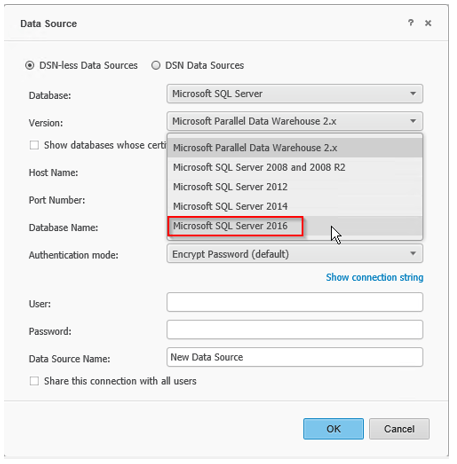
    

  • Restart the Web Server after completing steps 1-4.
  • Once these steps are completed, users will see the option to use SQL Server 2016 when doing a data import
ka044000000kOTUAA2_0EM44000000VlNu.png

Metadata Modification:
WARNING:
Manually editing values in the Strategy Metadata incorrectly may cause serious, project-wide problems that may make your project unusable. Since these are user-initiated changes, they are not covered by any Strategy warranty. Users are strongly encouraged to backup Metadata prior to any alteration.
KB438606


Comment

0 comments

Details

Knowledge Article

Published:

September 6, 2017

Last Updated:

November 30, 2018