STEPS TO REPRODUCE
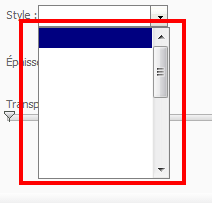
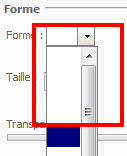
In Editable Mode right click the graph and choose Format Graph... > Series Shapes / Markers > Style or markers respectively:
Style:
Markers:
CAUSE
One possible reason for this issue is a corrupt installation of Strategy Web on the server machine. Line and marker styles are stored as PNG image files on Web Server, thus if these image files are missing, no elements are rendered in the corresponding style and marker selector drop down lists.
Using Fiddler, one can see that the client machine requests the image files from Web Server. However, as in this case the files are missing due to a corrupt installation a HTTP 404 - File not found error is returned instead, leading to the behaviour seen above.

ACTION
Make sure that no image files are missing under \images\graphEditorImage\. In Strategy Web ASP environments, the default installation directory is c:\Program Files (x86)\MicroStrategy\Web ASPx\images\graphEditorImage. To resolve this issue consider the following two actions:
a) Perform a reinstall of Strategy Web
b) Copy the images folder from a working Strategy Web deployment
