EducationSoftwareStrategy.com
StrategyCommunity

Knowledge Base

Product

Community

Knowledge Base

TopicsBrowse ArticlesDeveloper Zone

Product

Download SoftwareProduct DocumentationSecurity Hub

Education

Tutorial VideosSolution GalleryEducation courses

Community

GuidelinesGrandmastersEvents
x_social-icon_white.svglinkedin_social-icon_white.svg
Strategy logoCommunity

© Strategy Inc. All Rights Reserved.

LegalTerms of UsePrivacy Policy
  1. Home
  2. Topics

Library Collaboration Service "Bell" Icon or Library "Comment" Icon Missing in MicroStrategy 10.9+


Pascal Deguine

Principal Product Specialist • Strategy


Starting with the release of Strategy ONE (March 2024), dossiers are also known as dashboards.

Description

With Strategy Library 10.9+, users can communicate and share comments with other users in Strategy Dossiers. However, certain circumstances will cause the Strategy Collaboration Services icons not to load on the interface. Keep reading to learn all of the troubleshooting steps to complete when the Collaboration Service notification icon (bell icon) in the Library or the Comment icon on the dossier page is missing in Strategy 10.9+. Let's get your Library Collaboration Services up and running!
 

Where should the notifications located?

Before diving into the troubleshooting steps, note the locations of the icons. 
 

  1. Location of the Library Collaboration Services "bell" icon: 

Look to the top of the Library homepage.

ka0PW0000001JYKYA2_0EM44000000QBhK.png


  1. Location of the Library Collaboration Services "comment" icon on the dossier page: 

Look to the top right hand corner of a dossier in Library.
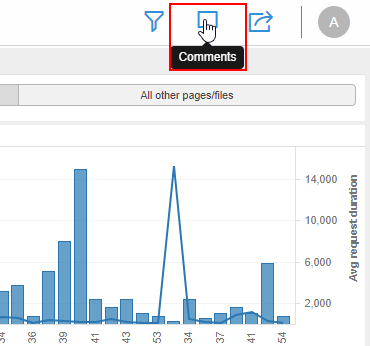
ka0PW0000001JYKYA2_0EM44000000Q13K.png


Privileges for Collaboration access

Before looking to anything else, ensure that the user(s) have privileges to access Collaboration. If users do not have the correct access privileges, collaboration icon may be hidden in the Library. To find out what privileges the user may or may not have, check with your administrator. If the user does indeed have the correct privileges, move on to the next troubleshooting step. 
Look to Service Availability
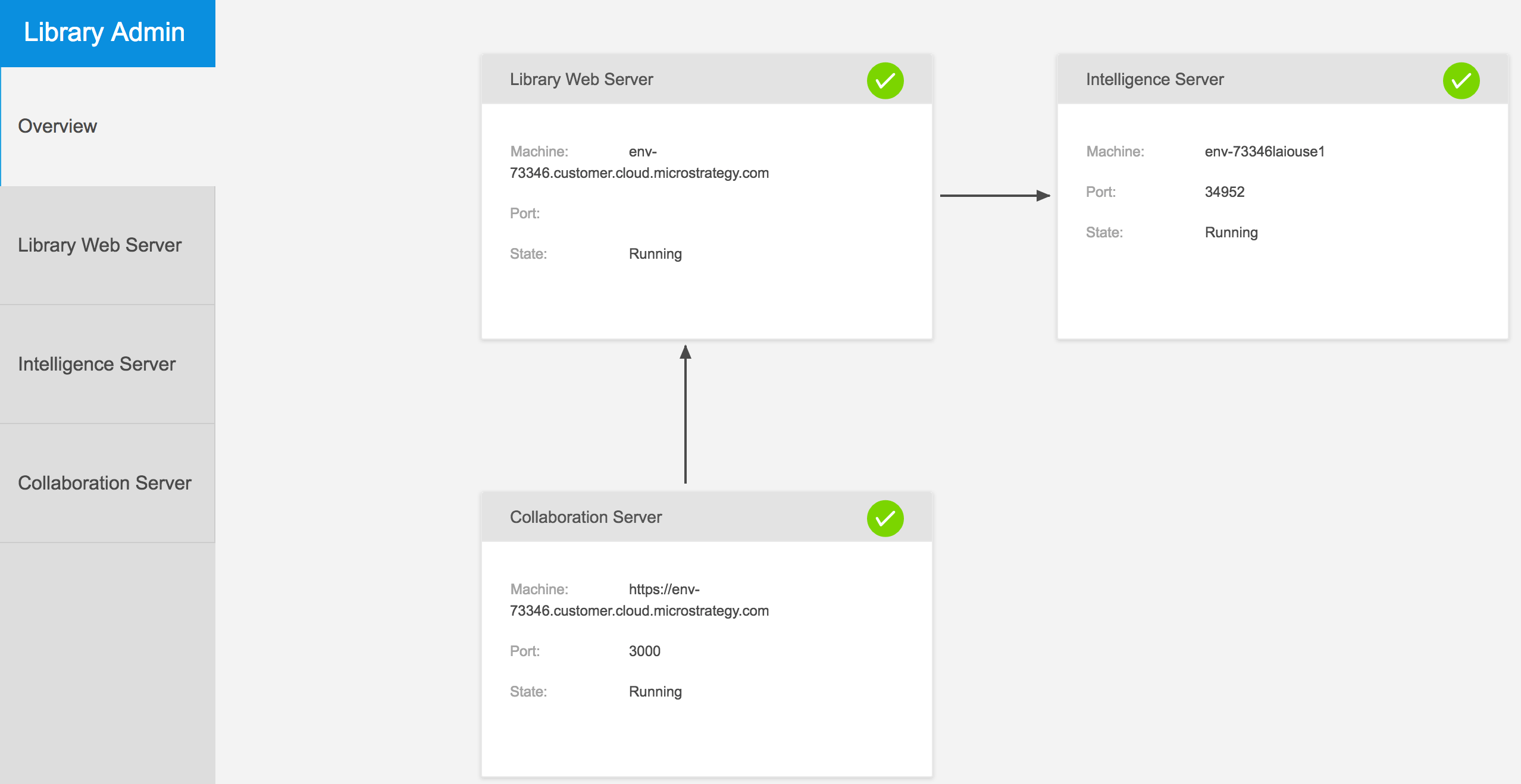
 

  1. To start, go to the Strategy Library Admin page. Verify that the Strategy Collaboration Server is configured correctly and connected to Strategy Library. You will know everything is running correctly if you see the green check mark icon as shown in the image below.
ka0PW0000001JYKYA2_0EM44000000QBhZ.png


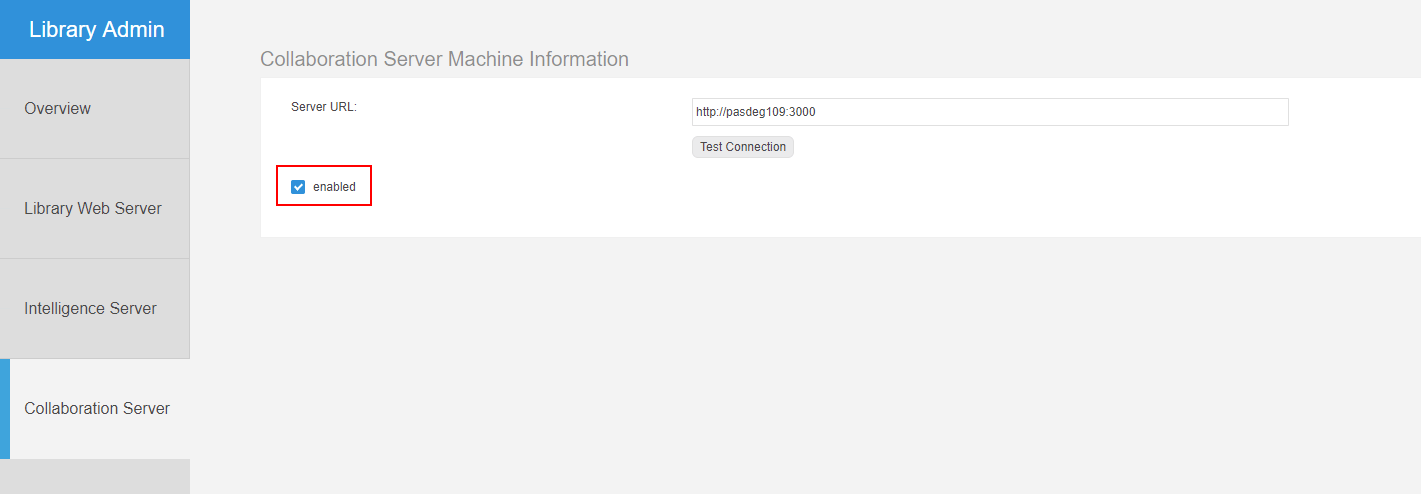
  1. Ensure that Collaboration Server is connected and enabled on http://machinename:port/StrategyLibrary/admin.

    View below.


https://<web server>:<port>/StrategyLibrary/admin 


ka0PW0000001JYKYA2_0EM44000000Q13P.png


  1. Feel free to open the browser's Developer Tools. Some browsers will enable it by pressing F12.
  • Go to the Network tab and filter by "collab", and execute a Strategy Dossier, as shown below. 


ka0PW0000001JYKYA2_0EM44000000QBhj.png

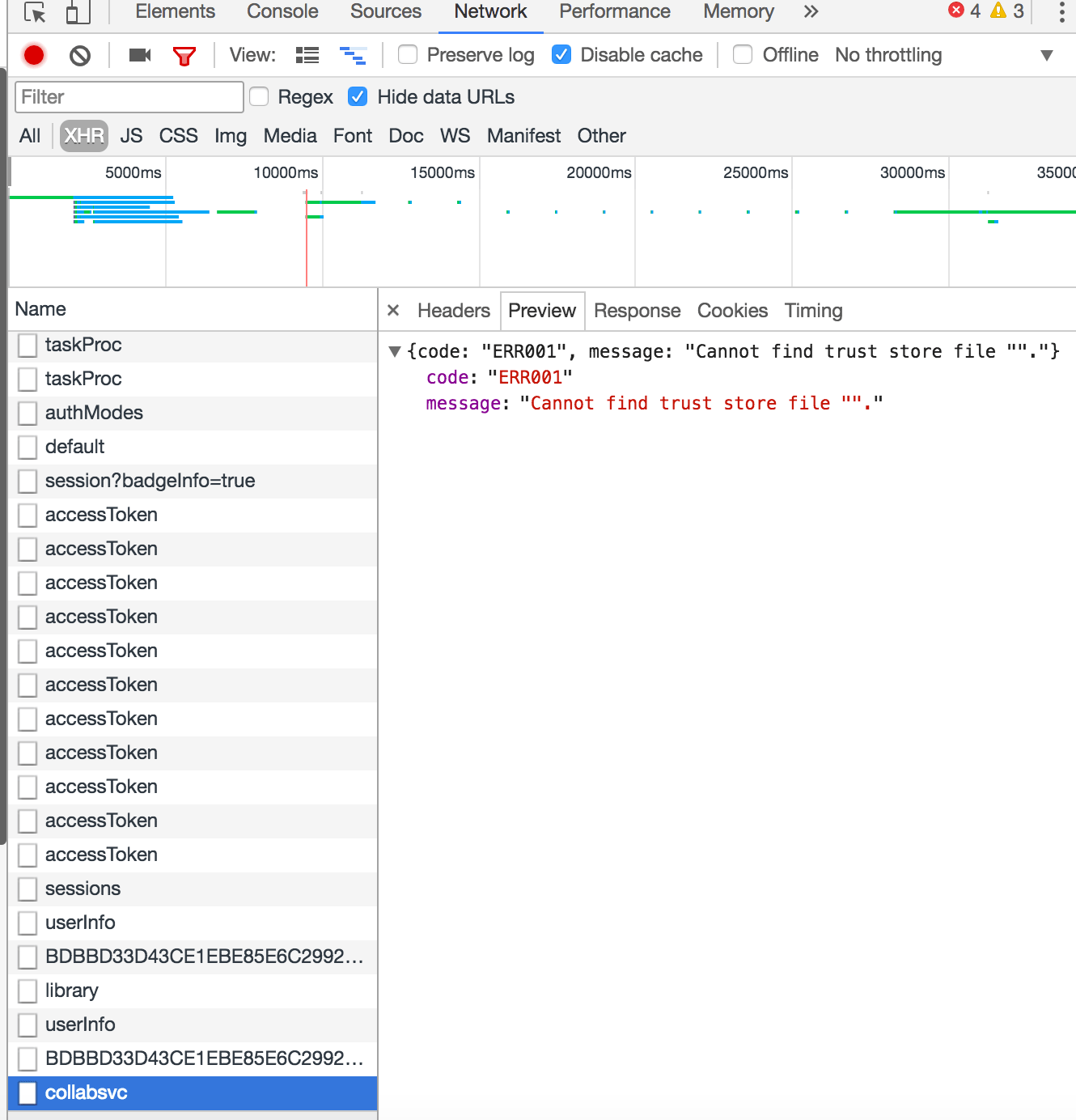
If there are any errors, the "collabsvc" name will appear in the list. Clicking on it, will display any relevant errors. View below:


{code: "ERR001", message: "Cannot find trust store file ""."}

Or, you may encounter the following error message:
 

{code: "ERR004", message: "Service not enabled"}
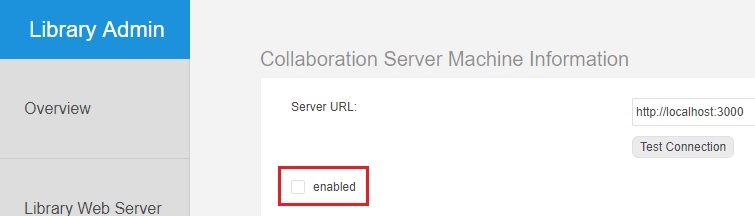


Depending on the error, different actions can be taken. For instance, the "Service not enabled" error, means that in the Strategy Collaboration Services page in the Strategy Library Admin page, the service is not enabled, as shown below.  
Make sure to have the "enabled" box checked in the Library Admin page.

ka0PW0000001JYKYA2_0EM44000000A6cA.jpeg

 
Check for Missing Identity Token
Start by analyzing the Network requests using the Developer tools without any filters. This can sometimes highlight specific errors.
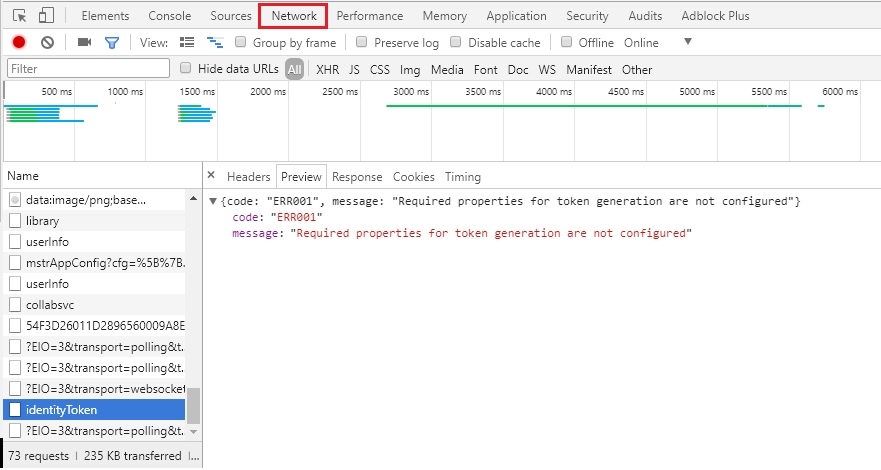
For instance, errors can appear for the ​​identityToken parameter:

ka0PW0000001JYKYA2_0EM44000000A7fe.jpeg


{code: "ERR001", message: "Required properties for token generation not configure"}

Errors can also be indicated by a parameter that starts with:
 

?EIO


How do I solve for the Missing Identity Token?


If Strategy Library has been deployed on a JSP server other than the Apache Tomcat server that is shipped with Strategy 10.9, the identity token might be missing which will prevent the collaboration server to identify the commenting user and therefore disable the comment functionality. In order to resolve the issue, follow the steps below:
 

  1. Navigate to the Strategy Library deployment folder of the JSP application folder on which Strategy Library has been deployed. View the folder examples below:


<tomcat_home>\webapps\StrategyLibrary\WEB-INF\classes\config


<Strategy Library Home>/WEB-INF/classes/config


  1. Find the following two files: ConfigDefault.properties and ConfigOverride.properties.
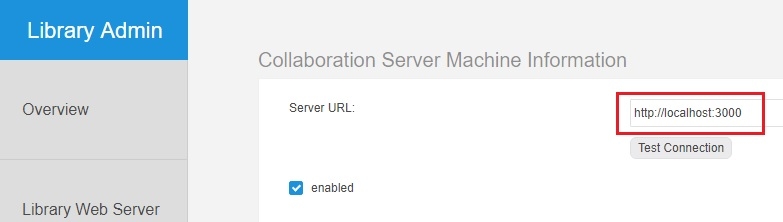
  2. Make sure the Strategy Library server name and port number are correct in both files and that they match with the server name provided in the Strategy Library Admin page shown below. In both files, the line should look as follows: 


services.collaboration.baseURL = http://<Strategy Library server name>:3000


ka0PW0000001JYKYA2_0EM44000000A6ce.jpeg

Note that if changes need to be made to the files, restart the Strategy Library server for the changes to take effect.
 

  1. Once checking the server name and port name, open the configOverride.properties file.
  2. Insert the following line:


​​identityToken.secretKey=secretTokenhere

The token parameter can be any string of text (spaces allowed).

  1. Save and restart the Web Application Server.


Check connectivity to Collaboration Server from the end user machine

The end user machine will connect directly to Collaboration server on the port configured in config.json (default 3000). Therefore, ensure that the end user machine can access Collaboration server by connecting to http(s)://servermachine:3000/. Follow the process for these steps below:

  1. Go to the Strategy Collaboration Services machine and go the following folder location:


​​C:\Program Files (x86)\Strategy\Collaboration Server


  1. Find the Config.json file. Verify the following two lines have the correct server names for the Strategy Library machine and for the Strategy Collaboration Services port. 


"authorizationServerUrl": "http://localhost:8080/StrategyLibrary/api",
  "port": 3000,


  1. The client machines will also need to have access to the Strategy Collaboration Server. Verify if the client machines have enough network connectivity to connect to it by executing the Collaboration Server URL, shown above, in the client machine's browser. 

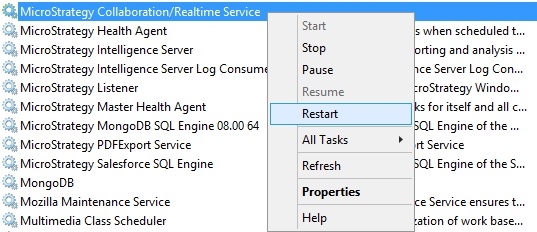
Note that if changes need to be made to the files, restart the Strategy Collaboration Server machine for the changes to take effect. On a windows machine, this can be achieved from the services console, as shown below.
ka0PW0000001JYKYA2_0EM44000000A6ez.jpeg


The problem with the use of SSL

If Strategy Library is configured for access through SSL, Collaboration Server must be configured for SSL as well. Refer to Strategy Installation guide for further information on how to set up Collaboration server with SSL and review Considerations and certificate trust requirements when enabling HTTPS (SSL/TLS) for MicroStrategy Library and Collaboration Server .
 

Learning Resources

Still have questions? We have you covered! Visit the Learning Center on Community!
Feel free to start a discussion on Community or reach out to your Support liaison to create a case.
Looking to upgrade to a newer version of Strategy? Visit the corporate website for more information! 


Comment

0 comments

Details

Knowledge Article

Published:

October 5, 2017

Last Updated:

March 21, 2024