EducationSoftwareStrategy.com
StrategyCommunity

Knowledge Base

Product

Community

Knowledge Base

TopicsBrowse ArticlesDeveloper Zone

Product

Download SoftwareProduct DocumentationSecurity Hub

Education

Tutorial VideosSolution GalleryEducation courses

Community

GuidelinesGrandmastersEvents
x_social-icon_white.svglinkedin_social-icon_white.svg
Strategy logoCommunity

© Strategy Inc. All Rights Reserved.

LegalTerms of UsePrivacy Policy
  1. Home
  2. Topics

KB4388: How to create an attribute in MicroStrategy


Community Admin

• Strategy


How to create an attribute in MicroStrategy

What are attributes?
Attributes are groups of related data, such as table columns. The attribute acts like a column header and the data that appears in the following table are elements. Elements define and make up the attribute.
 
For example, the elements New York, Baltimore and Boston are grouped under the attribute City. The following diagram displays attributes and elements as they show in a table.
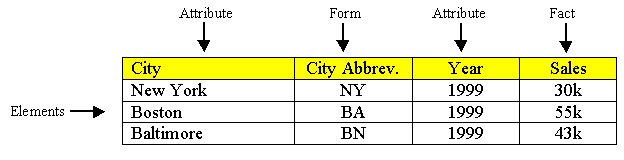
 

ka04W000000OgpFQAS_0EM440000002GJK.gif

 
How can users access the Attribute Editor?
To access the Attribute Editor, execute the following:
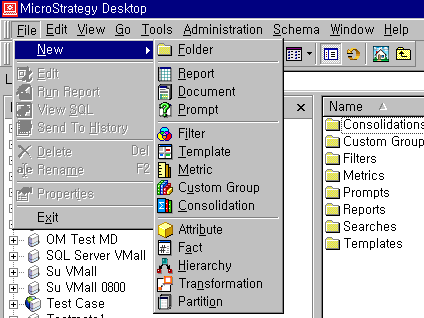
  • From the File menu, go to New and choose Attribute.
     
ka04W000000OgpFQAS_0EM440000002GJc.gif
  •  
    NOTE: Users must be granted 'Create Schema Objects' privileges.

 
How do users create an attribute?
  • When the Attribute Editor initially opens, the following three dialogs windows appear by default:
     
    • Attribute Editor
    • Attribute Form
    • Attribute Form Expression
ka04W000000OgpFQAS_0EM440000002GJu.gif
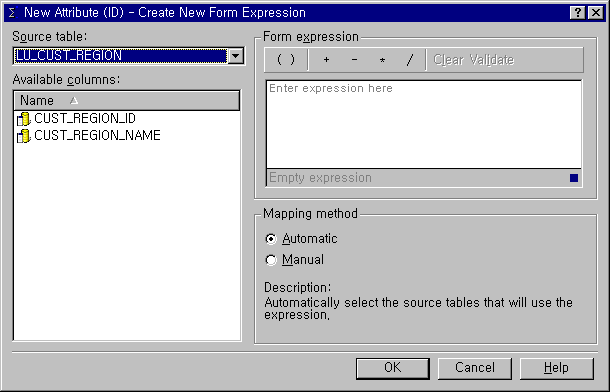
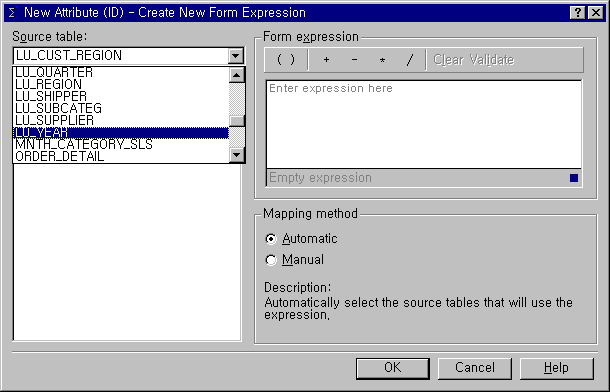
  • In the Attribute Form Expression window, select a table from the Source table box.
     
ka04W000000OgpFQAS_0EM440000002GJs.gif
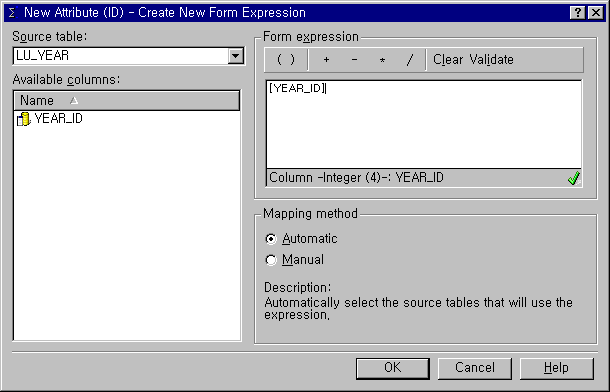
  • Drag one or more column names from the Available columns list to the Form Expression box.
     
ka04W000000OgpFQAS_0EM440000002GJb.gif
  • Click any operator to insert it into the form expression.
  • Click 'Validate' to determine if the form expression is valid.
  • Under 'Mapping method', select 'Automatic' or 'Manual'. Setting 'Mapping method' to 'Automatic' automatically selects the source tables that use the expression. Setting 'Mapping method' to 'Manual' forces users to manually select the source tables that use the expression.
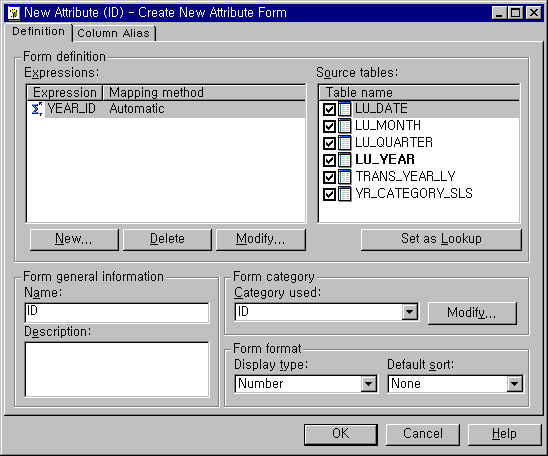
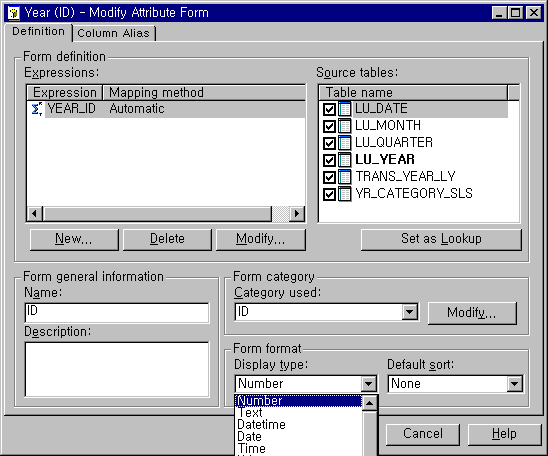
  • Click OK. The Create New Attribute Form dialog box now appears.
     
ka04W000000OgpFQAS_0EM440000002GJQ.gif
  • Enter a Form name and Description.
  • Under 'Source tables', select a table and click 'Set as Lookup'. Check other tables and select/deselect correct tables.
  • Select a Form category, Display type and Default sort from the lists.
     
ka04W000000OgpFQAS_0EM440000002GJe.gif
  • Click OK.
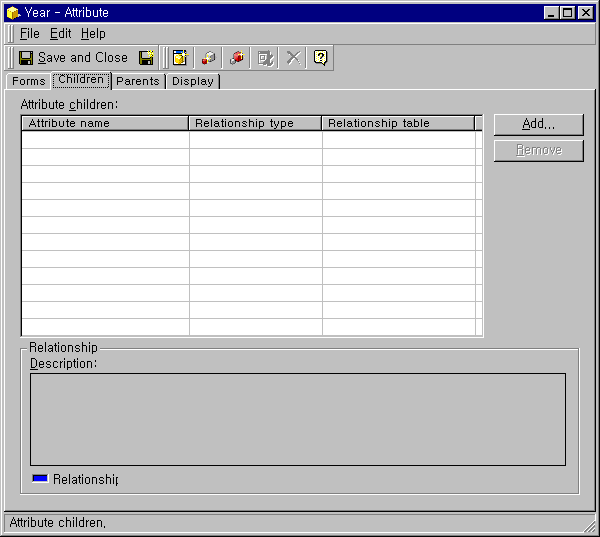
  • Select corresponding parent and child by clicking through each tab from the Attribute Editor.
     
ka04W000000OgpFQAS_0EM440000002GJv.gif
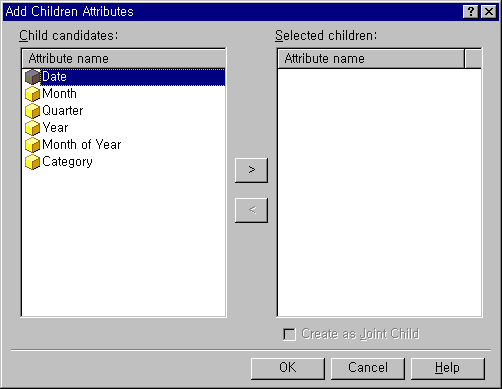
  • Children can be added to the attribute by clicking the Add button and clicking on the attribute and the '>' button.
     
ka04W000000OgpFQAS_0EM440000002GJR.gif
  • Save the attribute.
  • From the Schema menu, choose Update Schema.

Comment

0 comments

Details

Knowledge Article

Published:

June 8, 2017

Last Updated:

June 8, 2017