Strategy provides web folder content integration, which means that content that is shared using the WebDAV protocol can be integrated into the Strategy environment. This integration allows the content within web folders, such as documents or videos, to be accessed in Strategy Mobile.
1. Refer to KB39315: How to install WebDav in IIS 6? to install WebDav in IIS 6. Refer to http://www.iis.net/ConfigReference/system.webServer/webdav for IIS7.
2. In Developer, log in to a project source, using a user account with administrative privileges.
3. In the Folder List, expand the project source, expand Administration, expand Configuration Managers, and then select Database Instances.
4. From the File menu, point to New, and then select Database Instance. The Database Instances Editor opens.
5. On the General tab, in the Database instance name field, type a descriptive name for the database instance.
6. From the Database connection type drop-down list, select XQuery.
7. In the Database connection area, click New. The Database Connections dialog box opens.
8. In the Database connection name field, type a descriptive name for the database connection.
9. In the Default database login name area, click New. The Database Logins dialog box opens.
10. In the Database login field, type a descriptive name for the database login.
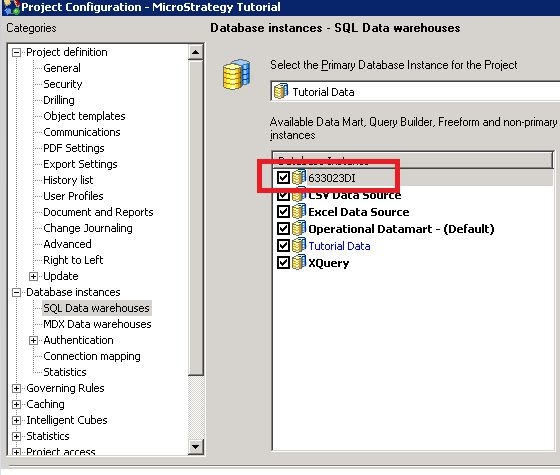
11. Configure the project to use the WebDAV database instance under project Configuration>Database Instances>SQL Data warehouses as shown below:
12. In Developer, from the File menu, point to New, and then select External Mobile Folder.
13. In the External mobile folder name field, type a name to use for the folder within the Strategy project.
14. From the Database Instance drop-down list, select the database instance created to access web folder resources, as described in To configure a database instance to retrieve web folder resources.
15. In the URL field, type the URL for the web folder. This URL should provide access to the top-level folder that can be accessed and browsed by Strategy Mobile users.
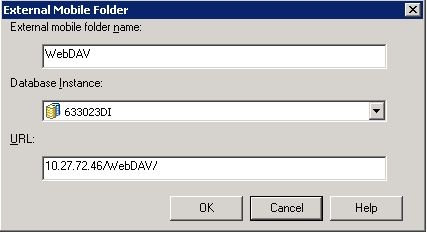
16. Click OK to save the new external mobile folder.
17. Access the folder form mobile.

