EducationSoftwareStrategy.com
StrategyCommunity

Knowledge Base

Product

Community

Knowledge Base

TopicsBrowse ArticlesDeveloper Zone

Product

Download SoftwareProduct DocumentationSecurity Hub

Education

Tutorial VideosSolution GalleryEducation courses

Community

GuidelinesGrandmastersEvents
x_social-icon_white.svglinkedin_social-icon_white.svg
Strategy logoCommunity

© Strategy Inc. All Rights Reserved.

LegalTerms of UsePrivacy Policy
  1. Home
  2. Topics

KB438871: Passing selector choices as element prompt answers using URL API to a Report Services Document does not pass the prompt answers correctly in MicroStrategy Web 10.4 Hotfix 5


Community Admin

• Strategy


This knowledge base article describes an identified defect specific to MicroStrategy 10.4 Hotfix 5. When using URL API to pass attribute element prompt selections to a Report Services Document, the prompt answers do not pass correctly. Symptoms include seeing a "ghost" attribute element in the prompt answer page or seeing no data returned in the Report Services Document. This issue occurs when the attribute has a non-numeric value for the attribute ID. Changing the ID value to the Number data type resolves the issue.

SYMPTOM:
When using URL API to pass attribute element prompt selections to a Report Services Document, the prompt answers do not pass correctly. Symptoms include seeing a "ghost" attribute element in the prompt answer page or seeing no data returned in the Report Services Document. 
STEPS TO REPRODUCE:
The following steps to reproduce pertain to Strategy Web 10.4 Hotfix 5.
  1. Create an attribute in the Strategy Tutorial project that has an ID of the type "Text". 
  2. Create an Attribute Element Prompt based off of that attribute. 
  3. Create a report with the attribute and the attribute element prompt. Save this as "Report 1" 
  4. Create a Report Services Document based off of Report 1. Save this as "Document 1." 
  5. Create another report that contains the attribute, but not the prompt. Save this as "Report 2". 
  6. Create a Report Services Document based off of Report 2. Save this as "Document 2."
  7. In Document 2, add a drop down selector that selects the attribute.
  8. Create a URL using URL API that will pass the selector value (from the selector created in Step 7) to Document 1. Here is an example broken up by parameters: 
    ./Main.aspx?&Project=Strategy+Tutorial 
    &Port=0&evt=2048001 
    &src=Main.aspx.2048001 
    &documentID=E6AE2EE5451DBD84624A24B3A46353CE 
    ¤tViewMedia=1 
    &visMode=0 
    &elementsPromptAnswers=9685C34D4FE7EADECBC3618912EE7322;{&CurrentSelectionElementID:W63&} 
    &share=1 
    NOTE: the W63 in the elementsPromptAnswers parameter corresponds to the selector key for the selector. This can be obtained using browser developer tools or Fiddler. 
  9. Insert a textbox to Document 2 that links to Document 1 using the URL API with the "Is hyperlink" functionality.
  10. Run Document 2 to Presentation Mode.
  11. Make a change to the selector to select another attribute element.
  12. Click the textbox created in (9) to run Document 1.
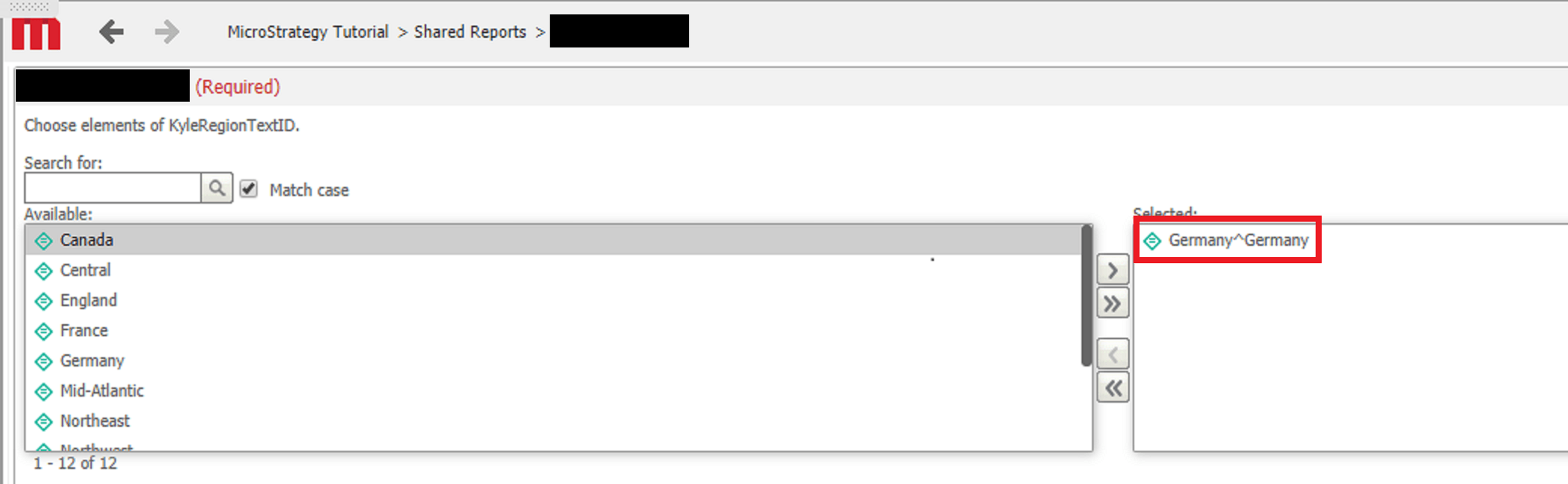
  13. Re-prompt Document 1. Note that the selected attribute element shows as “ID^ID”, as shown in the screenshot below:
ka04W000000ObFbQAK_0EM44000000Q6E8.png

 
CAUSE:
This is an identified regression defect in Strategy Web 10.4 Hotfix 5. Trying to pass selections for prompt answers for attributes that have non-numeric attribute IDs cannot be accomplished. This issue does not occur in Strategy Web 10.4 Hotfix 4.
ACTION:
This issue is fixed in Strategy 10.4 Hotfix 6. Upgrade to this or a newer hotfix version to take advantage of the issue correction.
WORKAROUND:
Implement an attribute ID of the data type Number for the attribute to resolve this issue.
The Strategy Internal Reference Number for the issue discussed in this knowledge base article is DE78384. KB438871


Comment

0 comments

Details

Knowledge Article

Published:

November 9, 2017

Last Updated:

March 27, 2019