EducationSoftwareStrategy.com
StrategyCommunity

Knowledge Base

Product

Community

Knowledge Base

TopicsBrowse ArticlesDeveloper Zone

Product

Download SoftwareProduct DocumentationSecurity Hub

Education

Tutorial VideosSolution GalleryEducation courses

Community

GuidelinesGrandmastersEvents
x_social-icon_white.svglinkedin_social-icon_white.svg
Strategy logoCommunity

© Strategy Inc. All Rights Reserved.

LegalTerms of UsePrivacy Policy
  1. Home
  2. Topics

KB4389: The attribute form cannot be passed using dynamic text in URL defined in link editor of a Report Services document in MicroStrategy Web 9.x


Community Admin

• Strategy


This Knowledge Base article describes an expected behavior in MicroStrategy Web 9.x where the attribute form cannot be passed using dynamic text in URL defined in link editor of a Report Services document

SYMPTOM
In Strategy Web 9.x, the attribute form cannot be passed using dynamic text in URL defined in link editor of a Report Services document, as shown below:

ka04W000000OaWiQAK_0EM4400000027J9.png

 
STEPS TO REPRODUCE
Follow the steps below to reproduce the issue with Strategy Tutorial project:
  1. In Strategy Web, create a new report with attribute "Year" in the row and metric "Cost" in the column.
  2. Create a new Report Services document using the report created at step 1 as a dataset.
  3. Insert a text box into the document with any content, such as, "This is a link".
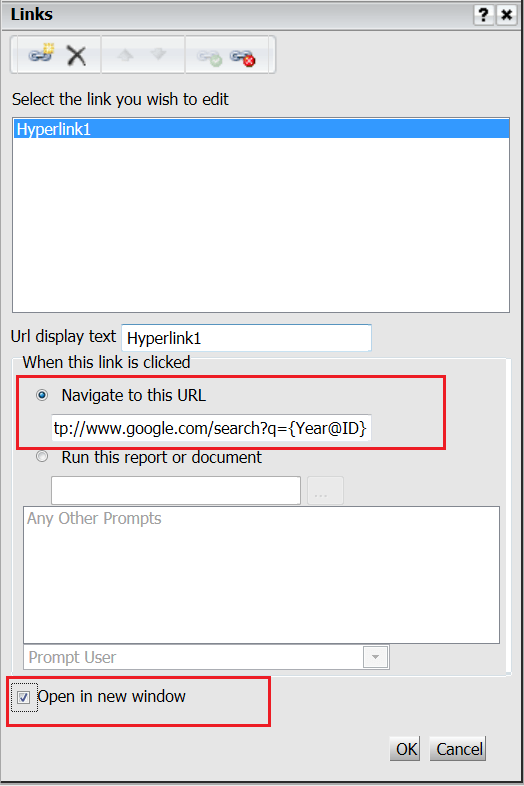
  4. Right-click the text box and select Edit Links. Define the following sample URL under "Navigate to this URL", as shown below:
ka04W000000OaWiQAK_0EM4400000027J8.png

 
URL
http://www.google.com/search?q={Year@ID}
 

  • Run the document and click the link in the text box. Note that the dynamic text is not resolved.

 
CAUSE
This is working by design in Strategy Web 9.x.
 
ACTION
Use hyperlink instead by the following steps:

  • Right-click the text box and select Properties and Formatting.
  • Check "Is hyperlink" box and define the URL in Hyperlink box, as shown below:
     
ka04W000000OaWiQAK_0EM4400000027JI.png
  • Run the document and click the link in the text box. Note that the dynamic text is rendered correctly, as shown below:
     
ka04W000000OaWiQAK_0EM4400000027JB.png


KB4389


Comment

0 comments

Details

Knowledge Article

Published:

July 10, 2017

Last Updated:

December 5, 2018