SUMMARY
This Knowledge Base article describes an issue classified as a defect by Strategy. In Enterprise Manager 10.7 and newer (and 10.4 Hotfix 5 and newer hotfix versions), the Connection Duration attribute will show that every session is 24 hours after running a data load with the CLOSESESSIONS action. This issue has been fixed in Enterprise Manager 10.11 and 10.4 Hotfix 7.
BACKGROUND
In Enterprise Manager 10.x, there may be sessions that are listed as open in the statistics database. These "orphan sessions" indicate that a session was initiated in the Intelligence Server, but no information was recorded when the session ended. If these orphan sessions remain open, during the next data load, their disconnect time will be updated to the date/time that the data load was run. Therefore, these sessions may show an inflated Connection Duration depending on how soon the next data load is run after the connection is opened.
The CLOSESESSIONS command is intended to resolve this issue by setting all orphan sessions to a disconnect time of 24 hours after the connection was created.
SYMPTOM
After running a data load with the CLOSESESSIONS command, examining the IS_SESSION table, IS_PROJECT_FACT_1 table, or an Enterprise Manager report containing User, Day and Connection Duration will show that the duration is 24 hours per every user session:

For example, in the table above, User 1 has 3 sessions on 6/12/2017 and a total Connection Duration of 72 hours (3 x 24 hour long sessions).
STEPS TO REPRODUCE
1. Create a data load with containing the CLOSESESSIONS command in Command Manager:
CREATE DATA LOAD "Data Load" FOR ENVIRONMENT "server1" AND PROJECT "Strategy Tutorial" DO ACTION UPDATEWAREHOUSE CLOSESESSIONS....;
LIST ALL DATA LOADS IN ENTERPRISE MANAGER "<em_machine>" IN PORT <PORT>;
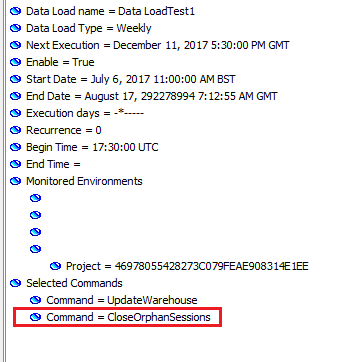
3. Execute the data load containing the Close Orphan Sessions command.
4. All sessions less than 24 hours for any projects or servers contained in the data load will be updated to a Connection Duration of 24 hours.
CAUSE
Due to a defect in the script called by the CLOSESESSIONS command in Enterprise Manager 10.4 Hotfix 5 and 10.7 and higher versions, all sessions that had a length of under 24 hours will be updated with the 24-hour length instead of only the orphan sessions. Sessions that were originally greater than 24 hours will still show the correct connection duration in EM reports.
ACTION
This issue has been fixed in Enterprise Manager 10.11 and 10.4 Hotfix 7.
An updated script has been created and attached to this article which can be used to fix the CLOSESESSIONS command in Enterprise Manager 10.x. This updated script for CLOSESESSIONS will allow orphan sessions to properly close with a disconnect time of 24 hours later and will not change the disconnect time for already closed sessions.
To apply the fix:
1. Locate the Enterprise Manager close orphan session scripts on the Enterprise Manager machine. By default on Linux, these files will be located in /{MSTR INSTALL PATH}/ EnterpriseManager/Scripts. On Windows, the default location is C:\Program Files (x86)\MicroStrategy\Enterprise Manager\Scripts.
The files are named in the following format:
em_close_orphan_session_{database type}
2. Unzip the file attached at the bottom of this article. Inside the zip file, there are replacement scripts for each of the em_close_orphan_session_{database type} scripts.
3. Replace each of the existing em_close_orphan_session scripts for every database type with the scripts in the zip file.
3. The CLOSESESSIONS action should be added to the data load in order to properly close any future orphan sessions that are created.
CREATE DATA LOAD "Data Load close sessions" FOR ENVIRONMENT "Server Name" AND PROJECT "Strategy Tutorial" DO ACTION UPDATEWAREHOUSE CLOSESESSIONS BEGIN DATE "07/06/2017 10:00:00 +0000" FREQUENCY WEEKLY ON MONDAY AT 17:30:00 ENABLED IN ENTERPRISE MANAGER "EM machine name" IN PORT 9999;
