EducationSoftwareStrategy.com
StrategyCommunity

Knowledge Base

Product

Community

Knowledge Base

TopicsBrowse ArticlesDeveloper Zone

Product

Download SoftwareProduct DocumentationSecurity Hub

Education

Tutorial VideosSolution GalleryEducation courses

Community

GuidelinesGrandmastersEvents
x_social-icon_white.svglinkedin_social-icon_white.svg
Strategy logoCommunity

© Strategy Inc. All Rights Reserved.

LegalTerms of UsePrivacy Policy
  1. Home
  2. Topics

KB439100: "JVM terminated. Exit code=2" Error Occurs After Launching Eclipse With MicroStrategy's Web Customization Editor 10.x


Rebecca Lam

Senior Customer Success Manager, Enterprise • MicroStrategy


This knowledge base articles provides a solution when JVM terminated. Exit code=2 error occurs after launching Eclipse with MicroStrategy's Web Customization Editor 10.x

SUMMARY
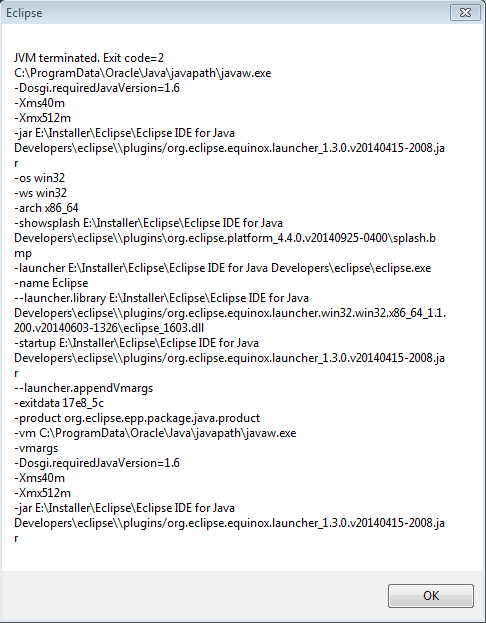
The following error may occur when opening Eclipse after adding the Web Customization Editor plugin 10.x to your Eclipse plugin folders:
ka02R000000kb34QAA_0EM44000000Q8er.png

CAUSE
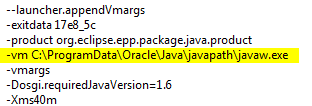
One cause is that the Java Runtime may not be specified properly within the machine's environmental variables. In the screenshot above, the runtime (-vm) is set to C:\ProgramData\Oracle\Java\javapath\javaw.exe:
ka02R000000kb34QAA_0EM44000000Q8gs.png

This is the default value and Eclipse returned the error because this file does not exist.
ACTION
Add the JRE directory to the Windows Environmental Variable "PATH".
  • First, locate the jre that is installed on the machine.  If Strategy is installed on the same machine, the JRE should already be installed in the following two default locations.  Depending on the version of Eclipse installed (32-bit or 64-bit), use the corresponding JRE locations (again, navigate to the folder on the machine to ensure correct JRE folder location, the below are samples ONLY):
    • D:\Program Files (x86)\Common Files\Strategy\JRE\180_77\Win32\bin
    • D:\Program Files (x86)\Common Files\Strategy\JRE\180_77\Win64\bin
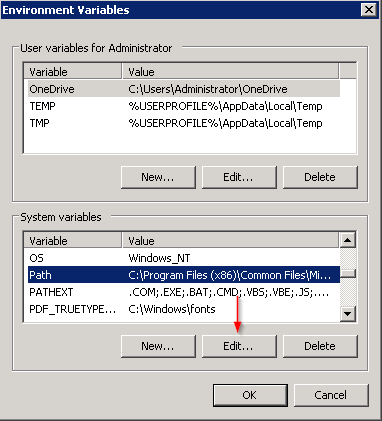
  • Select Start, select Control Panel. Double click System, and select the Advanced tab. Click Environment Variables. ...
  • Add the 32-bit or 64-bit to the "PATH" variable in the System Variables
    • To add a directory to the existing "Path" variable, highlight "Path" and click "Edit..."
ka02R000000kb34QAA_0EM44000000Q8gT.png
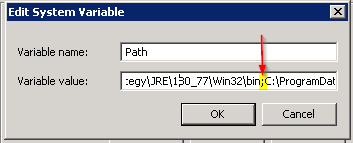
    • Add the directory at the beginning of the variable path and add a the semi-colon (;) after to indicate the end of the directory path.  For example:
ka02R000000kb34QAA_0EM44000000Q8gi.png
    • Click Ok to exit out of all the Windows.
    • Relaunch Eclipse.exe

KB439100


Comment

0 comments

Details

Knowledge Article

Published:

November 28, 2017

Last Updated:

December 31, 2018