EducationSoftwareStrategy.com
StrategyCommunity

Knowledge Base

Product

Community

Knowledge Base

TopicsBrowse ArticlesDeveloper Zone

Product

Download SoftwareProduct DocumentationSecurity Hub

Education

Tutorial VideosSolution GalleryEducation courses

Community

GuidelinesGrandmastersEvents
x_social-icon_white.svglinkedin_social-icon_white.svg
Strategy logoCommunity

© Strategy Inc. All Rights Reserved.

LegalTerms of UsePrivacy Policy
  1. Home
  2. Topics

KB439121: How to enable the Export Engine trace on the CastorServer instance level in the MicroStrategy Diagnostics and Performance Logging Tool on a Windows machine with MicroStrategy version 10.x.


Shane Winslow

Cloud Support Expert I • MicroStrategy


This article outlines how to enable the export engine trace in the MicroStrategy Diagnostics and Performance Logging Tool on a Windows machine. Registry keys and settings need to be added to enable the export engine trace.

SYMPTOM
Strategy Technical Support will at times request an export engine trace to troubleshoot an issue. The export engine trace is enabled in the Strategy Diagnostics and Performance Logging Tool. In most scenarios, this trace will be requested to be logged on the CastorServer instance level. But in some Windows installations, the export engine trace is only available on the Machine Default level. To enable export engine trace on the CastorServer instance level, a new key for the export engine will need to be added to the registry.

ka044000000kOcwAAE_0EM44000000Q9AJ.png

ACTION
Add a new key for the Export Engine in the registry.
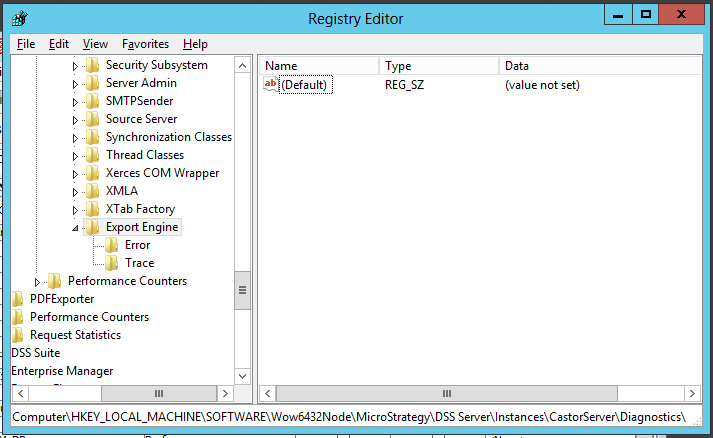
  1. Open the registry by entering “Regedit” in the command window.
  2. Go to ‘HKEY_LOCAL_MACHINE\SOFTWARE\Wow6432Node\MicroStrategy\DSS Server\Instances\CastorServer\Diagnostics\Log2’.
  3. Add the necessary keys and settings as seen in the screenshots below. 
ka044000000kOcwAAE_0EM44000000Q9AO.png
ka044000000kOcwAAE_0EM44000000Q9AT.png
ka044000000kOcwAAE_0EM44000000Q9AY.png

WARNING
Modifying registry values incorrectly may cause serious, system-wide problems that may require the re-installation of Microsoft Windows. Any edit of the registry is done at the user's own risk. Since these are user-initiated changes, they are not covered by any Strategy warranty. If using Microsoft Windows, the user should back up the registry and/or update an Emergency Repair Disk prior to alterations.
Article Reference Number: 
KB439121 KB439121


Comment

0 comments

Details

Knowledge Article

Published:

November 30, 2017

Last Updated:

January 1, 2019