EducationSoftwareStrategy.com
StrategyCommunity

Knowledge Base

Product

Community

Knowledge Base

TopicsBrowse ArticlesDeveloper Zone

Product

Download SoftwareProduct DocumentationSecurity Hub

Education

Tutorial VideosSolution GalleryEducation courses

Community

GuidelinesGrandmastersEvents
x_social-icon_white.svglinkedin_social-icon_white.svg
Strategy logoCommunity

© Strategy Inc. All Rights Reserved.

LegalTerms of UsePrivacy Policy
  1. Home
  2. Topics

KB439180:How to configure Tivoli with MicroStrategy Library


Community Admin

• Strategy


This Knowledge Base article discusses how to setup and configure Tivoli for MicroStrategy Library.

Description

With the 10.9 release, Strategy has introduced a new application called Library, which allows users to interact with their analytics from any device and to collaborate across their organization. Similar to the Strategy Web application, Library connects to your Intelligence Server and supports multiple different methods of authentication, including Single Sign-On (SSO) providers, such as IBM Tivoli. Library can be configured to work with Tivoli by following the steps below.
 

Steps to setup Tivoli for Library


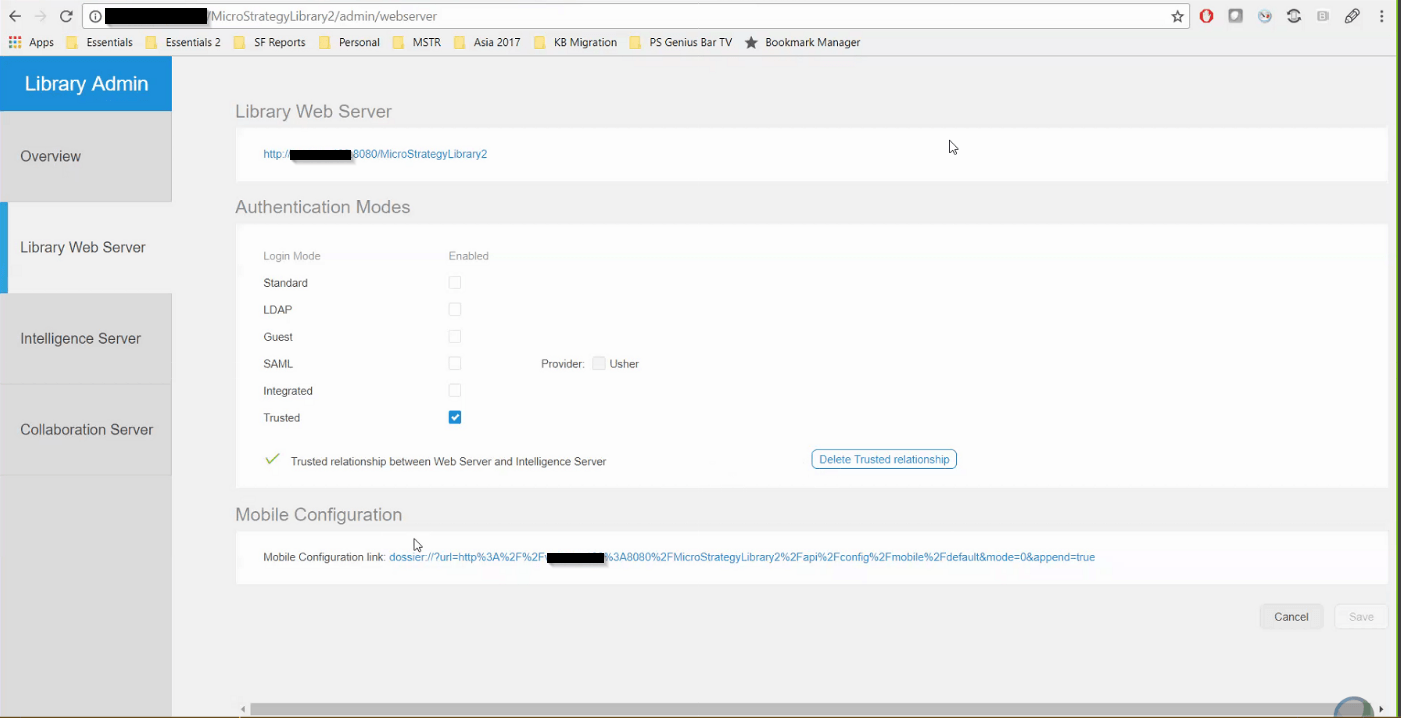
  • Navigate to the Strategy Library Admin page and go to the Library Web Server Tab (Documentation)
  • Check the box for 'Trusted' under Authentication modes
  • After being checked, a button stating “Create Trusted Relationship” will display. Create the relationship by providing administrator credentials using Standard authentication
  • Click 'Save' on the bottom right.
ka04W00000148wyQAA_0EM44000000QAEb.png


  • Go to Strategy Developer and log in to the Project Source for the Intelligence Server configured to Library
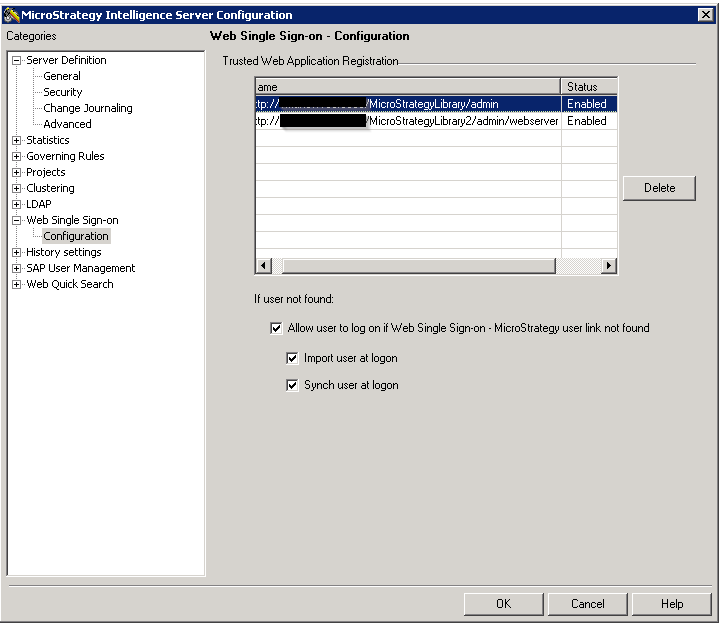
  • Verify the trust token was created properly by right clicking on the Project Source and choosing Intelligence Server Configuration -> Web Single Sign-on -> Configuration.
ka04W00000148wyQAA_0EM44000000QAEg.png


  • From the machine in which LIbrary has been deployed, navigate to the following path: <Web Server Machine Path>\MicroStrategyLibrary\WEB-INF\classes\config\
  • Locate and open/edit the configOverride.properties file
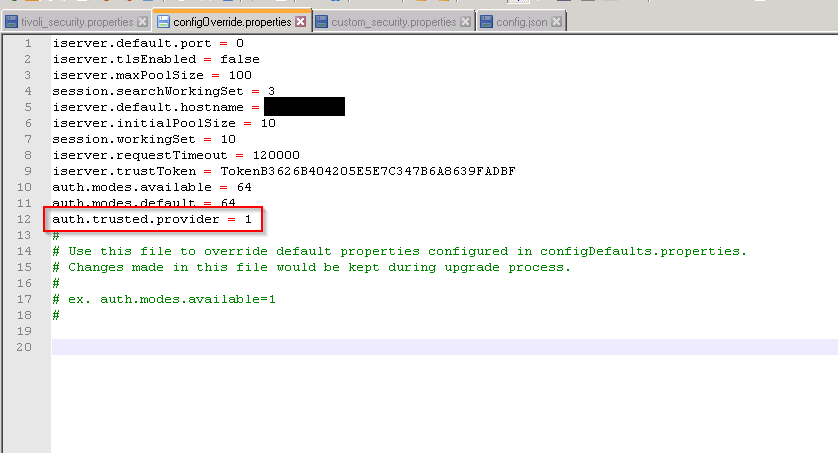
  • Review the file to ensure all entries match the ones seen in the following screenshot (namely iserver.trustToken and auth.trusted.provider). Ensure auth.trusted.provider is set to 1 and save the file.
ka04W00000148wyQAA_0EM44000000QAEq.png


  • While still on the machine where Library has been deployed, navigating into the following path: <Web Server Machine Path>\StrategyLibrary2\WEB-INF\classes\resources\
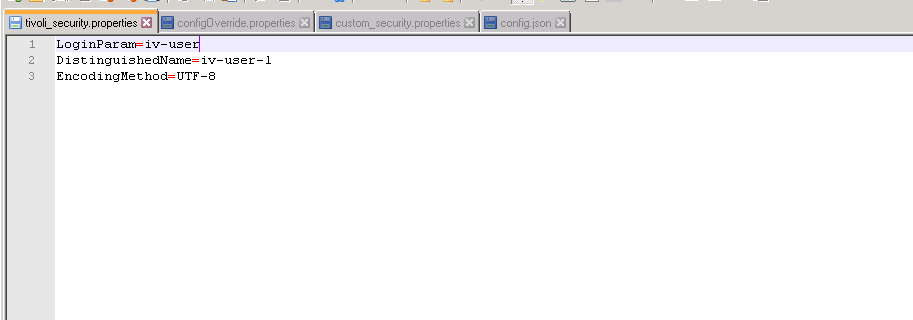
  • Locate and open/edit the tivoli_security.properties file. Verify the following three lines are present. Ensure that the parameter values match what has been configured in Tivoli. The screenshot below shows the set defaults.
ka04W00000148wyQAA_0EM44000000QAEv.png


  • After completing all of the above steps, restart your web server application


KB439180


Comment

0 comments

Details

Knowledge Article

Published:

December 6, 2017

Last Updated:

December 31, 2018