SYMPTOM
After installing Strategy and Visual Studio, open Visual Studio, go to File, New, Project, click the FPWizard VC++, template, click OK and nothing happens (no error). The user is not able to create Strategy Function using Strategy Function Plug-in Wizard in Visual Studio.
STEPS TO REPRODUCE
1) Open MS Visual Studio.
2) Go to File -> New -> Project -> click the FPWizard VC++ -> template.
3) Fill the required information – Name, Location and Solution name.
4) Click OK and nothing happens (no error).
CAUSE
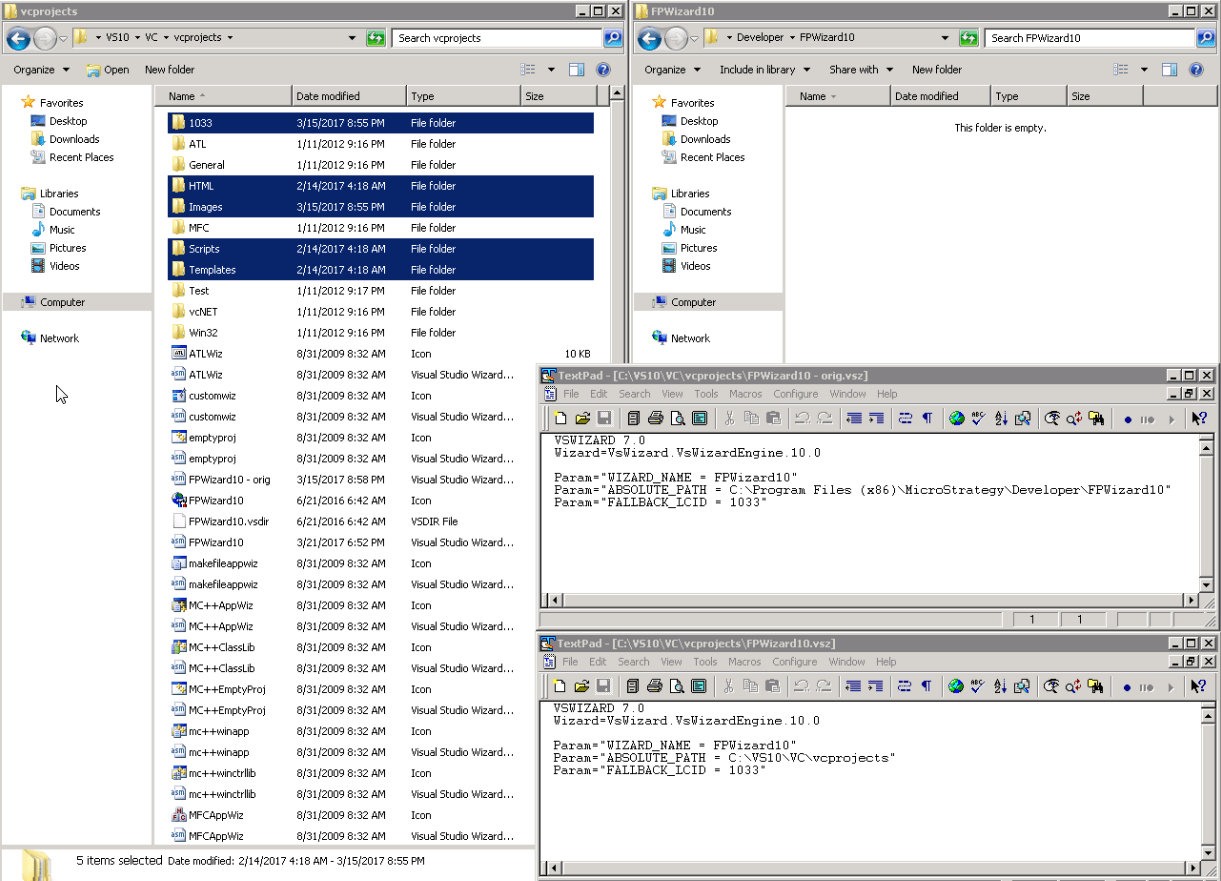
This is caused by the FPWizard10.vsz file pointing to the wrong ABSOLUTE_PATH "C:\Program Files (x86)\MicroStrategy\Developer\FPWizard10".
ACTION
To fix this issue, search the system for the location of the FPWizard10.vsz and change the ABSOLUTE_PATH parameter to this location, or move the function plug-ins folders (1033, HTML, Images, Scripts, Templates) from that location into the default FPWizard10.vsz ABSOLUTE_PATH "C:\Program Files (x86)\MicroStrategy\Developer\FPWizard10" and re-launch visual studio.
Note: Starting in version 10.6, the preferred function plug-in solution is now the R Integration Pack. For more information, see the following Strategy documentation: https://fpwizard.codeplex.com/
Article Reference Number: KB439204
