SYMPTOM
When Users upgrade an Enterprise Manager Project via Configuration Wizard they may get the error message informing that EM Project doesn't exsist in the metadata, even if it is present there.
"Project does not exsist"
There is no Enterprise Manager Project present in this metadata. If you would like to create the Enterprise Manager Project in the current metadata, please click Yes to go to the 'Create Enterprise Manager Project' option. Click No to go back."
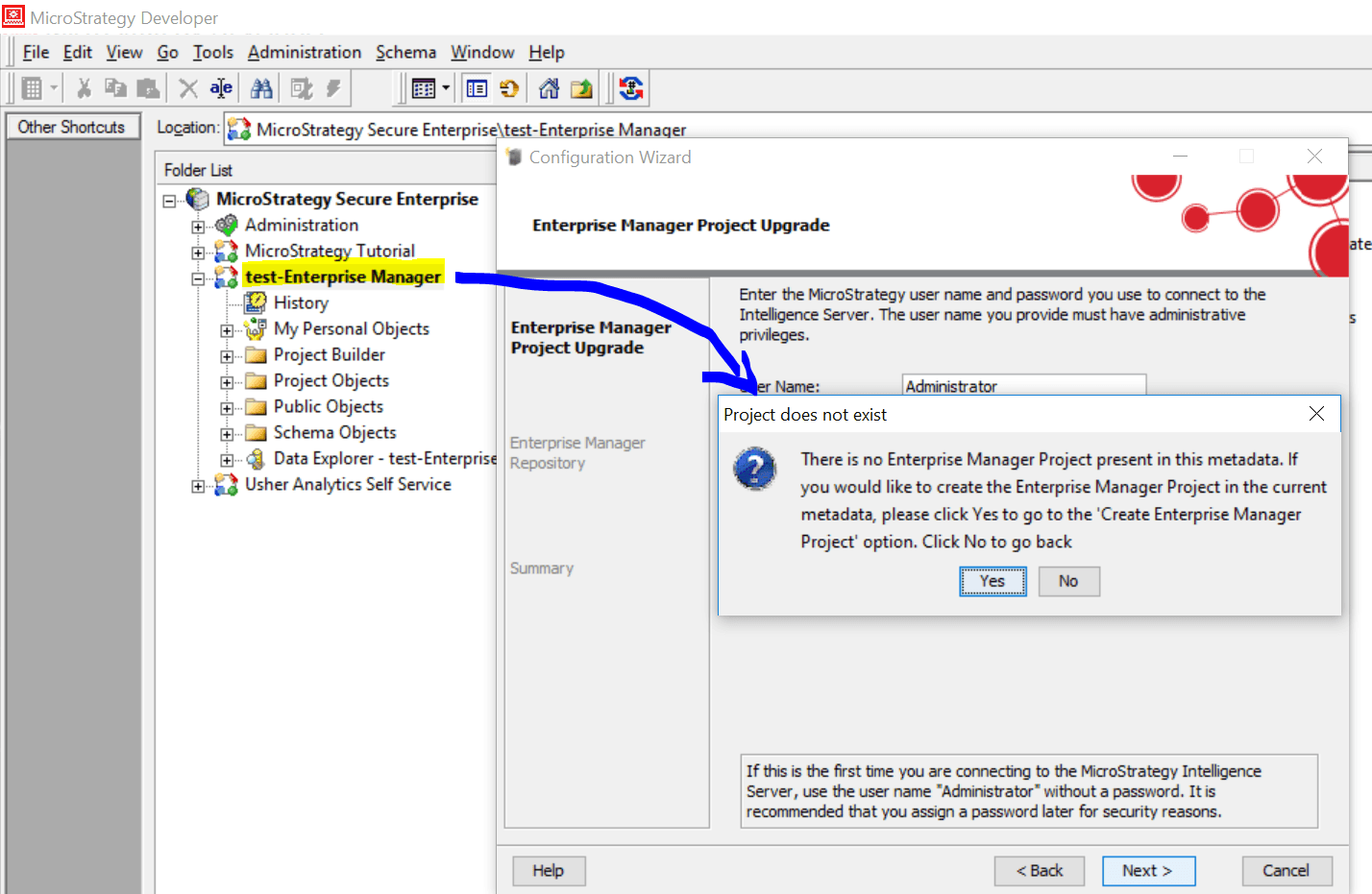
STEPS TO REPRODUCE
1. In Developer, change the default "Enterprise Manager" name for your project (like the example in the screenshot);
2. Open Configuration Wizard -> Upgrade existing environment to Strategy Analytics Enterprise -> Upgrade Enterprise Manager Project -> Provide Credentials;
3. If your project is renamed - you will see the error message.
CAUSE
The behavior is caused by renamed "Enterprise Manager" project that is not recognized during the upgrade process. That is why User is informed that the project cannot be found.
ACTION
This is working as designed in 10.4 and newer Strategy releases. There's an enhancement request logged internally to enable upgrade of Enterprise Manager project with non-default name. Currently only Enterprise Manager project with its default name can be upgraded. Please contact Strategy Technical Support for the latest updates.
WORKAROUND
While Strategy is considering possible changes in the upcoming releases one of the following workarounds can be applied:
1. Object Manager:
Open Object Manager
Login to the correct project source which contains the renamed EM project
Open the renamed EM project
Choose "import package"
Find the updated EM package under the folder path: C:\Program Files (x86)\Common Files\MicroStrategy\OOTB-EM.mmp
2. Command Manager:
Open Command Manager
Run the below commands after after modifying for the customers environment:
CONNECT SOURCE "<project source>" USER "<user login>";
IMPORT PACKAGE "C:\Program Files (x86)\Common Files\MicroStrategy\OOTB-EM.mmp" FOR PROJECT "<renamed EM project>";
3. Configuration Wizard:
Temporarily rename the project back to Enterprise Manager
Upgrade EM project through config wizard.
Revert the name change to desired naming convention
KB439263
