EducationSoftwareStrategy.com
StrategyCommunity

Knowledge Base

Product

Community

Knowledge Base

TopicsBrowse ArticlesDeveloper Zone

Product

Download SoftwareProduct DocumentationSecurity Hub

Education

Tutorial VideosSolution GalleryEducation courses

Community

GuidelinesGrandmastersEvents
x_social-icon_white.svglinkedin_social-icon_white.svg
Strategy logoCommunity

© Strategy Inc. All Rights Reserved.

LegalTerms of UsePrivacy Policy
  1. Home
  2. Topics

KB439281: MicroStrategy Office 9.x - 10.x tab disappears in MS Excel due to Hard Disabling


Community Admin

• Strategy


This article provides the troubleshooting steps to re-enable MicroStrategy Office Add-In after its Hard Disabling in MS Excel.

SYMPTOM
Strategy Office tab disappears in MS Excel after some changes done to the operation system
CAUSE
Hard disabling can occur when a Strategy Office Add-in causes the application to close unexpectedly. It might also occur after Microsoft updates installation or any other system upgrades/enhancements.
ACTION
Follow the steps below to re-enable Strategy Office Add-In
1. In the application click File tab:
   

ka04W000000ObVzQAK_0EM44000000QCVe.png

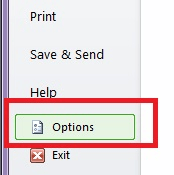
2. Click Options button:
   

ka04W000000ObVzQAK_0EM44000000QCVj.png

3. In the Categories pane, click Add-Ins:
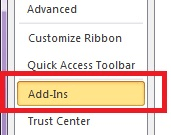
   

ka04W000000ObVzQAK_0EM44000000QCVo.png

4. In the Details pane, verify that Strategy Office Add-In appears in the Disabled Application Add-Ins list.
    The Name column specifies the name of the assembly and the Location column specifies the full path of the application manifest.

ka04W000000ObVzQAK_0EM44000000QCVt.png

5. In the Manage box, click Disabled Items and then click Go:


ka04W000000ObVzQAK_0EM44000000QCVy.png

6. Select Strategy Office Add-In and click Enable:
  

ka04W000000ObVzQAK_0EM44000000QCW3.jpeg

7. Click Close.
8. Restart MS Excel to apply the changes made. KB439281


Comment

0 comments

Details

Knowledge Article

Published:

December 21, 2017

Last Updated:

December 6, 2018