Starting in Strategy 10.7, it is possible to change default font for PDF cover page exporting.
With the default setting, double byte characters like Japanese or Chinese, are not displayed even if related font has been installed in I-server and set in report and they are correctly displayed in PDF report export. The problem would exist in PDF cover page.
This font configuration in registry will not only affect the font in cover page, but also the default font for Page header/footer and Error messages.
Below are the steps to set font via Registry editor or editing Registry file.
1.Add registry key with following path:
Windows:
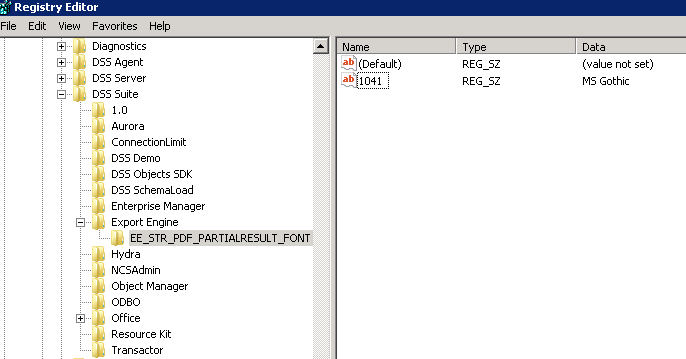
HKEY_LOCAL_MACHINE\SOFTWARE\Wow6432Node\MicroStrategy\DSS Suite\Export Engine\EE_STR_PDF_PARTIALRESULT_FONT
Linux:
HKEY_LOCAL_MACHINE\SOFTWARE\MicroStrategy\DSS Suite\Export Engine\EE_STR_PDF_PARTIALRESULT_FONT
2.Add a string value, whose name is the locale, and whose Data is the Font name.
For example, for Japanese Language, the Locale is 1041 and user wants to use the font MS Gothic in cover page.
Then the string value should be like, 1041: MS Gothic, as shown in the screenshot below.
Windows:
Linux:

Note:
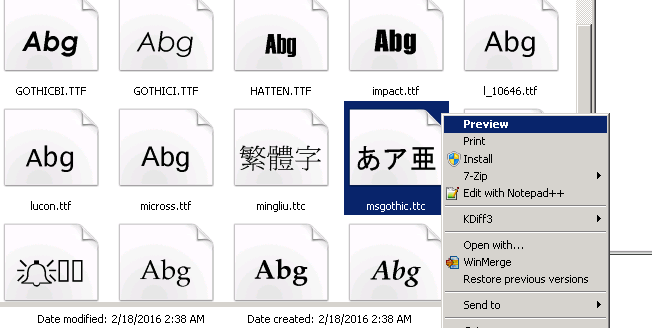
As for how to find the font name, please go to the font folder from which I-server fetch font. Right click the font and click Preview.
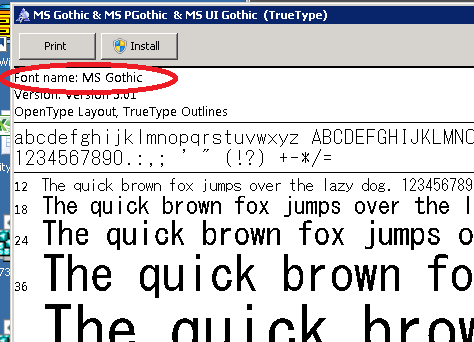
The font name can be confirmed on the top line of the font preview window.
3.Restart Intelligence server services
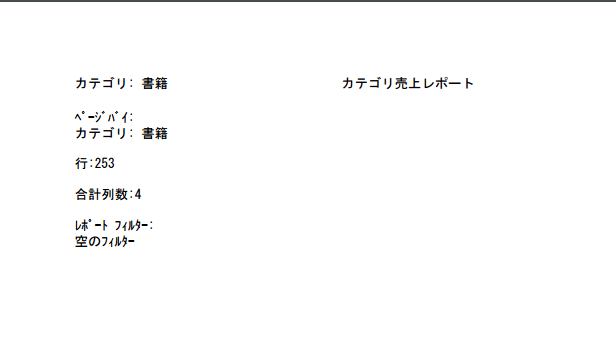
After above change, the Japanese characters are displayed with the specified font in cover page.
Please be noted above setting can only be applied to Strategy 10.7 or above.
The Strategy Internal Reference Number for the issue discussed in this technical note is DE39385.
Registry Modification Warning:
Modifying registry values incorrectly may cause serious, system-wide problems that may require the re-installation of Microsoft Windows. Any edit of the registry is done at the user's own risk. Since these are user-initiated changes, they are not covered by any Strategy warranty. If using Microsoft Windows, the user should backup the registry and/ or update an Emergency Repair Disk prior to alterations.
KB439299 KB439299
