SYMPTOM:
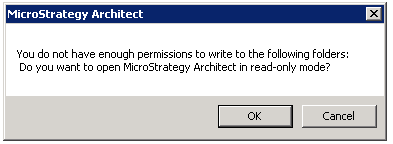
When a user in Strategy Developer tries to open Architect they are met with the following error:
Sample Code/Error
You do not have permission to write to the following folders:
Do you want to open Strategy Architect in read-only mode?
It should be noticed that no folders are listed, and after checking the folder and object ACLs in the project, that all things look correct. It should also be noted that all users see this message including the Strategy Administrator with 'Bypass all Object Security' privilege.
CAUSE:
It was a found that a system created folder was deleted from the project. In this particular case, it was the Fact folder in the Schema Folder. It has been shown that this error will be shown if any folder from the Schema folder is deleted.
ACTION:
To find the folder that may be missing the user can check the DSSErrors.log after receiving the error. The should see an error along the lines of "Object with ID ' ' and type 8 (Folder) is not found in metadata. It may have been deleted."

They can than search in an unaffected project using the Object ID obtained from the error message.
For more information on searching with Object ID, please see KB33727
A user can migrate the folder from another project where it is exist using Object Manager. This can be done either using a drag and drop method, or with an object Manager package.
For more information regarding Object Manager Package creation please see KB31821
In the event that all projects face this issue or the folder that is missing contains a large amount of objects, users can create a new project, and migrate the folder from this project to ones that are effected using the aforementioned method. This folder is created at project creation time with no subfolder or object in it.
Do not delete any system generated folders, these include all folders created by the system under the Schema Objects, Public Objects, Project Objects, or Project Builder folders, doing so may result in further complications in that particular project.
